
You don’t use any third-party social networking site or app but you need to send your location to someone urgently. Well, then there is nothing to worry about, in this article we have discussed an option/method with which you can Send Your Location in Text Message on Android.
If your earlier used any iPhone then you might be well known with these type of features, Apple’s iMessage have this feature from a long time. But now on Android, you can also share your real-time location with friends and family members, but you need to have appropriate apps i.e., Google Messages app.

Don’t want to miss the best from TechLatest ? Set us as a preferred source in Google Search and make sure you never miss our latest.
Content Table
Steps to Send Your Location in Text Message on Android
In this tutorial, we are going to use the default Messages app in a stock Android device.
First, download and install Messages App from Play Store.
After opening the app, accept all of the permissions and let the app install properly on the device.
Make sure to set the Android Messages as a default messaging app for Android.
After completion of setup, create a new conversation or open an existing conversation.
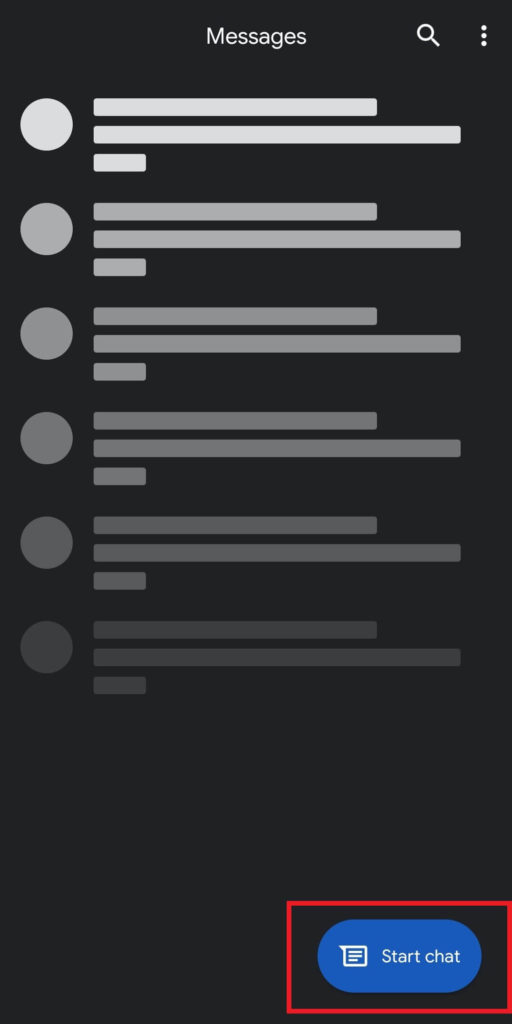
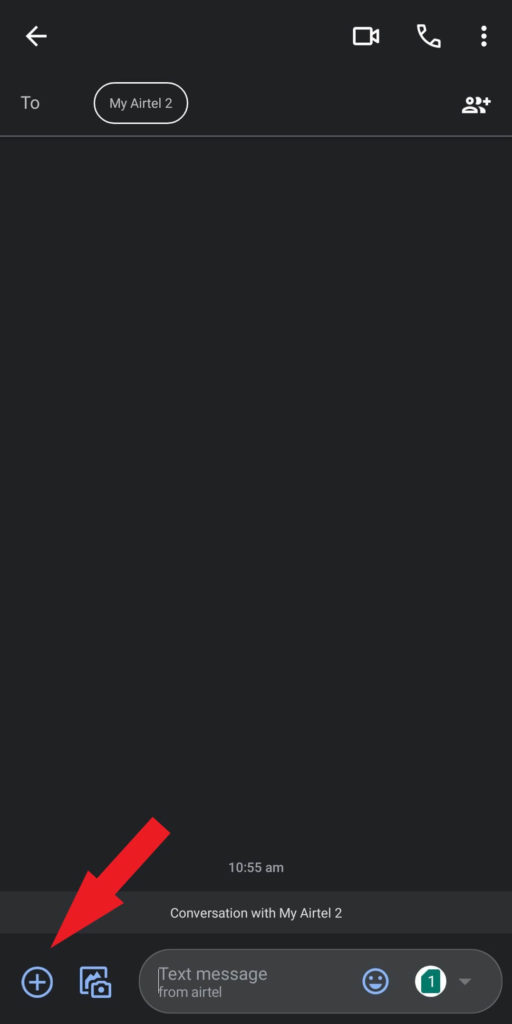
- Then tap on the Plus icon.
- Now, finally tap on the Location section.
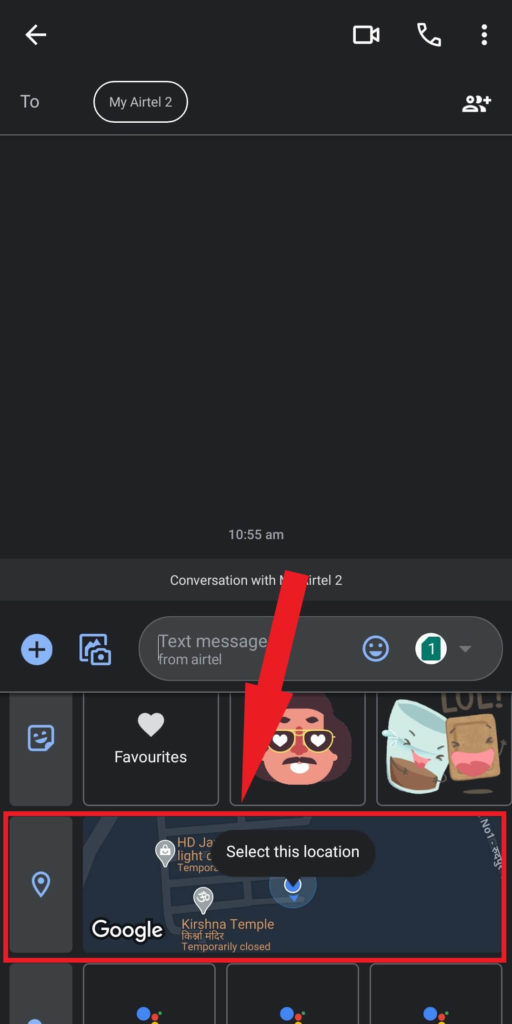
- GPS will now search for your current location and it will point it on the Google Maps.
- Simply select your location and approve it for the message.
- Once approved you shall be able to get the location thumbnail inside the message.
Final Words
In this way, you can Send Your Location in Text Message on Android smartphone. This is most simple way to do so. If you have any other doubts related to this, let us know in the comment box below. Hope this article helped you share it with your friends also.
More Like This
- How to Use GIFs as Live Wallpaper on Android?
- How to Create Your Own WhatsApp Stickers in 2020
- How to Use Android Phone as Webcam in Windows 10?
Enjoyed this article?
If TechLatest has helped you, consider supporting us with a one-time tip on Ko-fi. Every contribution keeps our work free and independent.
