Highlights
- Hardware acceleration shifts demanding visual tasks from your CPU to your GPU, which results in an additional performance boost but tends to be the cause of workspace instabilities as well.
- The setting is fairly easy to toggle in Chrome’s system menu, so it’s easy to play around with and see if your computer runs better with it on or off.
- As results differ from Hardware and operating systems, it is best to try both modes and see which provides a stable browsing experience.
Google Chrome is one of the most popular web browsers around, but it uses a lot of your system’s resources. Any time you have a lot of extensions or applications running, along with plenty of tabs, it can also put a lot of strain on your browsing capabilities.
But sometimes Chrome can choke a bit even if your PC is relatively powerful or, worse, fall victim to glitches such as Laggy videos, screen tears, or even complete lockups. One such suspect setting in many cases may be hardware acceleration.
Don’t want to miss the best from TechLatest ? Set us as a preferred source in Google Search and make sure you never miss our latest.
In this guide, you’ll learn what hardware acceleration is, its benefits, the caveats of universal acceleration in Chrome, how to turn it on or off for various OSs (Windows, macOS, Linux, and ChromeOS ), and how to fix related issues.
Also, Read : Best Chromium-Based Browsers
Content Table
What is Hardware Acceleration in Chrome?
At a high level, hardware acceleration is a technique in which you let your Chrome browser hand off specific tasks (e.g., rendering graphics, playing video or running animation) to the GPU (graphics processing unit) in your System rather than the CPU (central processing unit).
- Without hardware acceleration , your CPU has to do all the work of video decoding and graphics processing. This can slow down your computer, especially if you have many things open at the same time.
- With hardware acceleration , Chrome relies on your GPU to manage graphics-intensive functions, so your CPU is available for doing other stuff.
Real-world examples:
- Streaming HD or 4k YouTube videos with no lag.
- Playing smooth, browser-based games.
- Graphic-heavy web apps like Figma or Canva.
Pros and Cons of Hardware Acceleration
Like most settings, hardware acceleration isn’t a one-size-fits-all solution.
Pros:
- Better video playback : Video streams on sites like YouTube and Netflix.
- Reduced CPU usage : Keeps your computer more responsive when you are multitasking.
- Improved graphics rendering : Helps with online games or 3D web applications.
Cons:
- Glitches: Videos flicker or web pages look weird sometimes.
- Crashes: Chrome can crash due to outdated GPU drivers.
- System compatibility problems: Old equipment may not be so good at acceleration.
Read : Guide to Optimize Windows 11 for Gaming Performance
How to Turn Hardware Acceleration On and Off in Chrome
The process is easy and works on any device, but just in case, let’s do it step by step.
1. For Windows and macOS
Since most Chrome users are on Windows or macOS, we’re covering both how to disable and re-enable hardware acceleration in the browser. The feature can be turned on or off in the settings menu after just a few clicks, and with it turned off, you will have a much better experience.
- Open Google Chrome .
- Click on the three-dot menu (top-right corner).
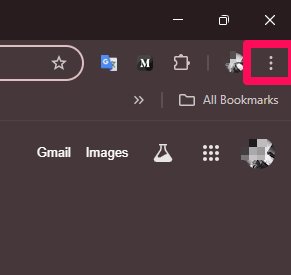
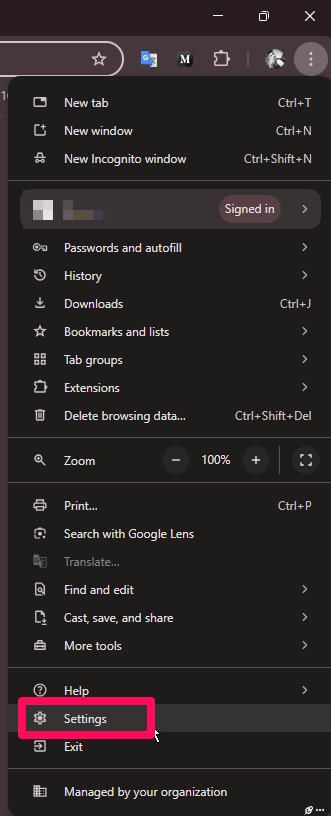
- Go to Settings .
- Scroll down and click System (in the left-hand sidebar).
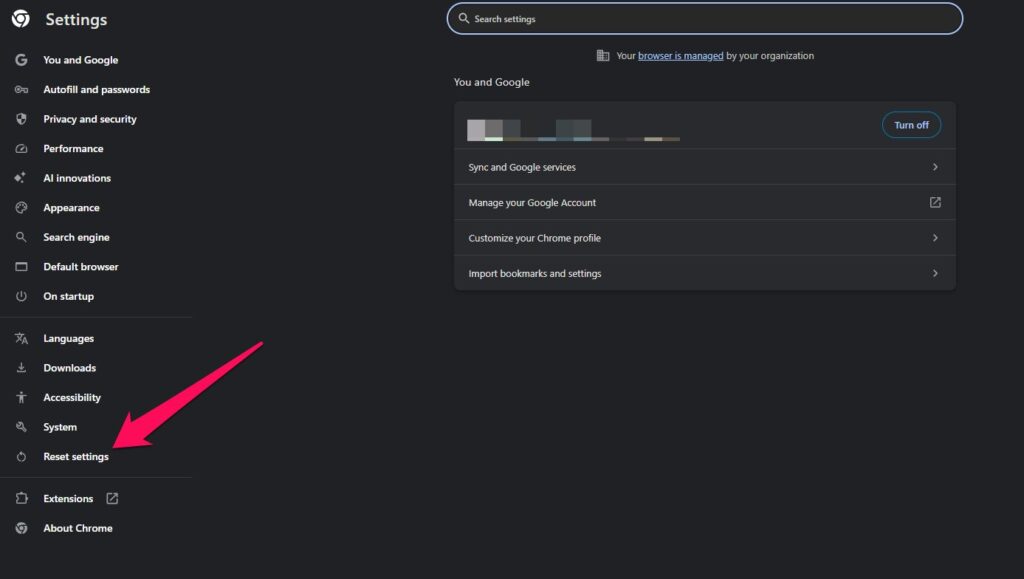
- Find Use hardware acceleration when available .
- Toggle the switch On (to enable) or Off (to disable).
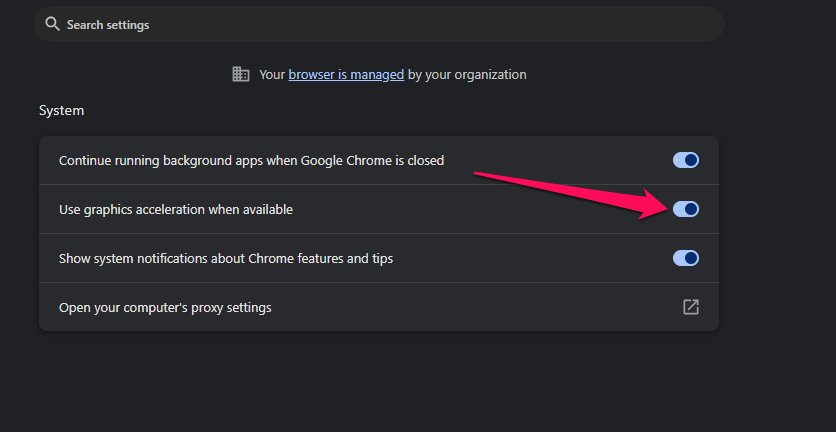
- Click Relaunch to restart Chrome and apply changes.
2. For Linux (Ubuntu/Debian/Fedora)
In Linux, Chrome will sometimes have hardware acceleration turned off by default because of driver compatibility.
- Open Chrome and type chrome://settings/system in the address bar.
- Toggle Use hardware acceleration when available .
- Restart Chrome.
- To verify, type chrome://gpu in the address bar and check if GPU features are “ Hardware accelerated. ”
3. For ChromeOS (Chromebooks)
Since ChromeOS is built around Chrome, enabling/disabling hardware acceleration is almost identical to Windows/macOS.
- Open Chrome Settings .
- Go to System .
- Toggle Use hardware acceleration when available .
- Relaunch Chrome.
Read : 3 Best CPU-GPU Bottleneck Calculators
How to Confirm If Hardware Acceleration Is Working
When you have it and you’ve turned it on, you’ll probably want to check to see if Chrome is really using your GPU.
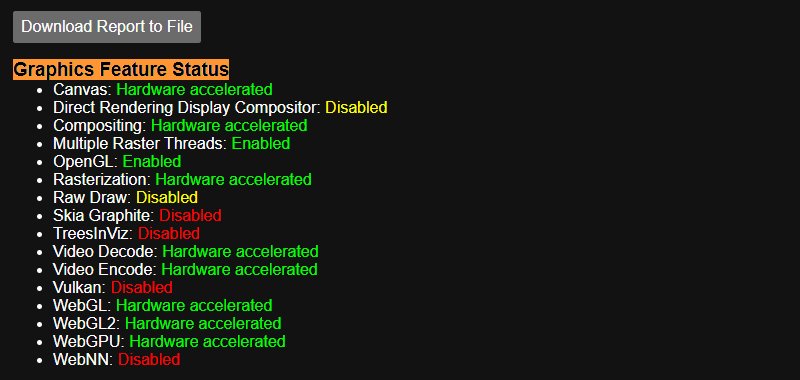
- In Chrome, type: chrome://gpu
- Look under Graphics Feature Status . If it says Hardware accelerated , then it’s working. If it says Software only, hardware acceleration disabled, it’s not on.
When Should You Turn It On or Off?
- Turn it ON if: You watch lots of HD/4K videos. You use design or editing web apps. Your System has a capable GPU.
- Turn it OFF if: Chrome crashes or freezes. You see video glitches or screen tearing. You’re using older Hardware.
Does hardware acceleration make Chrome faster?
Yes, in most cases. It pushes heavy lifting to the GPU.
Why is my Chrome lagging with hardware acceleration on?
Maybe outdated drivers or incompatible with the GPU. Try turning it off.
Can I enable hardware acceleration on all devices?
Yes, but results vary. Chromebooks and Macs generally manage it better than older Windows PCs.
Can hardware acceleration affect gaming performance?
Browser-based games can get better, but not client PC games.
Does disabling hardware acceleration harm my computer?
No, it only means your CPU does more work.
Is it safe to use Chrome flags for GPU?
Yes, but they’re experimental and may cause instability.
Why is hardware acceleration disabled by default on Linux?
Driver compatibility issues. Users can enable it manually.
Final Takeaway
Hardware acceleration in Chrome is a beneficial setting that makes video and image playback smoother and faster. But it’s not always seamless; there are crashes or glitches in some systems.
The good news is Chrome makes it simple to turn this feature on or off. If you run into trouble, just turn it off to restore things to normal. For power users, there are Chrome flags and even more control with GPU checks.
So, that’s all we have for you about how to Turn Hardware Acceleration On and Off . We hope that this guide has helped you. For more info, comment below and let us know.
Read : What’s My Motherboard? 5 Easy Ways to Find Out Your Motherboard
Enjoyed this article?
If TechLatest has helped you, consider supporting us with a one-time tip on Ko-fi. Every contribution keeps our work free and independent.
