
Don’t want to miss the best from TechLatest ? Set us as a preferred source in Google Search and make sure you never miss our latest.
Also, Read : How To Disable Video Auto-Play Option On Facebook
Content Table
- Open Facebook on your desktop or mobile and go to the post you want to turn off the comment.
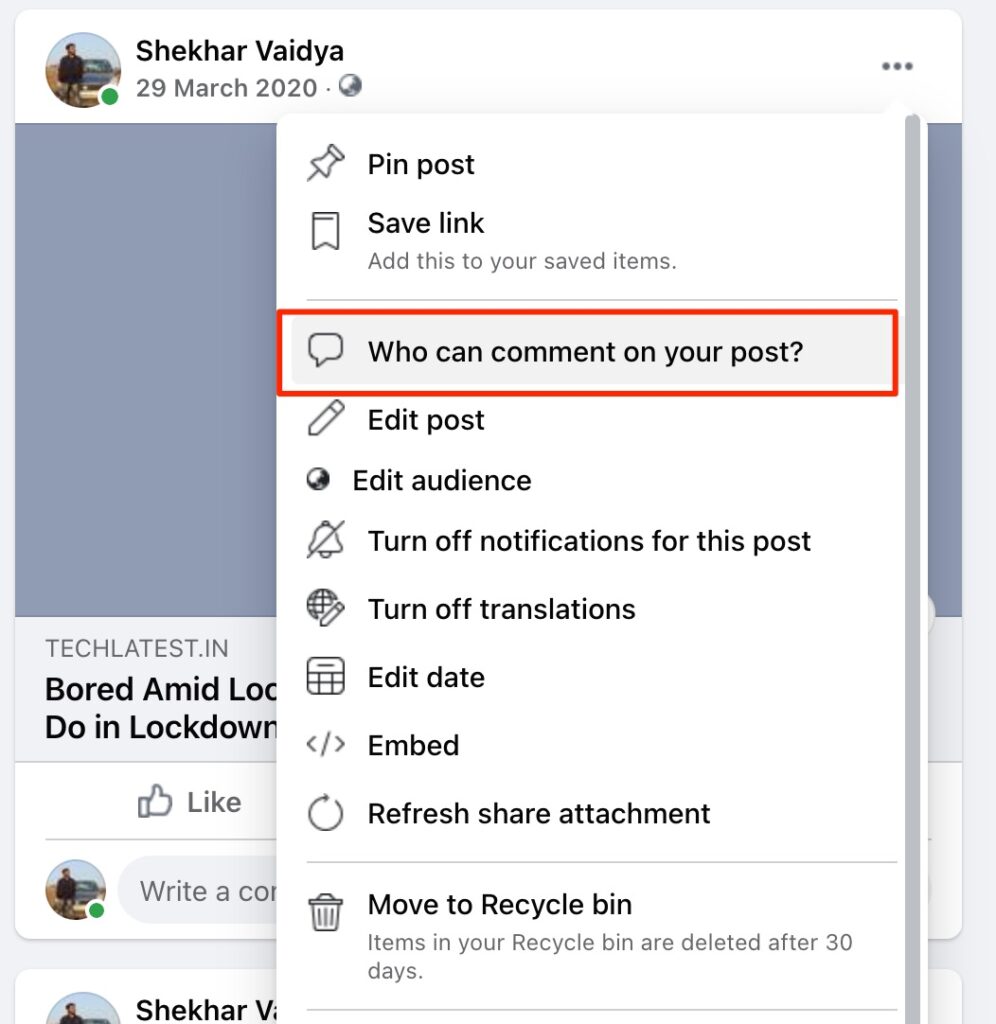
- Now, click on the three dots located at the top right corner of the post.

- Then, click on the ‘ Who can commeny on your post? ‘ option.
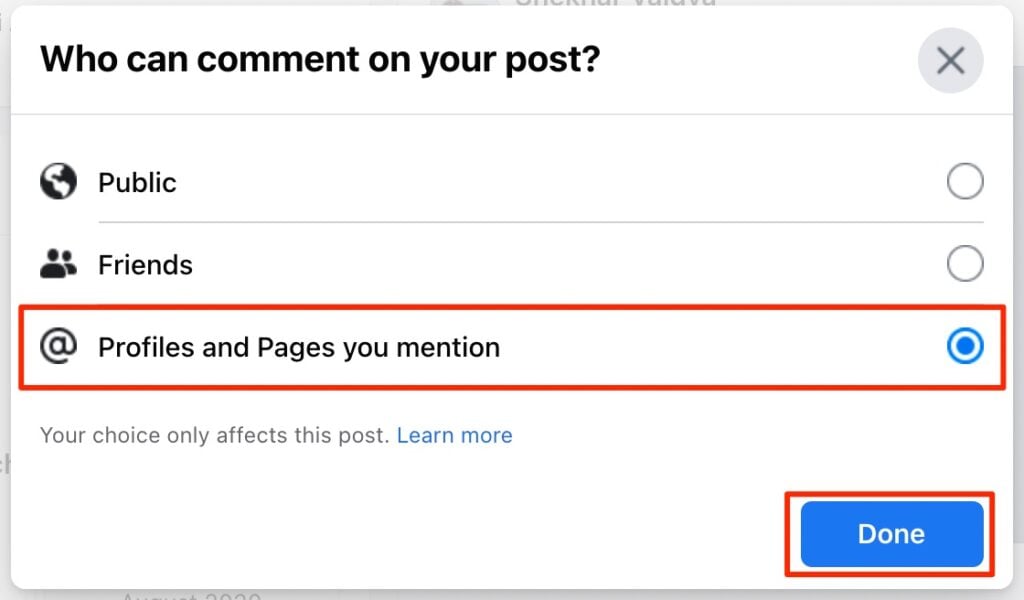
- A new dialogue box will be appeared, finally select the ‘ Profiles and Pages you mention ‘ option and then click on the Done button.
- First, open Facebook on your desktop or mobile.
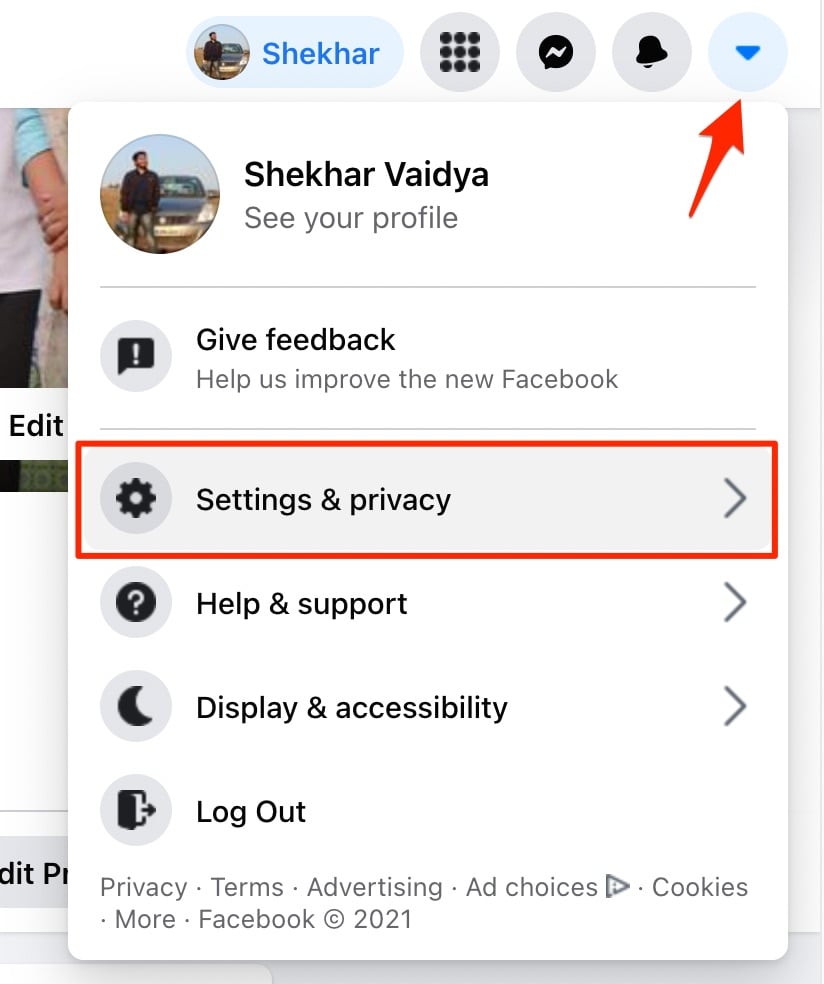
- Now, click on the drop-down menu located at the right top corner and then click on ‘ Settings & Privacy ‘.
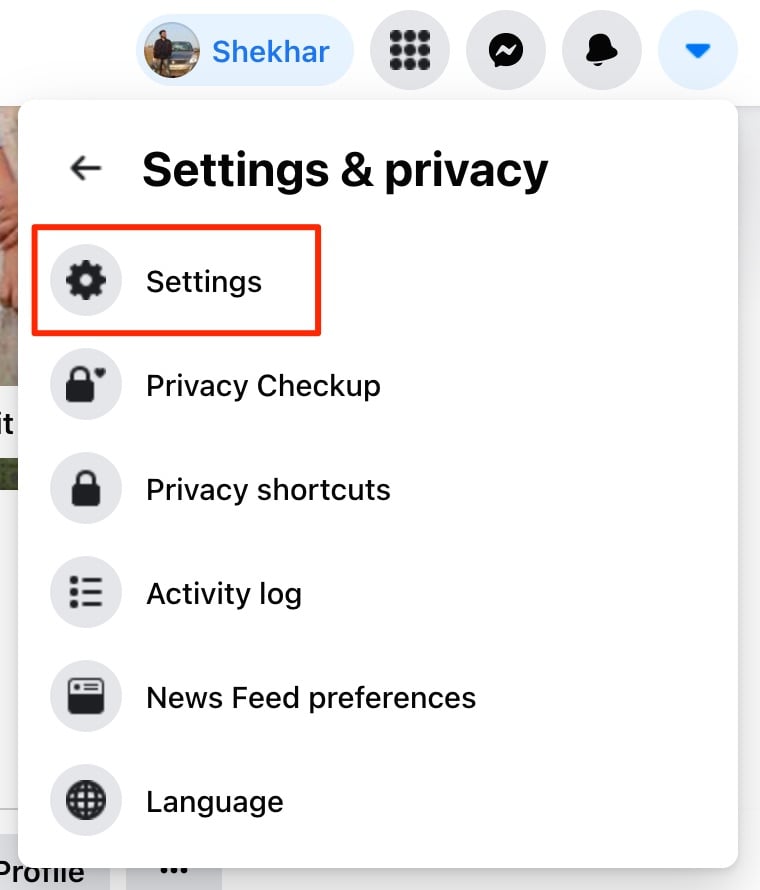
- Then, open Facebook Account Settings by clicking on ‘ Settings ‘ option.
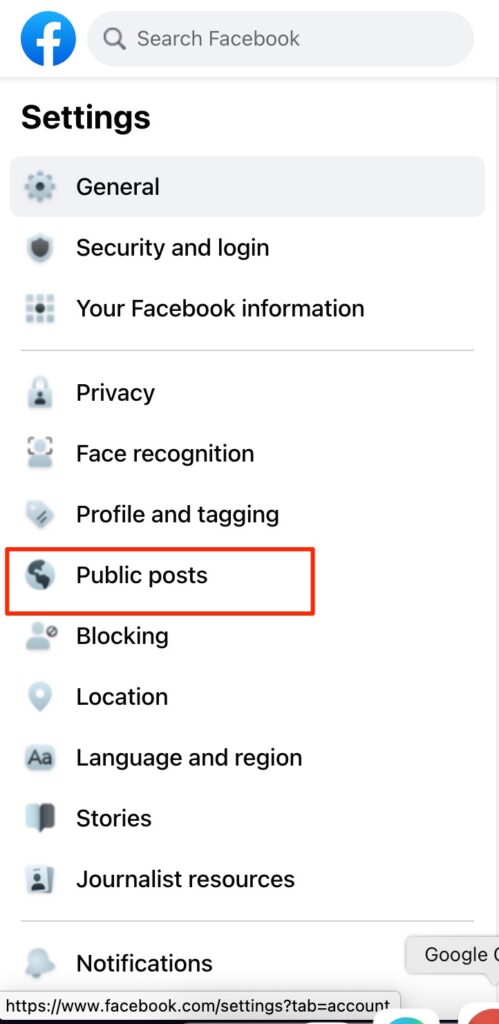
- On opening the Settings page, you will notice a list of options at the left sidebar.
- Click on the ‘ Public Posts ‘ option.
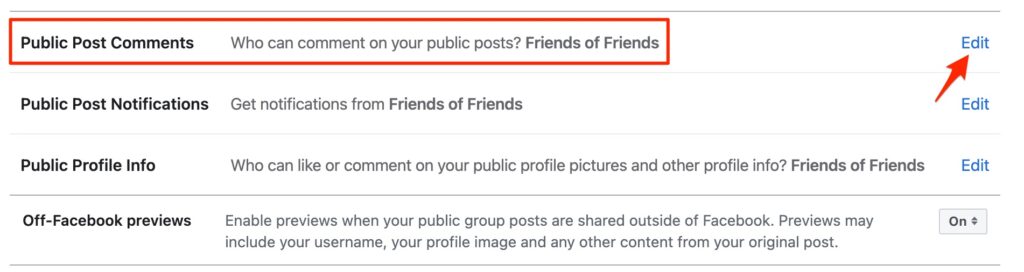
- Now, click on the Edit option located at the front of ‘ Public Post Comments ‘.
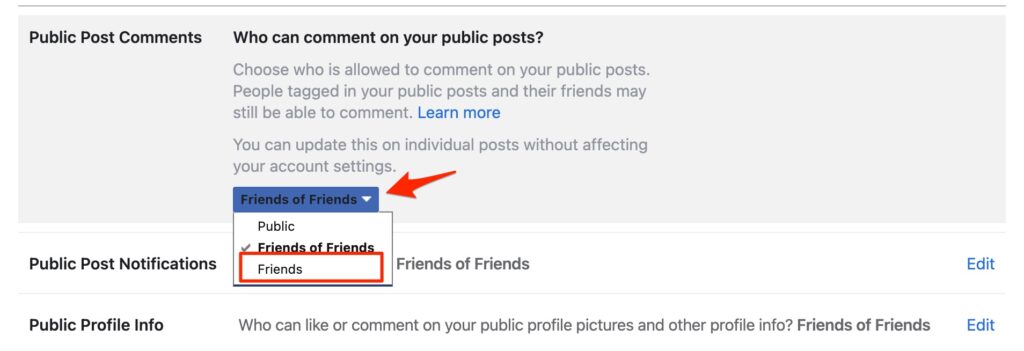
- Finally, select ‘ Friends ‘ from the drop-down menu.
In case you didn’t understand something, or you can have any other queries regarding this article, then feel free to comment down below, we will be more than happy to assist you.
Peace ????
Also, Read : Facebook Announces Native App Lock in Messenger for iOS and Android
Enjoyed this article?
If TechLatest has helped you, consider supporting us with a one-time tip on Ko-fi. Every contribution keeps our work free and independent.
