Highlights
- Apple’s Live Translation in AirPods Pro makes real-time conversations between languages effortless and convenient for travel, business, or at home.
- It’s easy to set up the feature within iPhone’s Translate app, and simple controls like Conversation View and Auto-Translate let you use it hands-free.
- Users can download offline packs, so you have a translation regardless of the Internet.
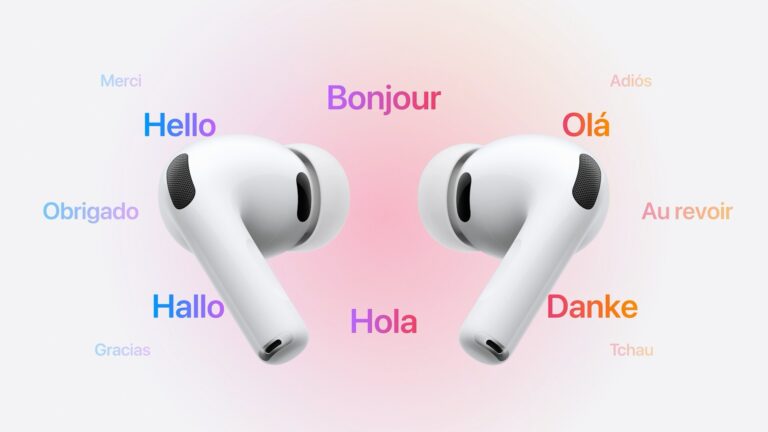
Live Translation with AirPods Pro Apple launched a game-changing feature by the name of Live Translation for your AirPods Pro – now talking to someone in another language has never been so smooth.
This tool can provide real-time translations right in your ears, as you talk with someone who speaks another language.
Don’t want to miss the best from TechLatest ? Set us as a preferred source in Google Search and make sure you never miss our latest.
When traveling to foreign destinations or meeting new people, Live Translation can help you communicate with ease and break down language barriers as if they were never there!
Content Table
What is Live Translation?
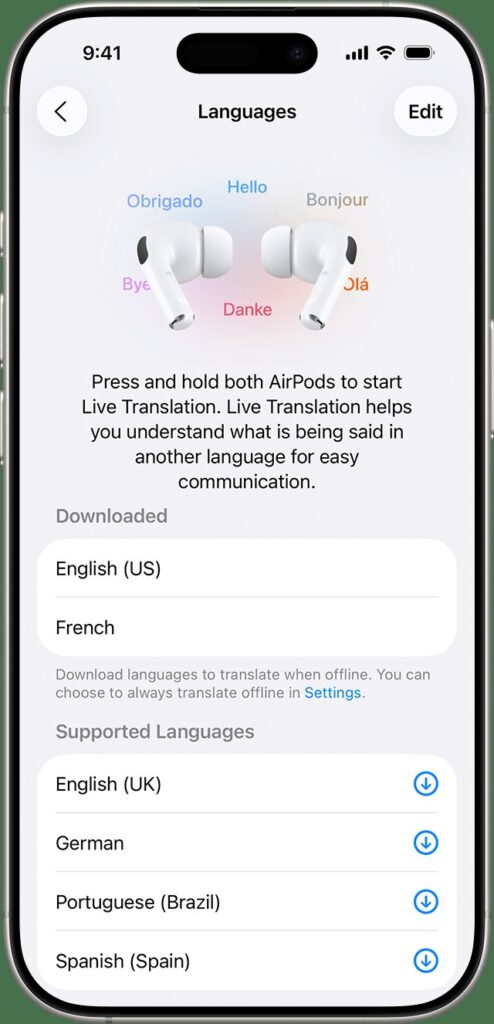
Live Translation is a new Apple feature from iOS 26 and some AirPod models that supports translating spoken conversations into your language in real time.
Your AirPods will be able to hear someone speaking in another language through this feature, and translate what they say into your preferred language via your AirPods.
If both individuals are wearing supported AirPods, they’ll each hear the Translation in their own language.
By contrast to older translation apps, which involve a lot of staring at the screen, pressing buttons, and passing back and forth the phone, Live Translation is intended for an in-person flow.
Which AirPods & iPhones Support Live Translation?
To use Live Translation, you’ll need the right kind of AirPods and an iPhone that is able to use it with everything up to date. Here are the details:
Supported Languages & Regions
Live Translation only supports a few languages at first. Additional languages will be added later in the year. And there are regional limitations as well. Here are the details:
- Languages supported initially: English (US & UK), French (France), German (Germany), Portuguese (Brazil), Spanish (Spain).
- Languages coming later: Japanese, Korean, Italian, Chinese (simplified and possibly traditional) are on the roadmap.
- Regional availability/restrictions: There are restrictions in the European Union. If your device is in the EU and the Apple Account region is set to an EU country (which now includes the UK, Live Translation with AirPods may not work.
How to Use Live Translation in AirPods Pro
Before you can use Live Translation, follow these preparation steps:
Step 1: Check compatibility
Make sure you have one of the AirPods that is supported, as well as an iPhone 15 Pro or later. If you don’t, then the new feature might not work for you.
Step 2: Update Your Devices
- Make sure your iPhone or iPad is running iOS 26 or later .
- Update your AirPods Pro to the latest firmware .
- Keep both devices charged to avoid interruptions.
Step 3: Connect AirPods Pro to iPhone
- Open the AirPods case near your iPhone.
- Tap Connect when the pairing pop-up appears.
- Confirm the connection under Bluetooth settings .
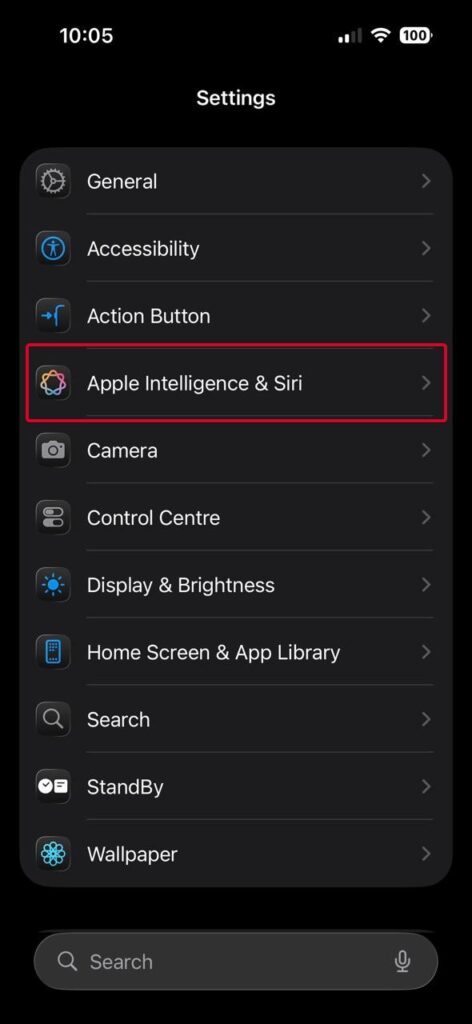
Step 4: Enable Apple Intelligence
- In Settings > General > Apple Intelligence ,
- Enable Apple Intelligence and Translation features .
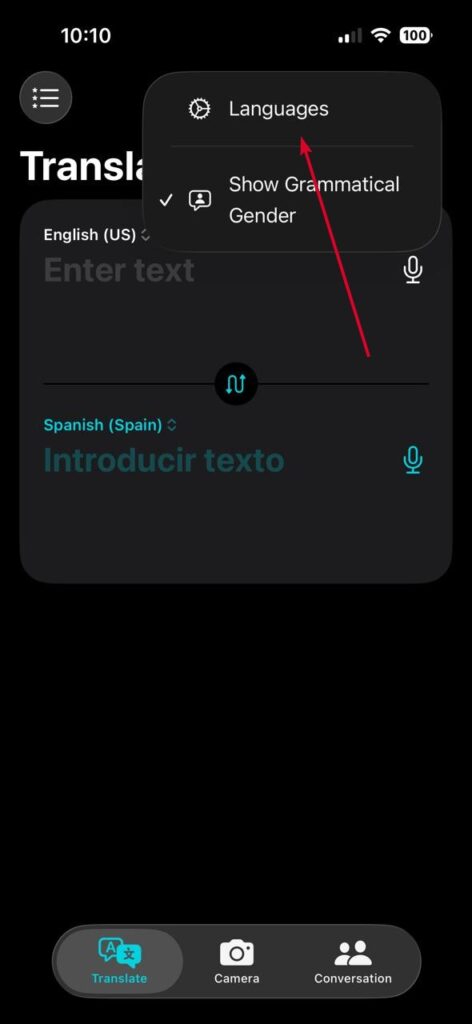
Step 5: Download Required Languages
- Open the Translate app on iPhone.
- Select the languages you want to use.
- Tap Download so translations also work offline.
Step 6: Start Live Translation
- Put on your AirPods Pro .
- Make sure the Live Translation is ON in Translate app.
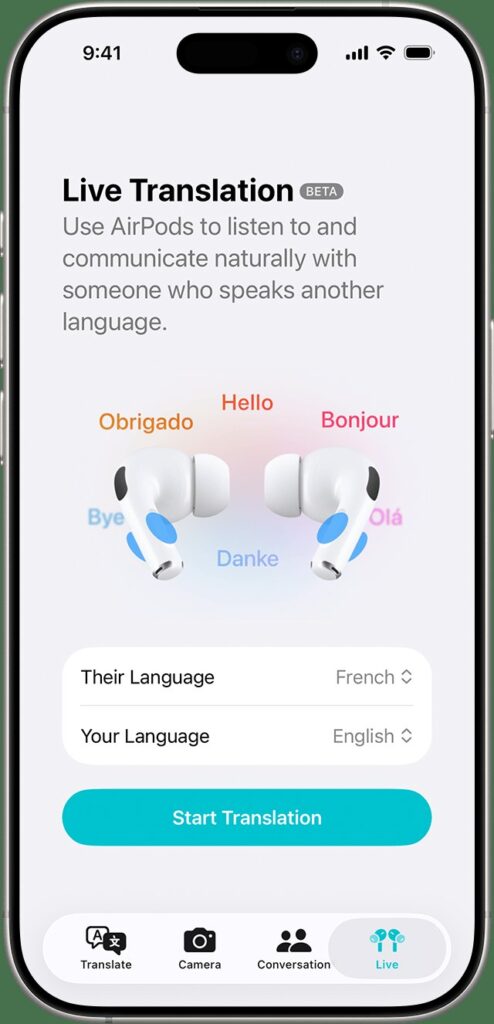
- Activate Siri by saying “Hey Siri, translate” or pressing the side button.
- Speak into your iPhone, and the Translation will play directly in your AirPods Pro .
- The other person can reply, and you’ll hear the Translation instantly.
Step 7: Adjust Settings for Smooth Use
In the Translate app , choose Auto Translate to skip tapping buttons.
Enable Conversation View so both parties can follow along.
Use the AirPods press-and-hold gesture (customizable in settings) to quickly start Translation.
How to Use Hypertension Monitor on Apple Watch Series 11
Apple AirPods Pro 3 Heart Rate Monitoring: What Apple Shipped Today
Apple 3-Year Plan Hints Foldable iPhone with 4 Cameras & Touch ID
Real-World Scenarios & Use Cases
Here are some cases where Live Translation with AirPods Pro can come in handy:
- Travelling : Ordering food, asking for directions, or conversing with locals in a new country.
- Business/meetings : When you work with people across the globe, language becomes an issue.
- Social & cultural interaction : Making friends in a workshop, language exchange, or communicating with family/friends who speak a different language.
- Emergencies or urgent communication : Seeking assistance, medical situations (or otherwise) when you need understanding in the moment.
Limitations & What to Watch Out For
Live Translation is strong, but not perfect. Be aware of:
- Limited language support currently. If they don’t support your language yet, the feature is not available, or it’s less reliable.
- Regional restrictions , especially in the EU, under certain account settings.
- Potential inaccuracies : As with any AI-based translation, there is the potential for mistranslation, particularly where slang, idioms, jargon, or rapid-fire speech are concerned. Always repeat in polite company.
- Latency/lag : Possible slight delays, depending on the complexity of the translation model and noise in the environment.
- Dependence on iPhone : The AirPods don’t, by themselves, do Translation; a lot of the processing and UI works through the iPhone and its network / Apple intelligence.
Conclusion
Live Translation with AirPods Pro (and similar models) is a game-changer to break down language barriers. When it’s all working correctly, right AirPods, newer iPhone hardware and supported languages, it facilitates fluid conversation across tongues with a minimum of friction.
It’s especially handy for travellers and international communication, or any situation where you need to translate something quickly without constantly looking at your phone.
If you do have compatible devices, test it out: download the necessary language packs and try hands-free activation of Live Translation (again through stems, or via Siri or the Translate app), and use it to have casual conversations.
Enjoyed this article?
If TechLatest has helped you, consider supporting us with a one-time tip on Ko-fi. Every contribution keeps our work free and independent.
