Netflix is the most favored OTT platform when it comes to stream any web series, or any show online. And as we all are greedy to stream our shows on a larger screen, so while watching any show on desktop/ laptop we wish to stream it on our large TV screen.
Here in this article, we will discuss how you can use a mobile device to watch Netflix on TV. You can use your Android or iOS mobile device to watch Netflix on TV.
Don’t want to miss the best from TechLatest ? Set us as a preferred source in Google Search and make sure you never miss our latest.
Content Table
Use Mobile Device To Watch Netflix On TV

You can connect your Android or iOS mobile device to watch Netflix on TV, when you connect your mobile device with the TV it allows you to use display content playing on the Netflix Mobile app, and you can use your smartphone as a remote. To know, follow the below-mentioned methods
Android Device
Method 1- Using Chromecast
TV with a built-in Chromecast (Formely called Google Cast) allows you to cast your mobile device to the TV, so you can use a mobile device to watch Netflix on TV. The Chromecast built-in is only available in some devices including Polaroid, Philips, Skyworth, Sharp, Sony, Soniq, Vizio TV, and Toshiba.
To cast your mobile device to watch Netflix on TV, follow the given steps:
- Open the Netflix app on your Android device (Smartphone or Tablet).
- Sign in with your Netflix account.
- Now, select the Cast icon from the lower or upper right corner of the screen.
- Select the device in which you would like to watch your TV show or movie.
- Choose a TV show or movie to watch.
- Press Play.
Now you can use our Android device as a remote, you can fast-forward, pause, play, rewind, change the subtitle, and audio, and other settings through your Android device.
Method 2- Using Netflix 2nd screen
Netflix mobile app can sync to TVs, streaming audio devices, and allows you to control your Netflix experience through mobile devices. To use a mobile device as a remote to watch Netflix on TV, follow the following steps:
- First of all, connect your mobile device and TV to the same Wi-Fi network.
- Open the Netflix app on your TV and as well as on your mobile.
- Sign in with the same Netflix account on both your mobile device and TV.
- Choose the Cast icon from the upper or lower right corner of the screen.
- Select the device in which you would like to watch your TV show or movie.
- Choose a TV show or movie to watch.
- Press Play.
Now you can use our Android device as a remote, you will have all the functionalities of a remote in your mobile device.
Method 3- Using an external cable
Android devices can directly be connected to a TV using an external cable to show the content playing in your Android device. cable connections requirement can be varied based on TV’s input and mobile device output slots.
To cast your Android’s screen onto your TV you need to connect them through a cable, most of the new Android devices use Type-C or Type-D port also known as USB-C and Micro HDMI respectively. Older TV uses VGA connection while newer ones will have ports for HDMI connections.
[Note: These methods doesn’t support Netflix mobile plan]
iOS Device
Method 1- Using Chromecast
TV with a built-in Chromecast (Formely called Google Cast) allows you to cast your mobile device to the TV, so you can use a mobile device to watch Netflix on TV. The Chromecast built-in is only available in some devices including Polaroid, Philips, Skyworth, Sharp, Sony, Soniq, Vizio TV, and Toshiba.
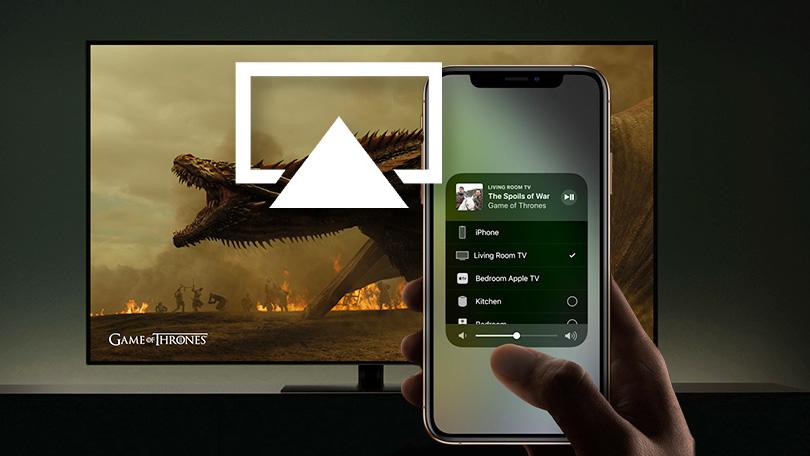
To cast with your iOS mobile device to watch Netflix on TV, follow the given steps:
- Open the Netflix app on your iOS device (iPhone, iPad, or iPod touch).
- Sign in with your Netflix account.
- Now, select the Cast icon from the lower or upper right corner of the screen.
- Select the device in which you would like to watch your TV show or movie.
- Choose a TV show or movie to watch.
- Press Play.
Now you can use your iOS mobile device as a remote, you can fast-forward, pause, play, rewind, change the subtitle, and audio, and other settings.
Method 2- Using Netflix 2nd screen
Netflix mobile app can sync to TVs, streaming audio devices, and allows you to control your Netflix experience through mobile devices. To use a mobile device as a remote to watch Netflix on TV, follow the following steps:
- First of all, connect your mobile device and TV to the same Wi-Fi network.
- Open the Netflix app on your TV and as well as on your mobile.
- Sign in with the same Netflix account on both your iOS device and TV.
- Choose the Cast icon from the upper or lower right corner of the screen.
- Select the device in which you would like to watch your TV show or movie.
- Choose a TV show or movie to watch.
- Press Play.
Now you can use our iPhone, iPad, or iPod touch as a remote, you will have all the functionalities of remote in your iOS mobile device.
Method 3- Using an external cable
iOS devices can directly be connected to a TV using an external cable to show the content playing in your iOS device. cable connections requirement can be varied based on TV’s input and mobile device output slots.
To cast your iPhone’s screen onto your TV you need to connect them through a cable, to connect a 30-pin device with your TV, you should have a compatible, and composite component or an HDMI cable kit which can connect your iOS and TV.
To connect with your TV using a Lightning device, your iOS device should be running on iOS 11.2.6 or above. And you should have a compatible HDMI kit. To know more about compatible connecting cable you can visit Apple’s support site
So that’s it from our side, these were some methods by using them you can easily use a mobile device to watch Netflix on TV. If you know some other methods or have some more suggestions related to this topic, so please let us know in the comment box.
[Note: These methods doesn’t support Netflix mobile plan]
- 6+ Amazon Prime Video Hacks for Better Streaming Experience
- Will Streaming Services Take Over the Classic TV in India?
- How to Display IMDb Ratings for Netflix Content in Chrome
- How to Make Your Netflix Profile PIN Protected?
Enjoyed this article?
If TechLatest has helped you, consider supporting us with a one-time tip on Ko-fi. Every contribution keeps our work free and independent.
