Highlights
- Microsoft is finally reviving the dead Windows Vista feature, DreamScene, a live wallpaper feature.
- The native Windows 11 live wallpaper feature was first observed with the Windows 11 26220.6690 and 26120.6690 builds.
- We have successfully tested the feature on our virtual machine with the Windows 11 26220.6690 build (dev channel).
I have always been a big fan of live wallpapers. I’ve been using live wallpapers on my Windows PC for a long time. I personally tested all the free, freemium, and paid apps and finally settled with Steam’s Wallpaper Engine .
Although free apps like Rainmeter and Lively do a decent job, the library for these apps is too small as compared to Wallpaper Engine. It only costs $4.99/€4.99/₹250 (one-time) and provides us with hundreds of thousands of live wallpapers, and the library is increasing each day.
Don’t want to miss the best from TechLatest ? Set us as a preferred source in Google Search and make sure you never miss our latest.
The official Steam Workshop for Wallpaper Engine is the primary source for wallpapers. Users/creators can create their own wallpapers using it and upload them to the library for everyone to use.
The only con Wallpaper Engine has is that it needs a lot of juice to run (system usages). For example, my primary build has this config (R7 7700x, 32 GB RAM, 4070 Ti) and has three 2K monitors, and Wallpaper Engine’s usage goes up to 25% CPU, 2-3 GB RAM with only a moderate-sized wallpaper.
Content Table
Official Windows 11 Live Wallpaper Feature
There comes the official Live Wallpaper feature of Windows 11. The feature was first observed with Windows 11 26220.6690 (Dev Channel) and 26120.6690 (Beta Channel) builds. And I have tested the feature with the 26220.6690 build itself.
This isn’t the first time we have seen something like this from Microsoft officially. There was a native live wallpaper feature with Windows Vista Ultimate back in 2007. Users could use .wmv and .mpg videos as desktop wallpapers.
DreamScene was officially removed in Windows 7, and then we did not witness anything like this in Windows 8 or 10. It was replaced by the static slideshow feature, which is available with us till now.
Although Microsoft did not give any official statement for the reason behind the removal of the feature, the suspected reasons were mainly high resource usage and limited adoption.
Steps to Enable and Use the Native Windows 11 Live Wallpaper Feature
Since the feature is not officially available for the normal users, we will have to use a tool named ViVeTool to open the doorblock and enable the feature. The assigned ID for the Native Windows 11 Live Wallpaper feature is 57645315.
Note: We used a virtual machine for testing the Native Windows 11 Live Wallpaper feature.
Enable the Feature
- Visit the ViVeTool GitHub repository and navigate to the Releases section. And download the latest IntelAmd zip file.
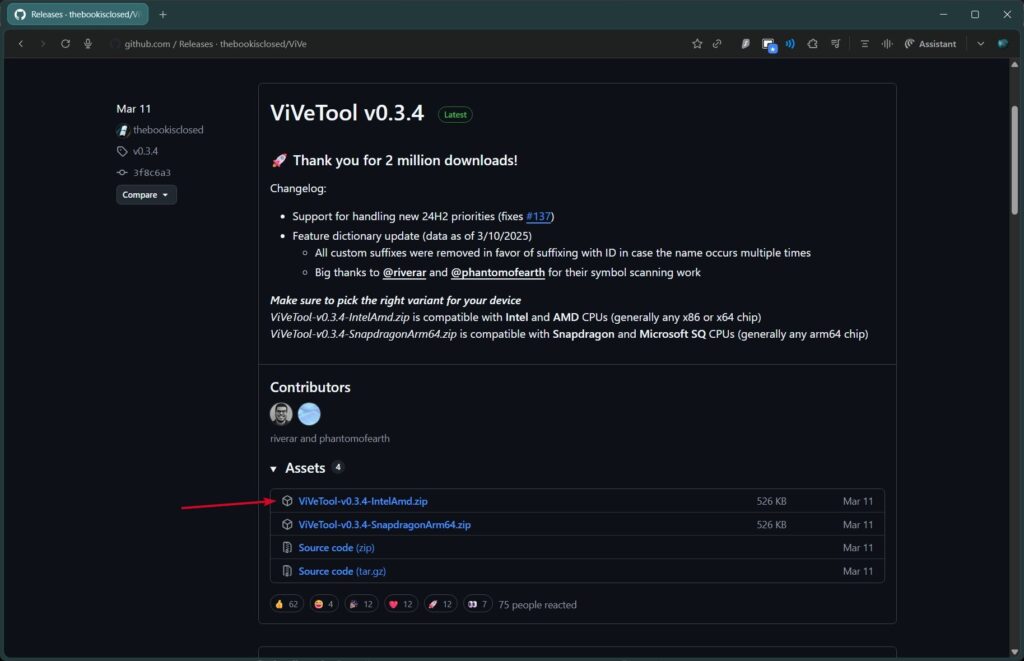
- Once downloaded, extract the zip file and move it to someplace easily accessible.
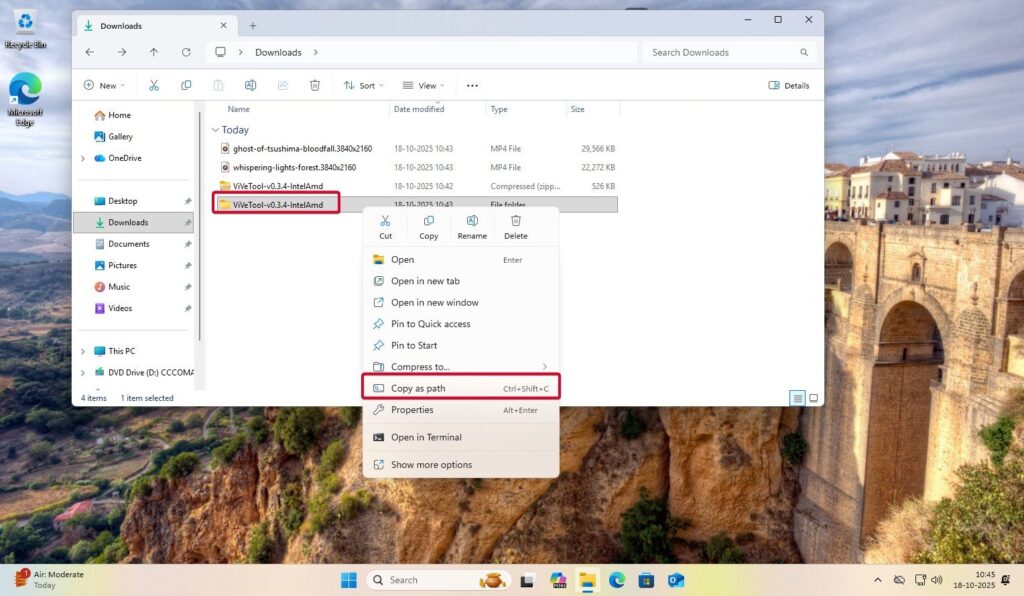
- Right-click on the extracted folder and copy the folder path .
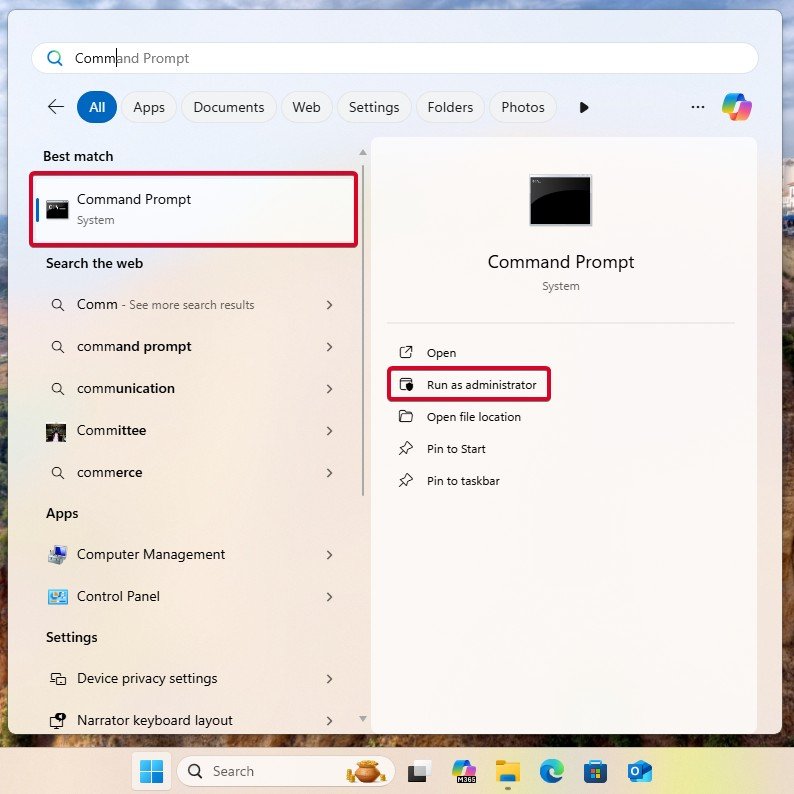
- Open the Command Prompt as admin .
- Navigate to that extracted folder by using the cd command.
cd "C:\ViVeTool"
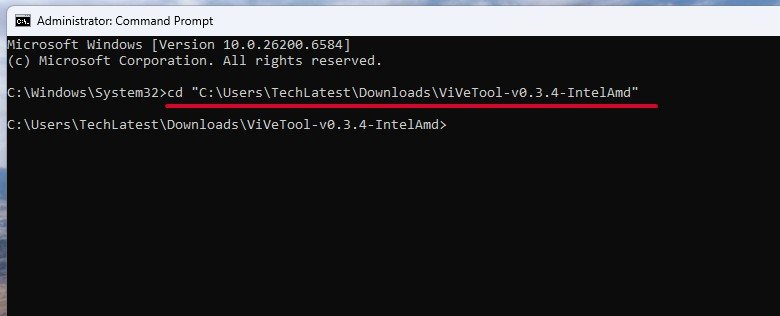
- Now, execute the below command to enable the native Windows 11 live wallpaper feature.
vivetool /enable /id:57645315
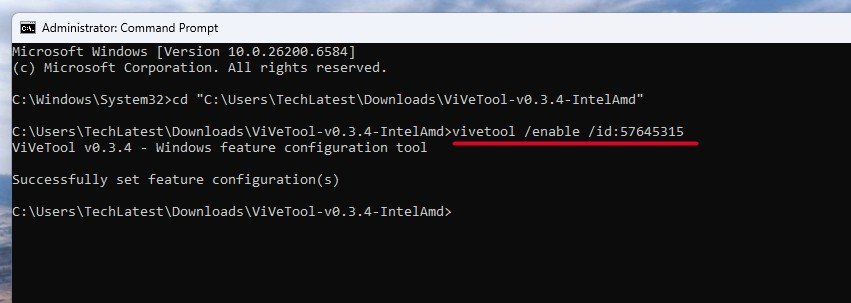
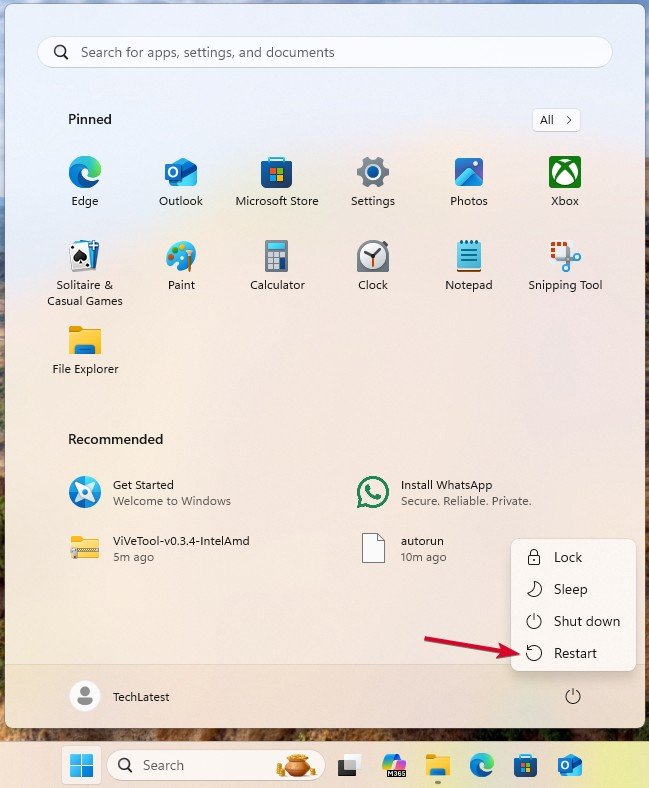
- Once the command is successfully executed, either restart explorer.exe or fully restart the PC .
Use the Native
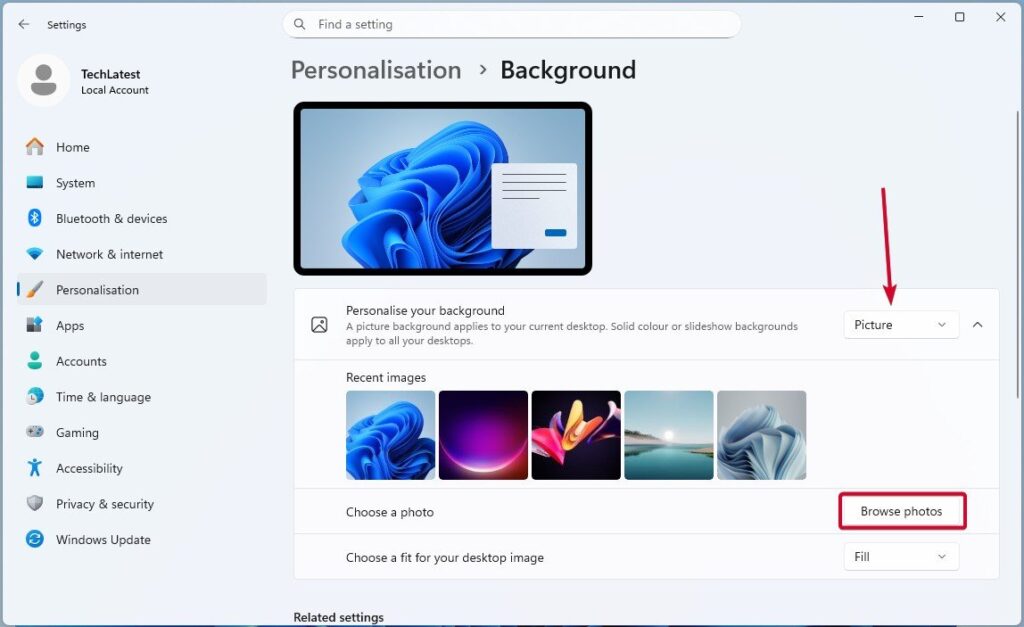
- Open Windows Settings and navigate to Personalisation -> Background .
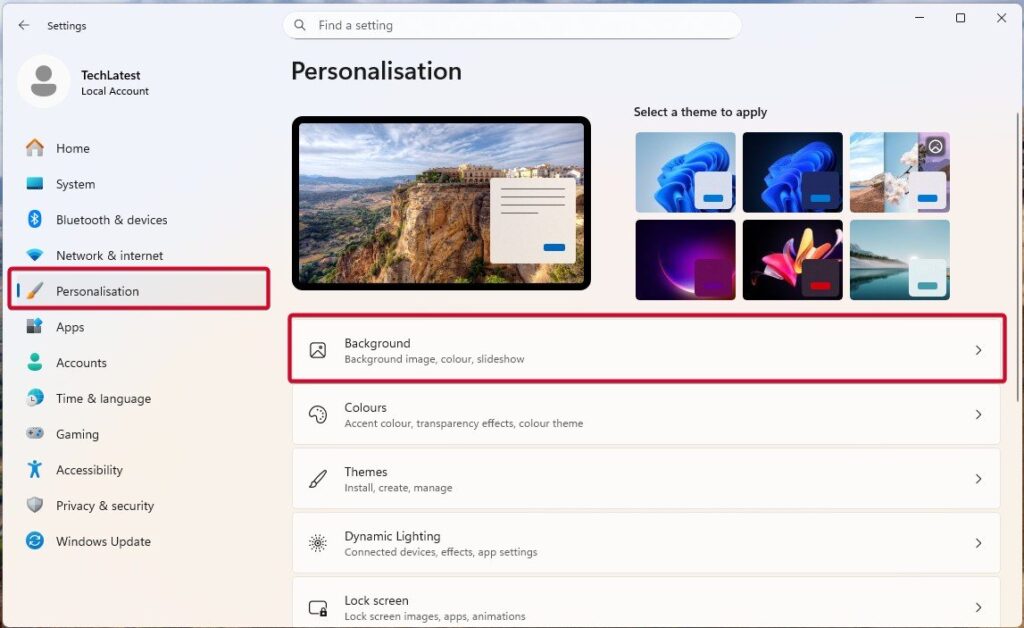
- Now, click on the Personalise your background and select Picture option, and then click on Browse photos button.
- Navigate to the folder where you kept the video wallpaper file (.mp4, .mkv, etc.) and select it.
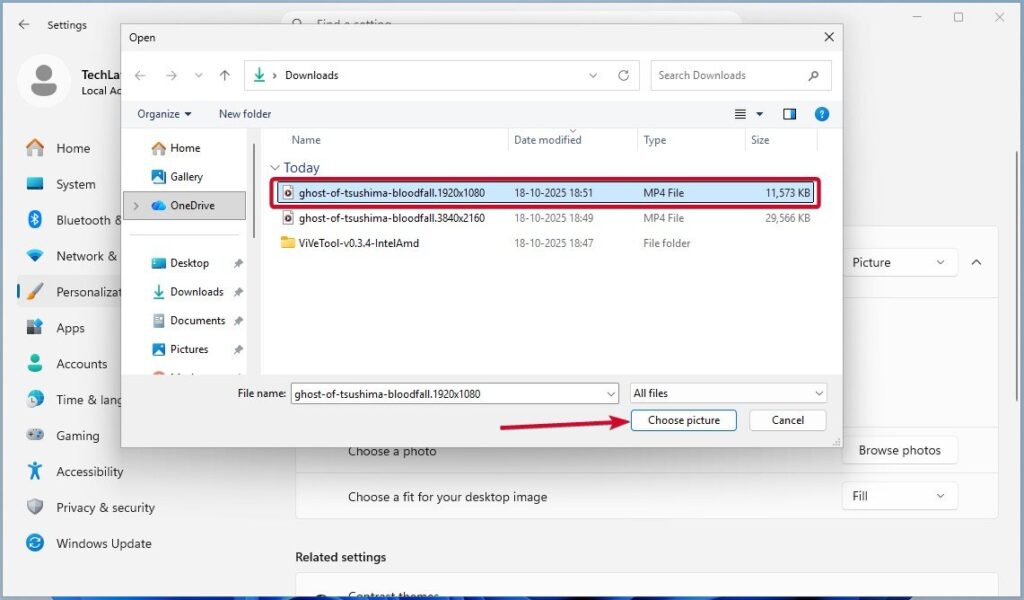
- As soon as you do that, it will be set as your desktop live wallpaper.
Native Windows 11 Live Wallpaper Feature
My Experience with the Feature
My initial experience with the native Windows 11 live wallpaper feature is much more than expected. Since it is still under development and testing, we can expect a much better finished product once Microsoft officially announces the feature for all.
As mentioned earlier, we used a virtual machine with bare minimum specifications (1 CPU, 4 cores, 8 GB RAM), and I had a good experience. With a proper machine like my primary PC (R7 7700X, 32 GB RAM, 4070 TI GPU), I expect it to be much better performance-wise.
Here are side-by-side screenshots for the system usage when the native live wallpaper is used in the VM versus the Wallpaper Engine’s system usage on my primary PC.
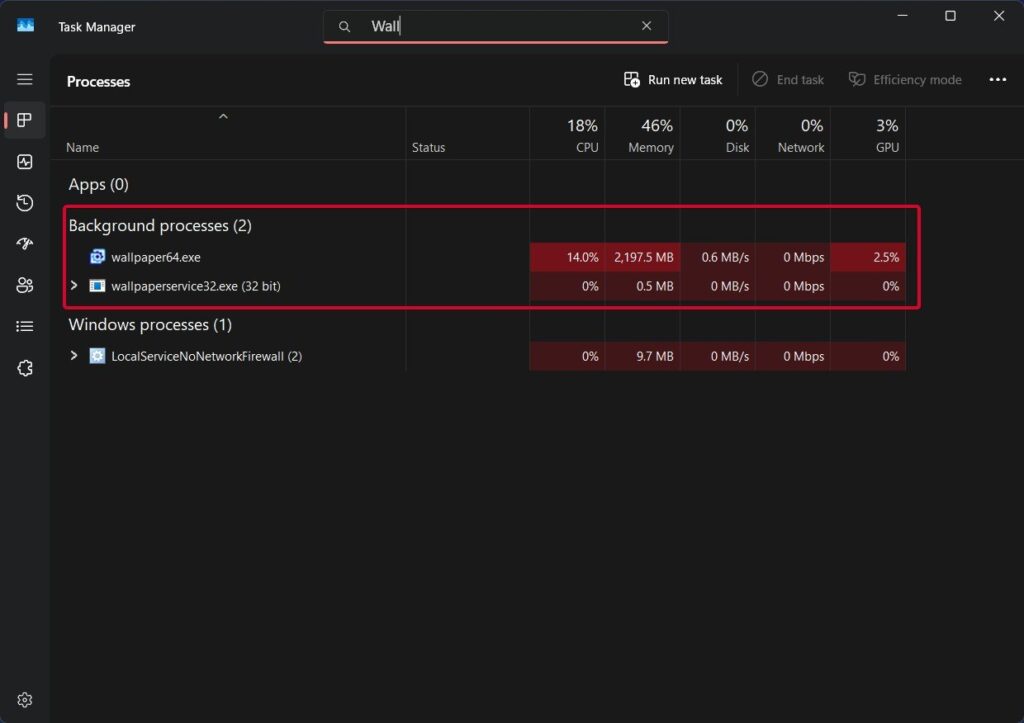
Wallpaper Engine Usages (Primary PC)
As you can see, Wallpaper Engine’s usage is almost 14% CPU and goes up to 25%, with 2.2 GB RAM usage that goes up to 3-4 GB and 2.5% GPU usage with only a moderate-sized wallpaper. Note that I use the Wallpaper Engine on all three of my 2K monitors.
Whereas in the 2nd usage screenshot, the CPU usage is almost 0, and I saw up to 2-3% only with 32% (of 8 GB) of RAM for the whole system, as I couldn’t figure out any specific background process for it.
Watching the system configuration of both the systems, the usages are significantly better in the VM. By the time Microsoft pushes the final finish feature, we could expect a much better performance.
- What’s New in Windows 11 Insider Build 26220.6772
- 5 Tested Methods to Bypass Microsoft Account in OOBE on Windows 11
- Get Free Extended Security Updates (ESU) After Windows 10 End of Support
Wrapping it all
That was all about the native Windows 11 live wallpaper feature; we tested it with the Windows 11 26220.6690 (Dev Channel) build, and it is good enough to try at this stage.
There is one thing to be noted: we try to test the feature with the latest 26220.6972 build, and it is missing from the build; maybe Microsoft is still testing it.
Enjoyed this article?
If TechLatest has helped you, consider supporting us with a one-time tip on Ko-fi. Every contribution keeps our work free and independent.
