Highlights
- A CPU bottleneck happens when the GPU and other parts have to wait for the processor to accomplish some tasks, restricting the pace at which your system works.
- It’s a popular thing to do with gaming, video editing, and the like.
- In this guide , we will show you how to know if your CPU is bottlenecking and what to do about it.
Built a high-end gaming PC? Are you slogging through the benchmarks but not quite seeing the performance you expected?
You could be running into a CPU bottleneck — when your processor becomes the limiting factor for your GPU, leading to frame drops and underperformance.
Don’t want to miss the best from TechLatest ? Set us as a preferred source in Google Search and make sure you never miss our latest.
It’s a particular annoyance for gamers, streamers, and content creators who need to keep their PC running smoothly at all times.
In this guide, we’ll look at what a CPU bottleneck is, how to check for it using software such as Task Manager, MSI Afterburner, and our very own Bottleneck Calculator, and how to fix it.
Content Table
What do you mean by CPU Bottlenecking?
A CPU bottleneck occurs when a game or other process demands more of your processor than your computer is readily able to provide, at least assuming you have another more powerful GPU that isn’t holding back performance.
To put it simply, your CPU is working hard, and your GPU is hardly working.
Example Scenario:
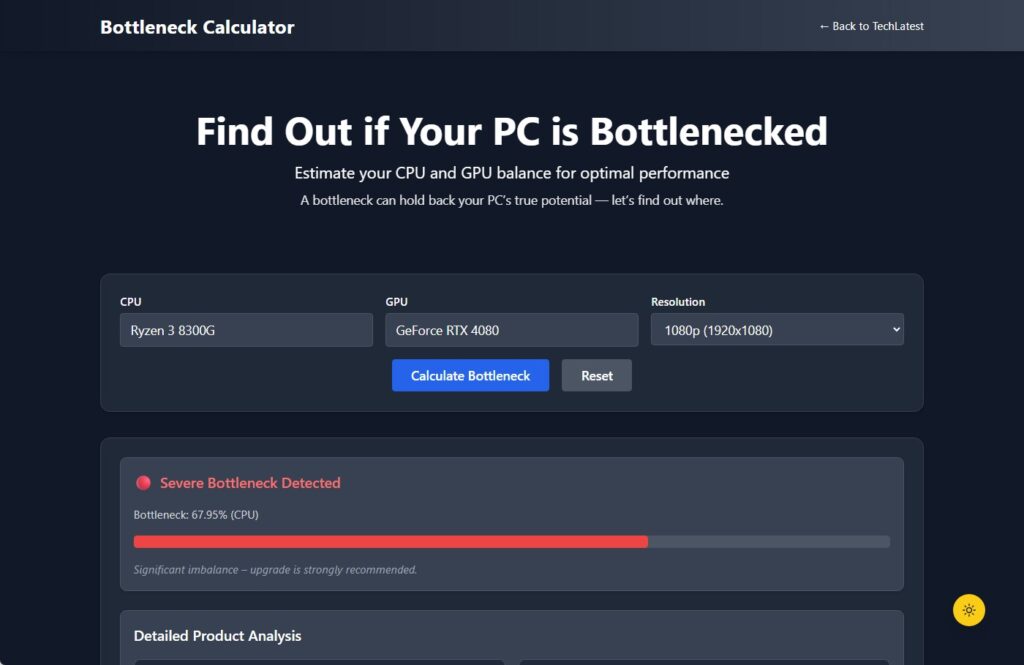
For example, let’s pretend you use an entry-level CPU, such as a Ryzen 3 8300G, with a high-end card like an RTX 4080.
In games or 3D rendering, your CPU will hit 100% usage quickly, preventing how much data your GPU can process.
So, despite the fact that your GPU could deliver high-end performance, it ends up sitting unused — leading to a CPU bottleneck.
Bottleneck Calculator by TechLatest
CPU-bound vs GPU-bound:
- CPU-bound = CPU is maxed out, GPU is underutilized
- GPU-bound = GPU is maxed out, CPU has room left
- Balanced = Both CPU and GPU are used efficiently
So, while this isn’t something to be concerned about, severe CPU bottlenecks can cause stuttering, FPS drops, and even negate higher-end hardware despite playing at lower settings.
How to Tell if Your CPU Is the Bottleneck
Wondering “Is my CPU bottlenecking?” Here’s how to tell with real-world symptoms and tools that are available free to you.
Common Symptoms of a CPU Bottleneck:
- Sudden drop in FPS or stuttering while in-game
- CPU usage consistently above 90–100%
- GPU usage remains low, and suddenly, the PC started stuttering and lagging; it shows only 60-70% GPU on heavy gaming
- Performance is slow on CPU-intensive operations such as simulations or strategy games.
- Increased spinning or overheating fans
Tools to Detect a CPU Bottleneck:
- Task Manager (Windows) Press Ctrl+Shift+Esc Go to the “ Performance ” tab. Watch CPU and GPU usage while doing a typical workload.
- MSI Afterburner (with RivaTuner) Real-time overlay while gaming CPU/GPU usage, temperature, and FPS graphs Great for seeing which bit of your PC maxes out first MSI Afterburner + RivaTuner also helps log data for later analysis
- Our CPU Bottleneck Calculator Just enter your CPU and GPU. Instantly shows estimated bottleneck percentage. Makes suggestions: Should Upgrade the CPU, should be Balanced, or No Action Needed.
If your CPU is busy while your GPU is sitting around half-utilized, you’re almost definitely bottlenecking.
CPU Bottleneck in Gaming: Real-World Examples
With a mix of real hardware, let’s examine gaming-related CPU bottlenecks in closer detail.
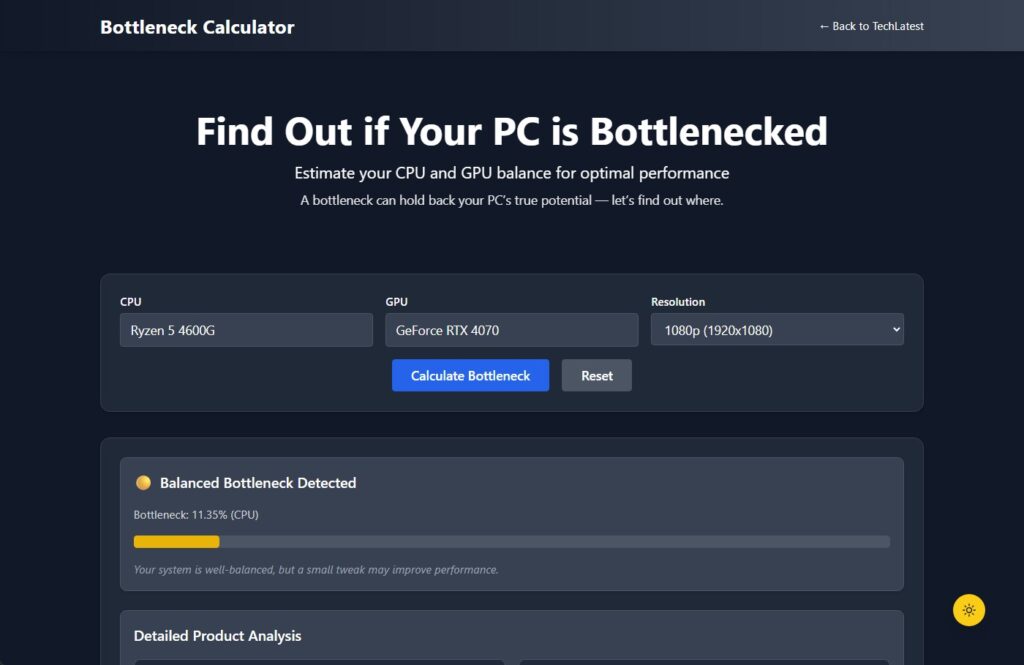
Example 1: Ryzen 5 4600G + RTX 4070
- Great for budget but not ideal with Anthony’s taste in GPUs.
- Running at 1080p in AAA-level games like Hogwarts Legacy or Starfield, CPU usage will hit 100%, while GPU usage will barely scratch at 60-70%.
- Outcome: Low FPS and stuttering on a powerful GPU.
Bottleneck Calculator by TechLatest
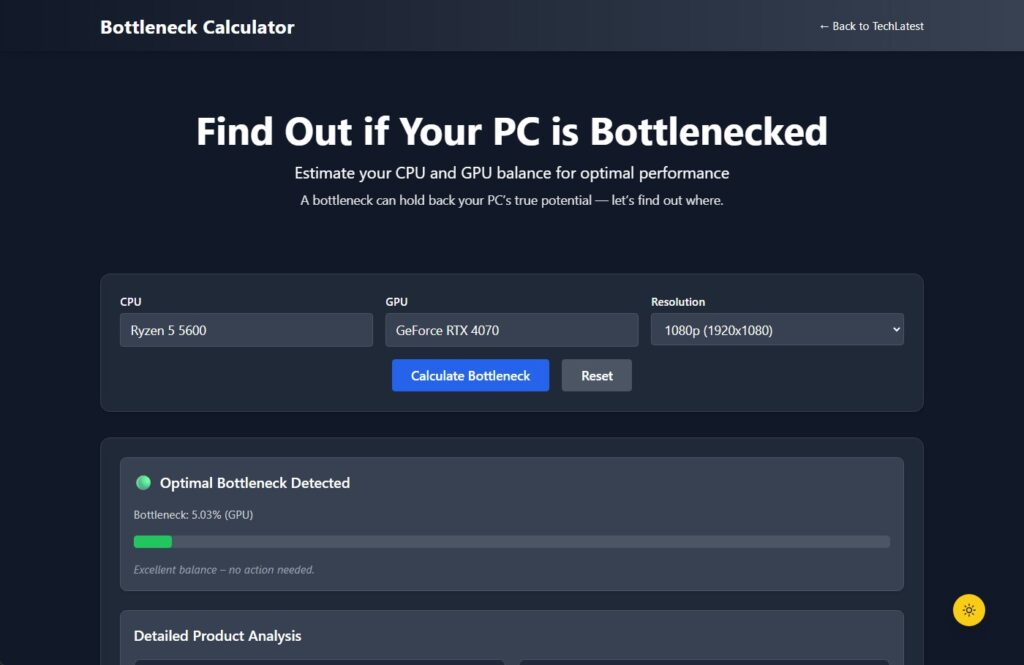
Example 2: Ryzen 5 5600 + RTX 4070
- A stronger match: Multithreaded performance improvements
- The CPU and GPU are nearer to running at full capacity.
- Silky-smooth 100+ FPS in 1080p high settings or even 1440p, even in CPU-demanding games
Bottleneck Calculator by TechLatest
Why 1080p Can Be More CPU-Bound:
- At lower resolutions, 1080p, the GPU isn’t utilized as much, so the CPU needs to do more work.
- Higher resolutions, being 1440p and 4K, spread even more load onto the GPU, which can hide a CPU’s low performance.
For detailed performance analysis and FPS estimates based on actual test data, use our free performance bottleneck calculator.
How to Fix or Reduce a CPU Bottleneck
If you have a CPU bottleneck, don’t worry — there are multiple ways to fix or at least minimize it.
1. Upgrade Your CPU
- The most obvious choice in case your CPU is too old or underpowered (i.e., bottlenecking) your GPU is to make a CPU upgrade.
- Budget upgrade options in 2025: Ryzen 5 5600 or 5600X Intel Core i5-12400F Ryzen 7 5700X for multitaskers or streamers
2. Overclock Your CPU (If Supported)
- In BIOS or in OS with tools like Ryzen Master / Intel XTU
- Bottlenecking can even be minimized with a 5-10% increase in clock speed.
- Ensure temperatures stay within safe limits. (What’s the Ideal CPU Temperature and How to Monitor It? )
3. Lower CPU-Heavy Game Settings
- Strategy, simulation, and open-world games can be very heavy on the CPU.
- Lower these settings: Draw distance AI threads Shadows Volumetric effects Physics-based simulations
4. Close Background Tasks
- Apps such as Chrome, Discord, and even antivirus software take up CPU cycles.
- Use Task Manager > Startup to disable unnecessary auto-start apps.
- Clean background apps before gaming
5. Match Game Resolution to Balance Load
- If you have a strong GPU, you can try playing at 1440p or 4K — by doing so, you’d redistribute the computational load from the CPU to the GPU.
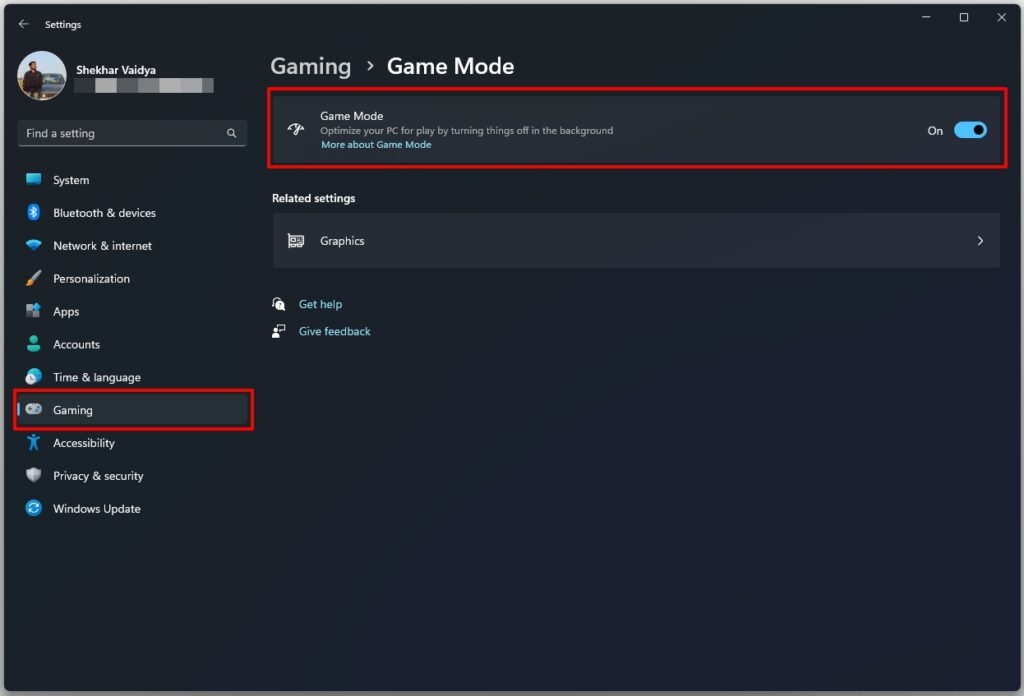
6. Enable Game Mode (Windows 10/11)
- One of the Windows features you should utilize is Game Mode. It works very efficiently by allocating more CPU or GPU resources to the game you are currently playing.
When Should You Upgrade the CPU?
You don’t need to upgrade at all times. But here are signs it’s time:
Upgrade if You:
- If you’re a competitive FPS gamer playing at 144Hz or above?
- Stream gameplay while gaming
- Are you using emulators, doing video editing, or creating 3D models?
- See the bottleneck percentage >35% in our tool.
- Brand new GPU and old CPU that’s chugging along
Tip: Use our Bottleneck Calculator, which produces a result card for % bottleneck and recommended upgrades.
Final Thoughts
It’s a natural fact of life that you’ll find the CPU bottleneck in PC performance tuning — but that doesn’t mean that you should overlook it.
The good news? The majority of bottlenecks are fixable with a little tweaking, upgrading, or smartly managing settings.
- Always test before you upgrade.
- Monitor your CPU/GPU usage patterns, tweak settings, and test performance.
- Try our CPU Bottleneck Calculator tool for free.
Remember, it’s not perfection you’re going for — it’s balance. The perfect pairing of CPU and GPU is one of the best things you can do to get the most out of games and programs.
Enjoyed this article?
If TechLatest has helped you, consider supporting us with a one-time tip on Ko-fi. Every contribution keeps our work free and independent.
