
When creating material, many editors like MacBooks over other devices. The ecosystem of Apple software and hardware is tightly integrated with the Mac. This increases interoperability between the operating system, graphics card, and display.
Many excellent, reasonably priced video editing softwares for Mac are now on the market. Filmora and iMovie are some of the best video editing software for Mac .
Don’t want to miss the best from TechLatest ? Set us as a preferred source in Google Search and make sure you never miss our latest.
You can start your journey with one of them. They have multiple editing options and features, and many users are confused about the best. That’s why we will look at every aspect and feature of both editors.
This article will compare the best video editors for Mac: Filmora and iMovie.
Content Table
Part 1: Filmora vs iMovie: An Overview
Let’s dive into both video editors for Mac and explore their features so that you can quickly get the tool to your needs.
Filmora
Wondershare Filmora is available on Mac and Windows and is a user-friendly video editor suitable for all skill levels.
It gives you a single platform to experiment with your storytelling and offers a variety of tools to help you make films fast and effectively so you can share your experiences with others.
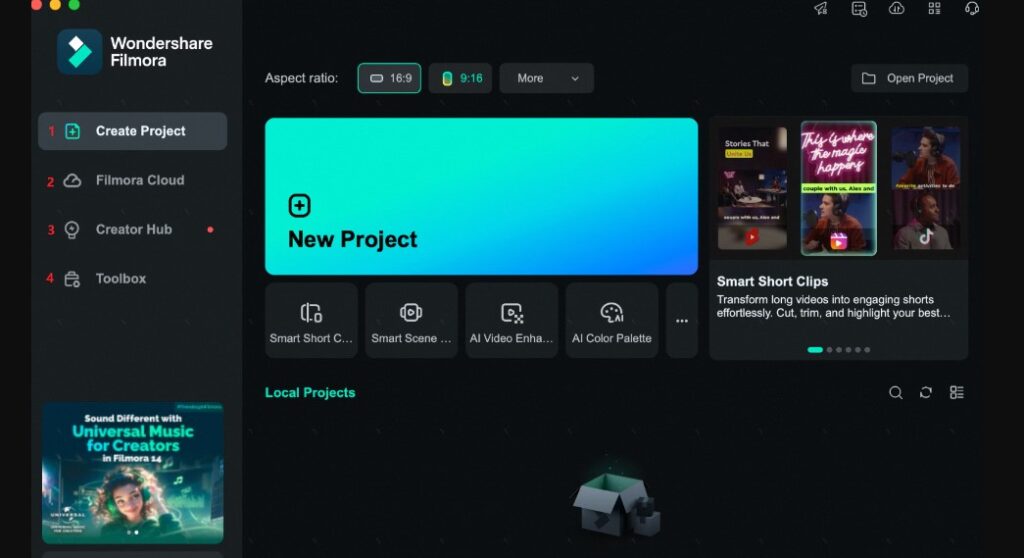
With Filmora’s AI-powered Smart Short Clips, you can turn lengthy recordings into engaging, shareable highlights.
It is ideal for professional usage and for influencers and podcasters. It automatically identifies speakers, essential components, and moving objects in your video to produce exciting clips.
Features and Capabilities
- Full Support for Apple Silicon & macOS Compatibility: Filmora fully optimizes performance for the latest Apple Silicon chips, including M1, M2, and M3, allowing users to experience smoother playback, faster rendering, and enhanced video processing—particularly for large files. It’s compatible with macOS versions up to 15 (Sequoia), making it ideal for anyone on a recent MacBook or iMac.
- Haptic Touch Bar Integration: Filmora leverages the Mac’s Haptic Touch Bar, providing tactile feedback when adjusting the timeline.
- Professional Editing Tools: Filmora brings professional tools such as AI-driven motion tracking, precise color correction, video stabilization, and advanced keyframing. This combination empowers macOS users to achieve studio-quality videos without moving to higher-end, complex software.
- Keyboard Shortcut Presets: Filmora offers customizable keyboard shortcuts. This lets users quickly adapt Filmora to their editing style without relearning shortcuts, streamlining the transition between multiple software options.
- Cross-Device File Sharing: Filmora allows effortless data transfers across devices, giving macOS users greater flexibility when switching between a Mac and other devices.
- Extensive Effects Library & AI Features: Filmora has access to over 1.5 million effects, including royalty-free media, titles, and transitions. With AI-powered features like Smart Short Clips and a Social Video Planner, it’s an all-in-one platform designed for creators who want to automate and customize their work effortlessly.
iMovie
One of Apple Mac users’ most popular video editing apps is iMovie, which runs only on Mac OS. Adding iMovie video effects to video clips is one of the primary functions of this program, which was created by Apple and has been around since 1999.
Video editors and other creative people find Apple’s gadgets and software appealing due to its emphasis on design and style.
With iMovie for novices and Final Cut Pro for experts, the business has long been at the forefront of the field. In addition to effects and filters, users can adjust colors, trim, rotate, and stabilize video with iMovie.
Features and Capabilities
- It can automatically produce a unique video with titles, music, and transitions Using a collection of pictures or photographs.
- iMovie can produce cutaway, split-screen, green screen, and picture-in-picture effects.
- iMovie projects may be imported into Final Cut Pro X for more complex editing or from iOS to macOS.
- It can also reduce background noise or add a narration or soundtrack.
- You can set a white balance, improve skin tones, and match colors between clips with iMovie.
Part 2: Filmora vs. iMovie – Which One Should You Choose?
Filmora and iMovie are both quality video editing software for Mac, but if you want to choose the best, we compare the different aspects of both tools here to make your decision easier.
Part 3: How to Edit Videos Using Filmora
Knowing about the tools and features is insufficient if you want to choose one tool in many. You should also look for the usage methods and analyze whether they are effective to use. That’s why we will show you how to edit video on both video editing software for Mac.
How to Use Filmora Mac Video Editor
Here is the complete step-by-step method for using the Filmora video editor.
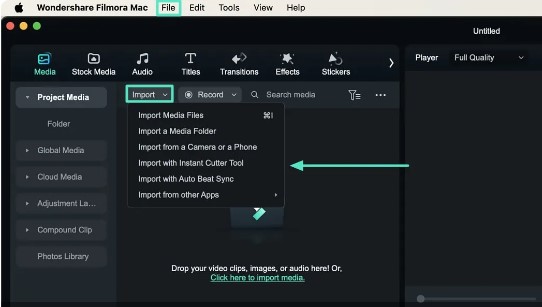
Step 1: Bring Your File in Drag and drop your file into the Media panel after selecting New Project in Filmora.
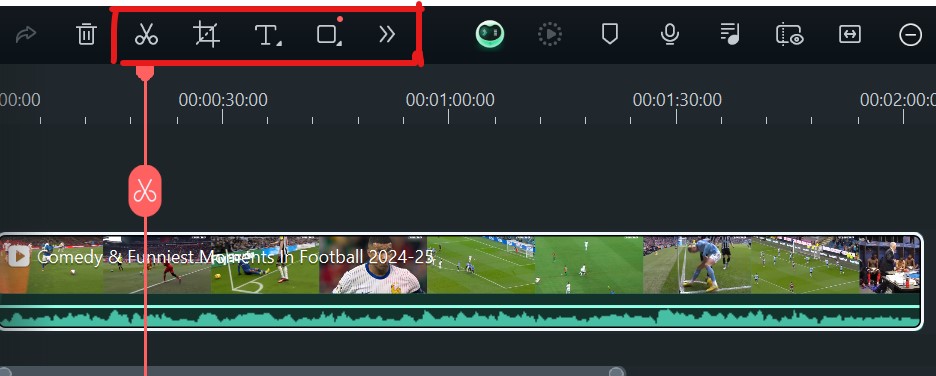
Step 2: Edit Video from Timeline The video may be dragged to the timeline. The timeline bar allows you to employ various AI capabilities to cut, split, and add text to the movie.
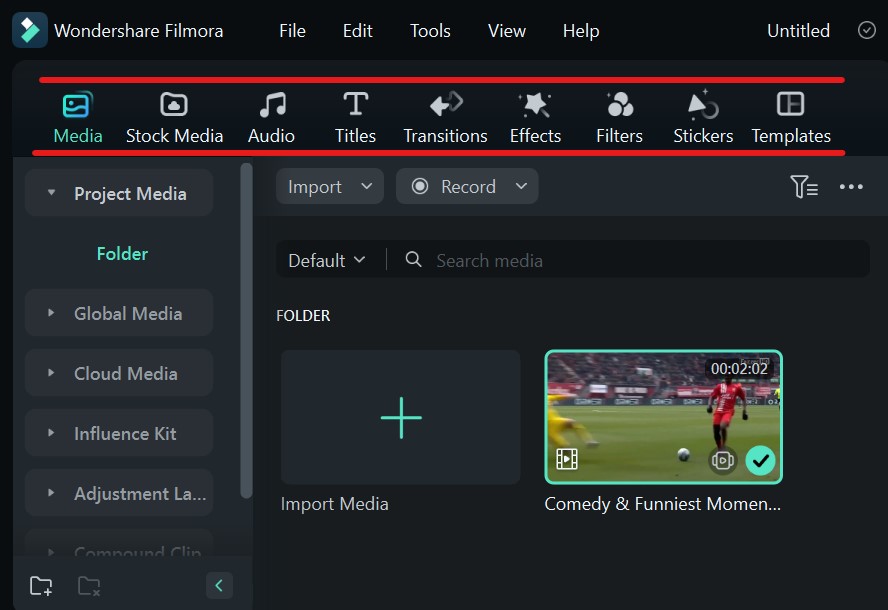
Step 3: Editing Video from the Media Bar You may alter the video’s soundtrack, effects, transitions, and filters with a few clicks in the Media bar.
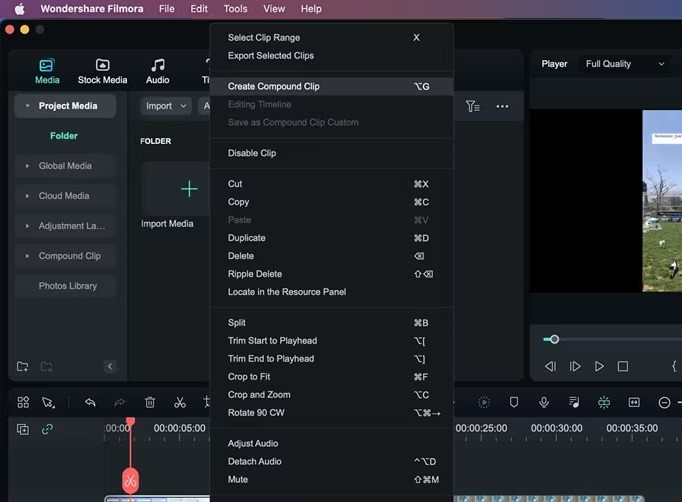
Step 4: Begin Multi-Clip Editing You can also add another clip by importing it for multi-clip editing. Right-click your timeline clip, then choose an option from the dropdown to apply to both clips. This way, you can activate Speech-to-Text, as well as use “Compound Clip,” “Color Match,” or “Adjust Audio” settings on both videos at once.
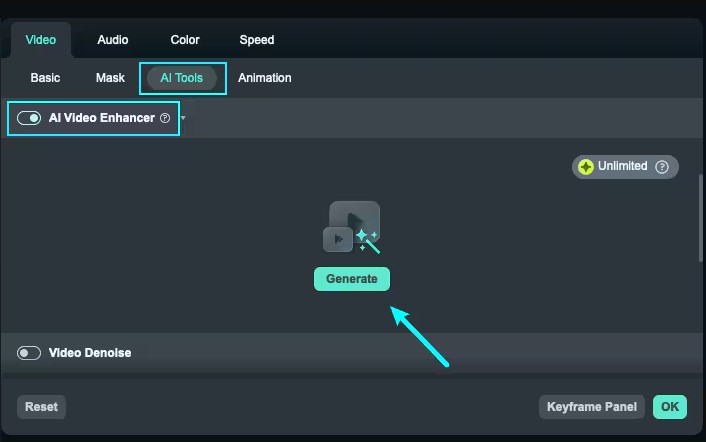
Step 5: AI Video Enhancer You can also enable an AI video enhancer. Double-click the video on the timeline to open the editing panel. Go to video > AI Tools, then activate the AI Video Enhancer by clicking the button next to it. Finally, click Generate to apply the enhancement.
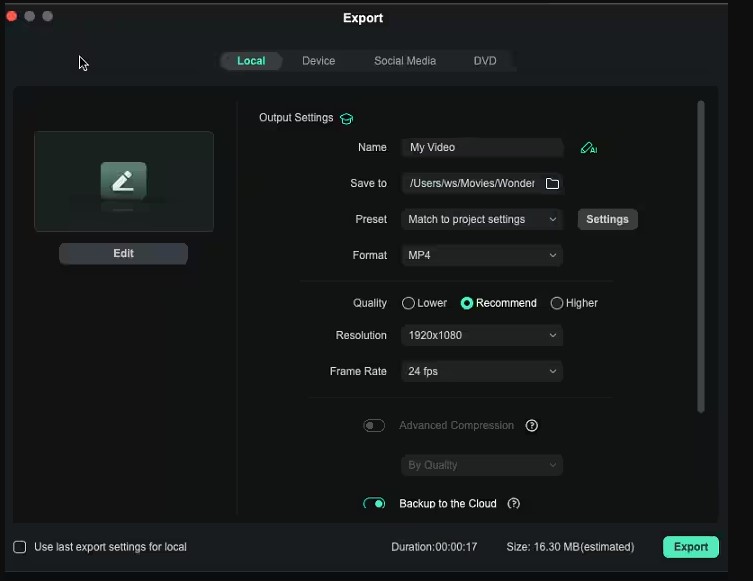
Step 6: Saving the Video With it, you can modify videos in many ways. After editing, save the movie by clicking the export option.
Conclusion
Wondershare Filmora offers more sophisticated features and customization options for users who want more control over their edits, making it a better choice for intermediate to advanced editors.
But if you’re looking for a simple video editor on Mac, iMovie is a better option for beginners because it comes pre-installed and has a streamlined interface.
The thing that prevails most is Filmora’s usefulness and AI capabilities. Although it is lighter, easier to use, and has features for working with a timeline, it is just as good as any other editing program.
It’s more than just software; it’s a companion that enhances the beauty and impact of work.
Enjoyed this article?
If TechLatest has helped you, consider supporting us with a one-time tip on Ko-fi. Every contribution keeps our work free and independent.
