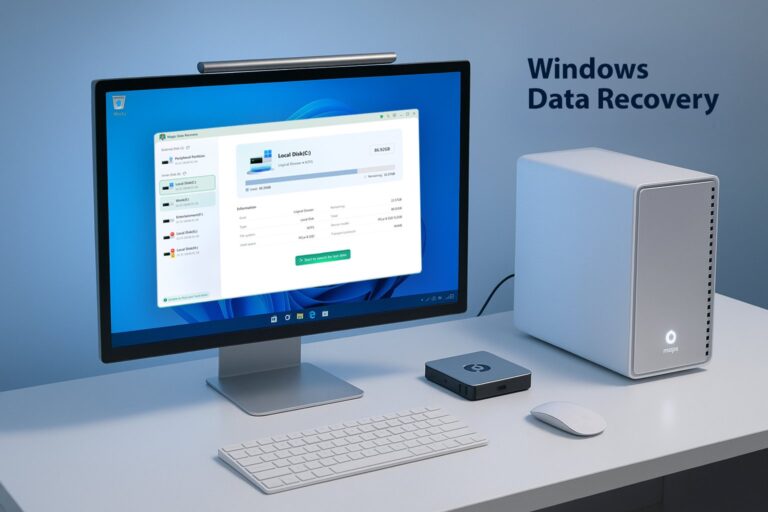
In the digital age, data loss has become a common problem for many users. Whether due to accidental file deletion , disk formatting , or system crashes , losing important files can be inconvenient and stressful.
With professional data recovery software like Magic Data Recovery , users can quickly and safely recover lost data, ensuring business continuity and personal data safety.
🔍 What is Magic Data Recovery?
Don’t want to miss the best from TechLatest ? Set us as a preferred source in Google Search and make sure you never miss our latest.
Magic Data Recovery is a powerful data recovery software developed by Amagicsoft, designed specifically for the Windows operating system. It helps users recover files lost due to accidental deletion , disk formatting , system crashes , or hardware failure .
With its user-friendly interface and high recovery efficiency, the software is suitable for both tech enthusiasts and professionals who need reliable data recovery solutions.
🛠️ Key Features of Magic Data Recovery
1. Supports Multiple File Types
The software supports recovery of over 5,000 file types , including documents, photos, videos, and audio files, covering nearly all types of data users may need.
2. Compatible with Various Storage Devices
It supports recovery from HDD, SSD, USB drives , and other storage devices, whether internal or external.
3. Deep Scan Capability
Magic Data Recovery offers both Quick Scan and Deep Scan modes to help users recover lost files in different scenarios effectively.
4. User-Friendly Interface
The software is intuitive and easy to use, allowing even non-technical users to perform data recovery in minutes.
5. Free Trial Available
Users can try the scanning and preview features before purchasing the full version to ensure it meets their needs.
📋 How to Use Magic Data Recovery
Step 1: Download and Install
Download the software from the official Magic Data Recovery website and install it. Avoid installing it on the disk that contains the lost data.
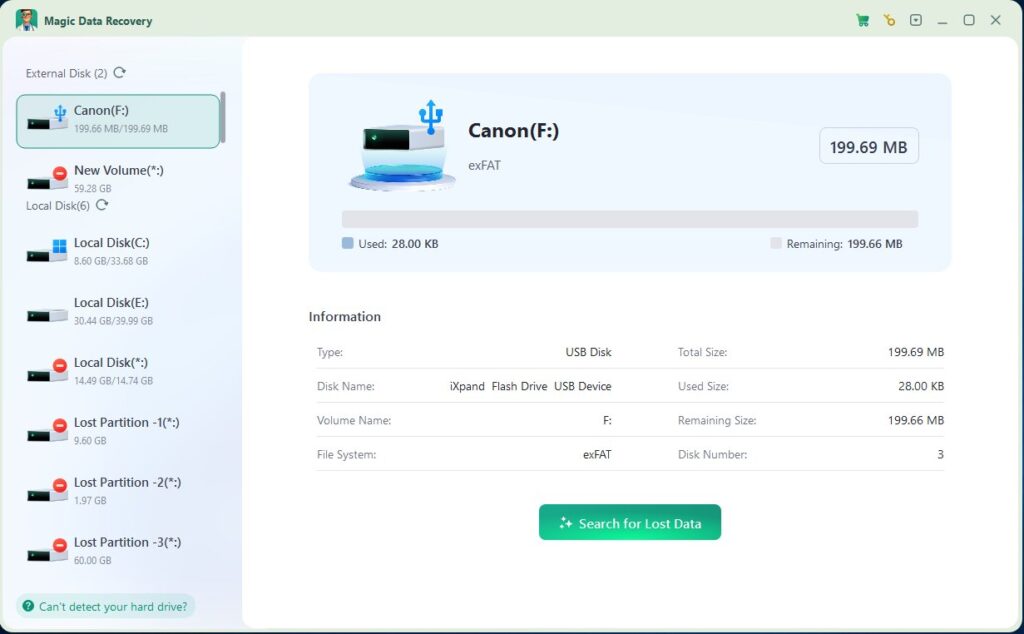
Step 2: Select the Drive to Scan
Launch the software and select the drive or partition where you want to recover data.
Step 3: Start Scanning
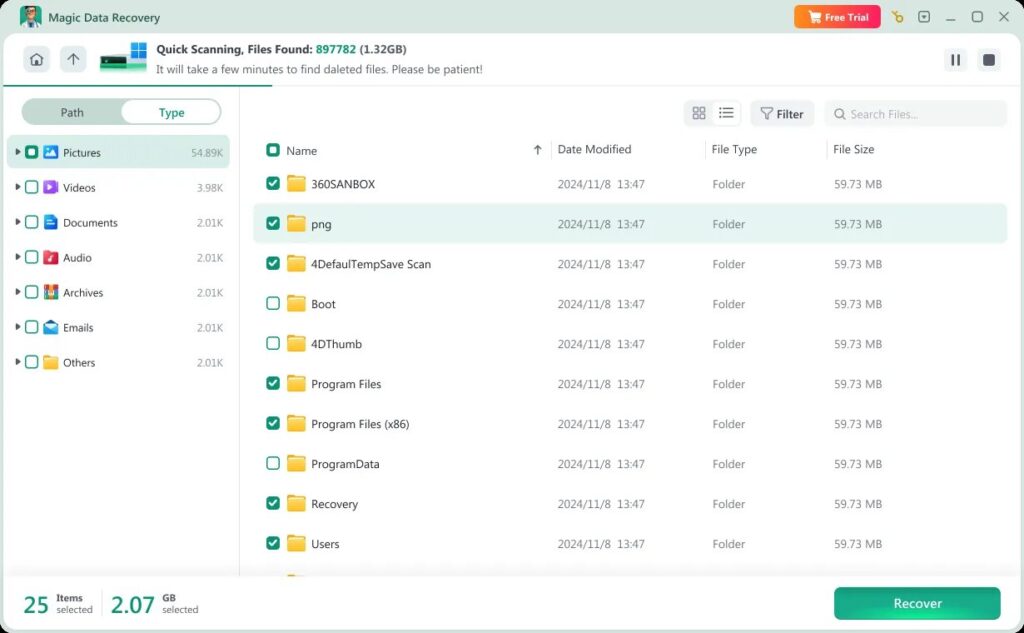
Click the Start Scan button. The software will automatically perform both Quick Scan and Deep Scan without requiring additional action. Wait until the scan is complete to view recoverable files.
Step 4: Preview and Recover Files
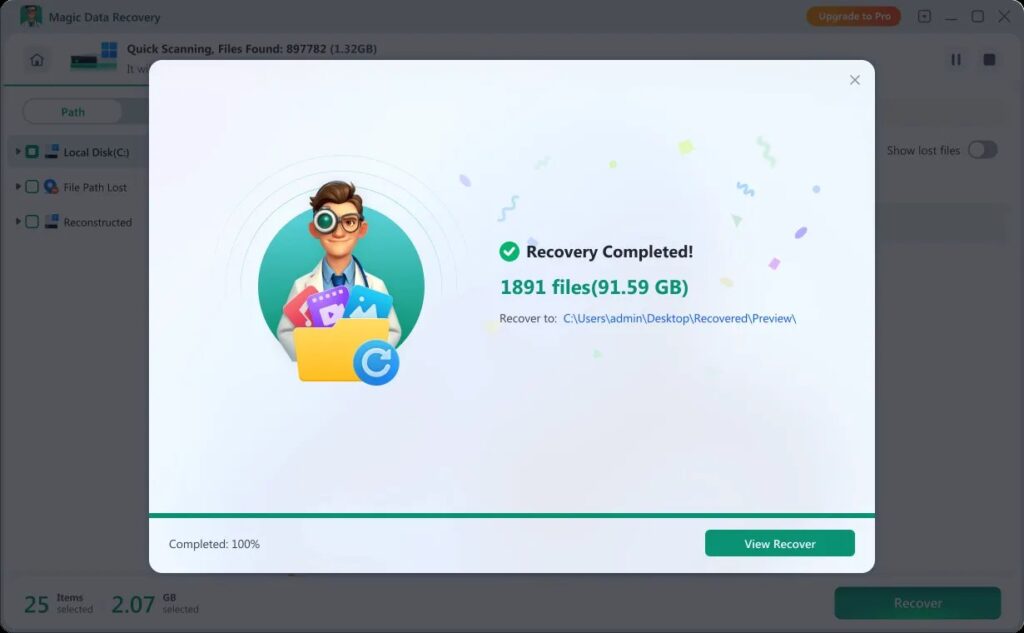
Preview the scanned files, select the files you want to recover, and click the “Recover” button to save them to a secure location. It is recommended to save them to a different drive to avoid overwriting the original data.
💡 Data Recovery Tips
- Recover as soon as possible : Prompt recovery increases the success rate.
- Avoid writing new data : New files may overwrite lost files.
- Save recovered files safely : Store recovered files on a different drive.
- Back up regularly : Regular backups reduce the risk of future data loss.
🆚 Comparison with Other Recovery Software
📌 Conclusion
For tech enthusiasts and professional users , data loss can be frustrating, but with Magic Data Recovery , most lost files can be safely restored.
Whether it’s work documents, photos, videos, or other important files, this software provides a reliable solution for data recovery.
For more information or to download the software, visit the official website: https://www.amagicsoft.com/
Enjoyed this article?
If TechLatest has helped you, consider supporting us with a one-time tip on Ko-fi. Every contribution keeps our work free and independent.
