Highlights
- Numerous inquiries have been made regarding this mysterious billing charge from Microsoft or msbill.info, which has left many confused.
- You might be experiencing this issue because you use a Microsoft service, like Xbox or Office 365.
- Don’t worry! We have some fixes to this problem in this guide.
Billing charges from unexpected sources like Microsoft or MSbill.info can be confusing and frustrating.
These charges appear for a wide range of reasons, including subscription renewals, one-time purchases, and even fraudulent activities.
Don’t want to miss the best from TechLatest ? Set us as a preferred source in Google Search and make sure you never miss our latest.
The best way to maintain your financial peace of mind is to understand how to navigate these charges.
In this article, we will tell you how to make an inquiry regarding a billing charge from Microsoft or MSbill.info wa . So, let’s get started with the guide.
Content Table
What is MSbill.info wa Charge?
MSbill.info provides billing details for Microsoft’s various transactions. You will usually see charges labeled “MSbill.info WA” on your credit card statement or bank statement if Microsoft processed the transaction.
You might be charged for Microsoft 365, Xbox subscriptions, OneDrive storage, or store purchases.
Why Do Suspicious msbill.info wa Charges Happen?
Msbill.info wa charges are usually legitimate, but unauthorized charges can occasionally slip through, triggering an inquiry regarding the charge. There are a few reasons why this might happen:
- There may be a billing charge that needs to be investigated if someone accessed your Microsoft account without your knowledge and made purchases without your knowledge.
- Fraudulent purchases were made using your credit card details, which highlights the need to cancel any unauthorized online services immediately.
- There was an error or glitch in Microsoft’s billing system that resulted in the wrong charge being billed.
You should not brush off odd charges that don’t seem legitimate – you ought to investigate and take action to prevent unauthorized charges for online services.
What are the Common Reasons for MSbill.info Charges?
- Subscription Renewals : Subscriptions to Microsoft products, such as Xbox Live or Microsoft 365, are billed each month. On your statement, these charges will appear as MSbill.info.
- One-Time Purchases : MSbill.info may also charge you if you make a purchase in the Microsoft Store, including software, hardware, and digital content.
- Trial Conversions : Microsoft service trials that are not canceled before the trial period expires often convert to paid subscriptions.
- Family or Shared Accounts : Your account could be charged for purchases made by family members or others with whom you share it.
- Unauthorized Transactions : MSbill.info may charge you unexpectedly if you engage in fraudulent activities. These issues must be identified and addressed as soon as possible.
What are the Steps to Inquire About a Billing Charge?
Several times, a charge is declined due to insufficient funds, expired cards, or when billing information is changed. Within a few days, Microsoft bills the account again.
#1. Managing Payment Options
To prevent further charges, contact your payment provider as soon as you suspect that your payment information has been stolen. Also, update your Microsoft account’s payment options.
Click on ‘Payment options.’ In this section, remove any information related to your debit or credit card. If you were charged unnecessarily, you should check whether:
- It was your first time using a credit card with Microsoft.
- You will be billed if you have a recurring Xbox Live, Office 365, OneDrive, or Skype subscription.
- There is a single charge for all your purchases.
- There was a problem with your order splitting into multiple shipments and billings, or your order was delayed in shipping.
- There is a preorder for your product.
#2. Check Your Order History
Your Order History always shows what you’ve bought/purchased or the subscriptions you’ve paid for. To sign in, go to Microsoft’s official page and use your Microsoft account.
To check your order history, sign in to each Microsoft account you own.
Ensure that the charge you are questioning matches your account. Your family member may have mistakenly purchased a subscription or a subscription may have been charged unexpectedly.
Most commonly, this happens when you let your family members use your account to share a device. Therefore, they might make a purchase without telling you. Verify this by:
- Initially, go to your Family group and sign in to your Microsoft account. You can view a family member’s purchases by looking at their name.
- Choosing “ More options ” > “ Spending ” and scrolling down to “ Purchase History ” will reveal your recent purchases.
- For a purchase history of over 90 days , ask your family member to log into your family group.
- In the ‘ Payment & billing ‘ section, select ‘ Order history .’
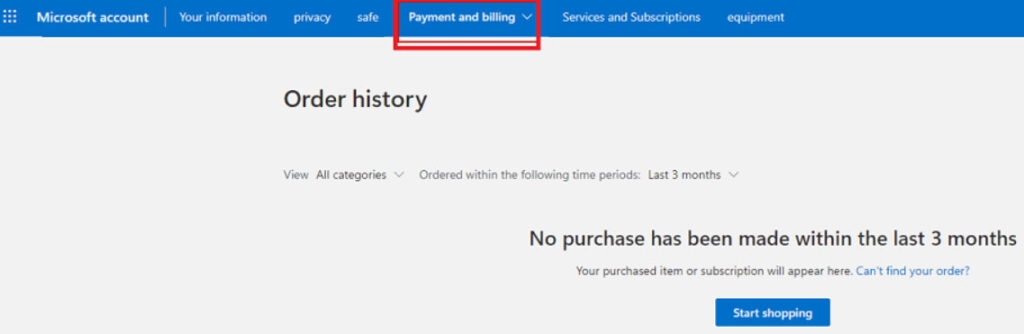
- Ensure that all purchases from the Microsoft Store require a password to avoid unauthorized charges from family members or others.
Tips to Prevent Unauthorized Charges
MSbill.info charges can be prevented by monitoring your transactions and securing your accounts. To help you, here are some tips:
- Enable Two-Factor Authentication : Enable 2F authentication for your Microsoft account. In addition to your password, you will need to provide another form of verification.
- Monitor Your Accounts Regularly : Be sure to review your bank and credit card statements regularly in order to spot any unwelcome charges. In this way, you can catch issues early and address them as soon as possible.
- Use Strong, Unique Passwords : Make sure each password you create is strong and unique. You should avoid using information that can easily be guessed.
- Be Cautious with Shared Accounts : Make sure each user in your family or household has his or her own Microsoft account. It is helpful in keeping track of subscriptions and purchases.
- Stay Informed About Subscriptions : Be aware of subscription renewal dates and keep track of active subscriptions. Make sure you review any subscriptions you no longer need and cancel them.
- Secure Your Devices : Check if your devices are protected with the latest antivirus software and that they are updated regularly. By doing so, you can protect your accounts from being accessed by unauthorized parties.
What to Do About Suspicious msbill.info wa Charges?
Once you’ve determined that the charge is indeed unauthorized, follow the steps below:
#1. Notify Bank or Credit Card Company
Don’t forget to inform your financial institution about the fraudulent charge, and it might be declined because of security concerns.
It may be possible for them to initiate a chargeback, especially if an unauthorized transaction has led to the charge being declined.
Give them as much information as possible about the charge, including the date and amount. Typically, they will ask you to provide documentation and a dispute form.
#2. Contact Microsoft Support
When you have questions about legal matters or the charge has been declined, you should contact Microsoft support .
You may be able to get a refund if you contact them to investigate the charge. Alternatively, you can make contact with Microsoft customer service by visiting their website.
For billing charges from Microsoft, be prepared to provide information about your account and the charge.
#3. Disable Recurring Billing
Turn off recurring billing if you no longer want any Microsoft subscriptions or services. If you do this, you will be able to prevent any unwanted charges in the future.
If you do not need any of the services, you may be able to cancel or turn off auto-renewal in your account.
So, that’s all we have for you regarding how to inquire about a billing charge from Microsoft or MSbill.info wa. We hope that this guide has helped you. But that’s not the end. If you need more info, comment below.
Further Reading:
- How to Force Delete a File or Folder on Windows 11?
- Fix: Printer’s “Driver is Unavailable” Error on Windows
- Windows was Dominant, But Now It’s Not: What Happened?
Enjoyed this article?
If TechLatest has helped you, consider supporting us with a one-time tip on Ko-fi. Every contribution keeps our work free and independent.
Highlights
- “Driver is unavailable” is a common issue people face with their printer on a Windows PC.
- The issue occurs due to various reasons like the driver is not properly installed or is corrupted, etc.
- We’ve given a number of solutions that can help you resolve the issue in no time and you can get back to your daily chores.
Printing is one of the most common tasks people do on a daily basis. Nowadays there are a ton of printers available on the market, and every one of them requires a different driver to operate.
Hence, you might see a very common error while you try to print any document or photo, i.e., Driver is Unavailable. Since it is a common issue, solutions are also very easy to implement.
Don’t want to miss the best from TechLatest ? Set us as a preferred source in Google Search and make sure you never miss our latest.
“Driver is unavailable” simply means that your system is trying to find the right driver for your printer to operate but can’t find any and halts the printing of any document or photo.
As mentioned earlier, the solutions are simple but before that, we would like to tell you the reason why you get the “Printer Driver is unavailable” error on Windows.
Content Table
Why do you get the “Printer Driver is unavailable” error on Windows?
This is a very common error among Windows 10 users as so many have complained to us that they get the Driver is Unavailable on their Printer devices.
Talking about why you get this error, there is no single reason why this error could pop up on your PC. There are multiple reasons why this error could occur on your PC, and we have listed them down below. You could be facing an error due to any of them.
Here are the reasons:
- Your Printer’s driver is missing or not installed properly
- Your Printer’s driver is corrupted
- Your Printer’s driver is not compatible with your PC
- Your Printer’s driver is outdated
- Windows Update needs to be installed
Now that we have told you about the possible reasons you are getting the “Printer Driver is unavailable” error, we will talk about how to fix the “Printer Driver is unavailable” error.
How do we fix the “Driver is unavailable” error on Windows?
These are some of the ways to fix the “Printer Driver is unavailable” error on Windows, and they are as follows:
1. Reconnect the Printer Device
The first thing you need to do is simply reconnect the Printer Device so that you can check if it works or not. It is quite possible that this could fix all the things, and you don’t need to do anything else to fix the issue.
To reconnect your Printer device, follow these steps:
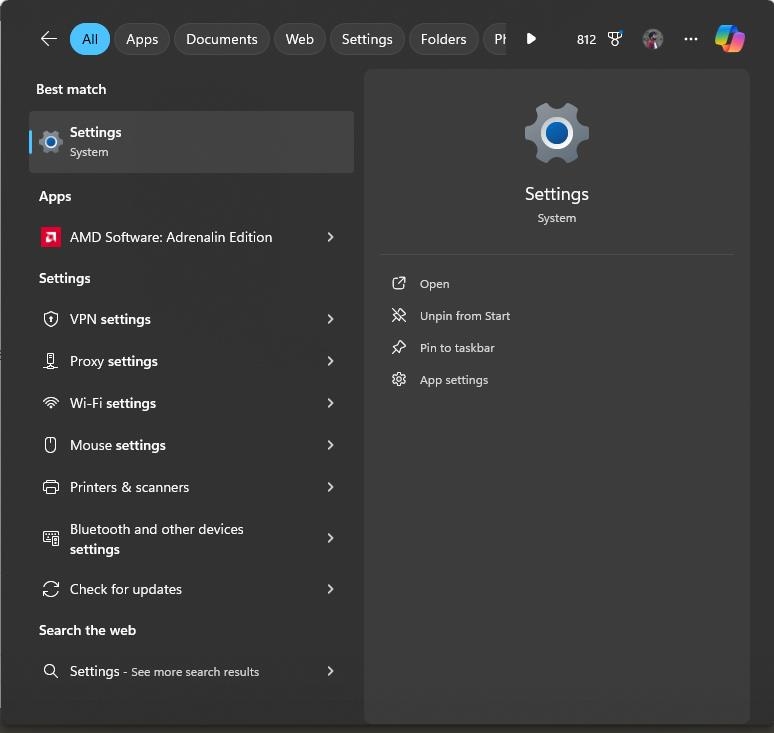
- Press the Windows + S key on your keyboard and then type Settings in the window that opens.
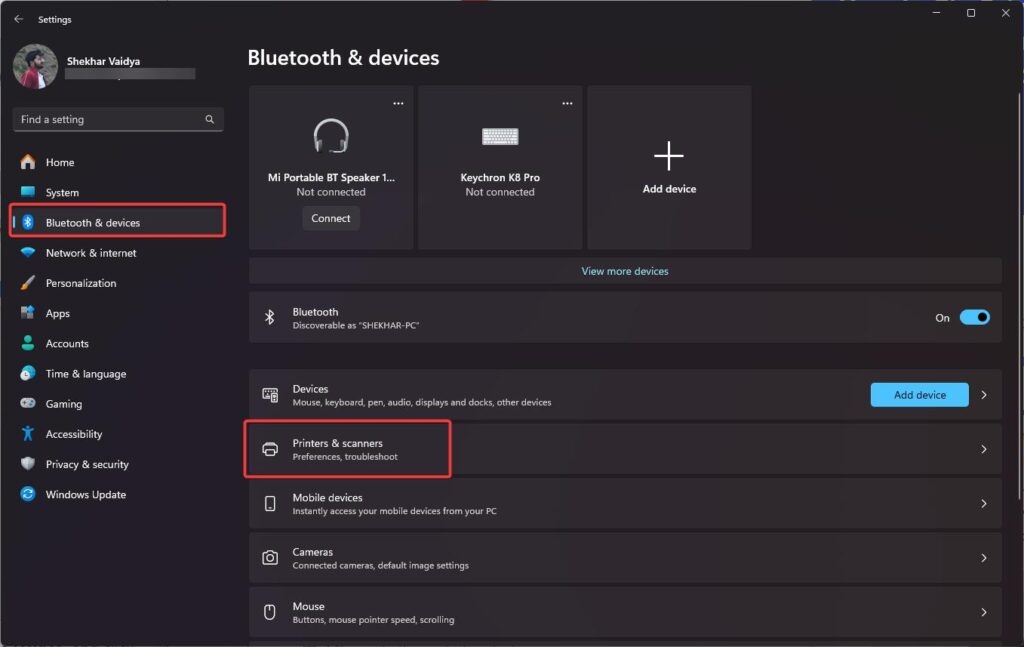
- Launch the Settings window, click on Bluetooth & devices , and then Printers & scanners .
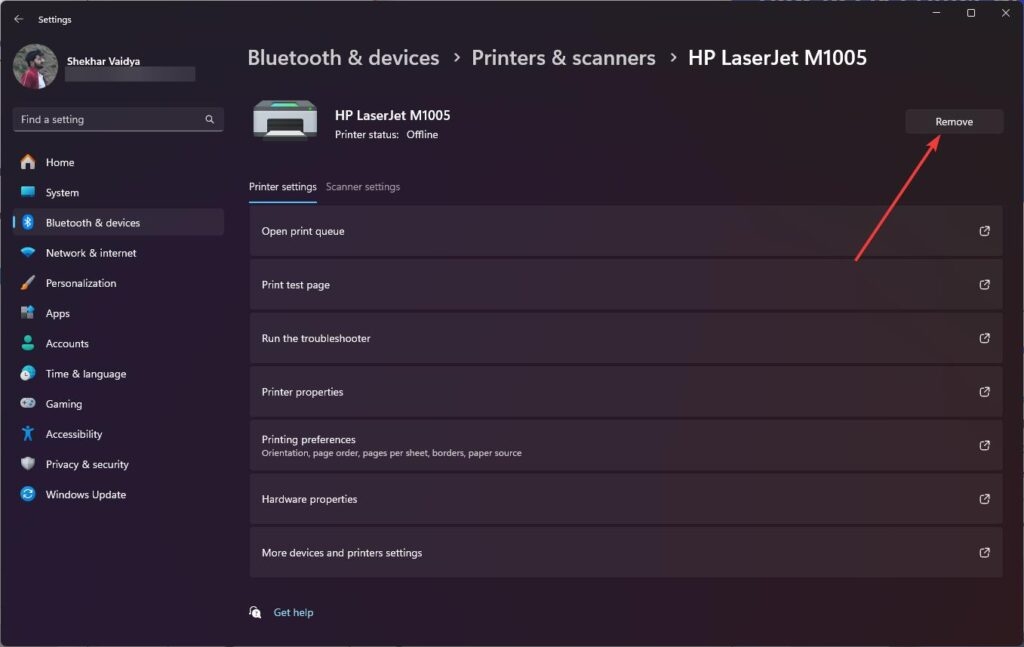
- Click on the Printer that is troubling you, select Remove Device, and click Yes if you are prompted.
- After this, your Printer will be removed from your PC, and then you can reconnect your Printer as you would normally do.
If this doesn’t work, you can try the other troubleshooting methods mentioned below.
2. Update your Printer Driver via Device Manager
If your method of reconnecting the Printer did not work, then you can try to update your Printer’s drivers because outdated drivers could also cause problems with the functioning of any device.
To update your Printer’s drivers inside Windows, follow these steps:
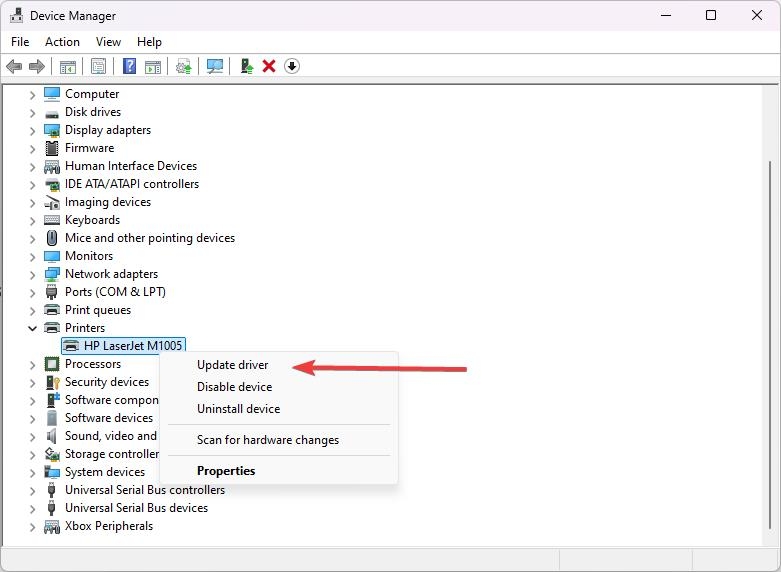
- Press the Windows + X key, click on Device Manager , and then expand the Printers menu.
- Right-click on the Printer listed in the menu and then click on Update Driver to update its drivers.
- Select the Search Automatically for drivers option and allow Windows to search for existing drivers inside the system as well as online.
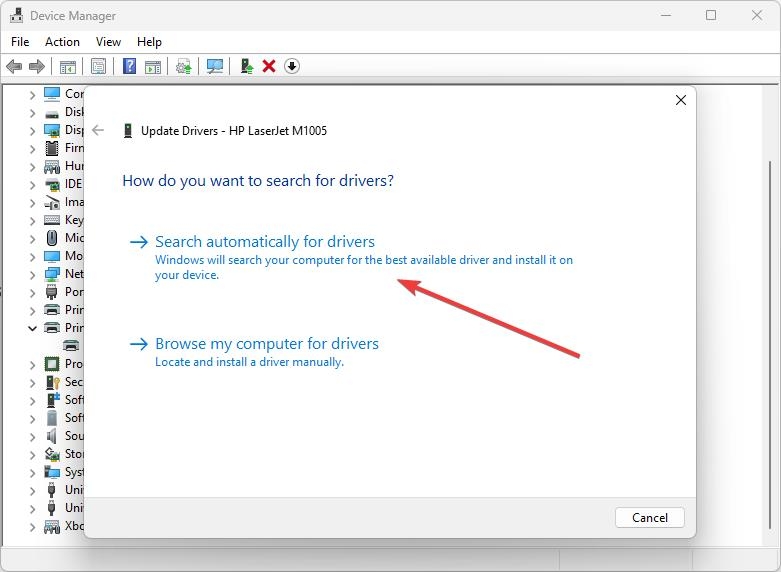
- Wait for the driver installation to complete, and then restart your PC for changes to take effect.
3. Install Printer Drivers manually
It is quite possible that Windows cannot find the Printer Drivers, so you may need to install them manually.
- For this, you need to go to Device Manager once again by clicking Windows + X.
- After that, you need to go to Printers and Expand the list, right-click on your Printer, and click on Update Driver .
- Now comes the part where you need to concentrate because you will need to click on Browse my computer for drivers.
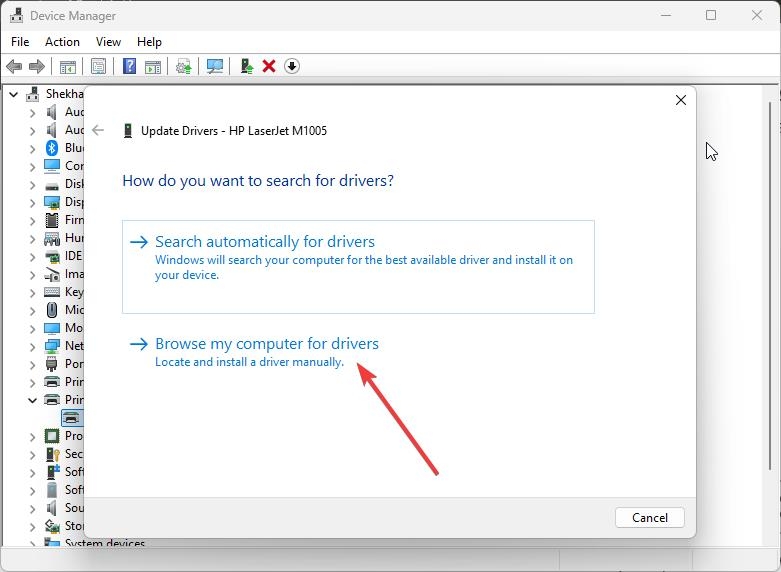
- Download the Printer Driver for your respective printer, depending upon its manufacturer. We have given links to some of the top printer manufacturers down below: Canon Driver Download HP Software and Driver Downloads Epson Downloads Brother Driver Downloads Sharp Driver Downloads Samsung Printer Software Installer
- Download the correct driver, remember the file path where you have downloaded the drivers, and then select and install them on your PC.
4. Install Generic Printer Driver
Users say installing generic printer drivers instead of those specific to their device manufacturers has also done the job for them. This could be because generic drivers are compatible with each and every printer out there unless there is something specific that needs to be changed.
So, we will try and install a generic driver on our Printer and see if it works.
- To do that, go to Device Manager by pressing the Win + X key once again.
- Expand the Printers menu, right-click on your Printer, and click on Update Driver .
- Then click on Browse my computer for drivers and then click on Let me pick from a list of available drivers on my computer .
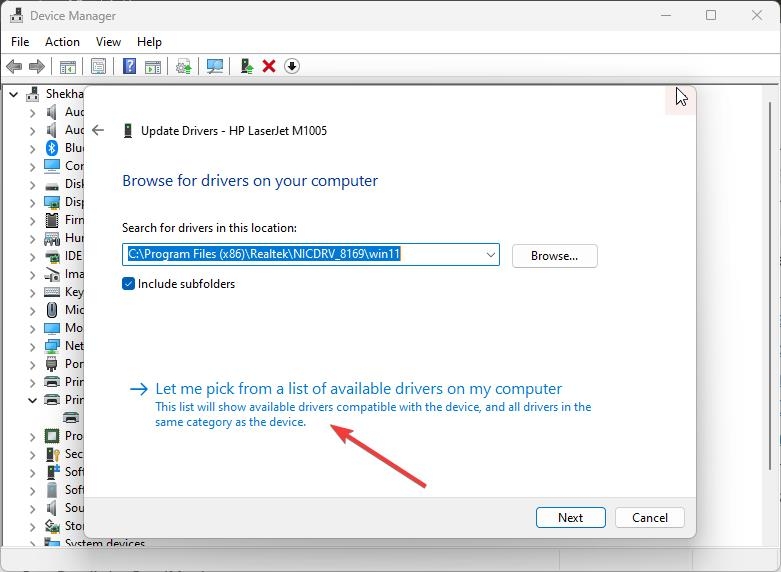
- Click on Generic Software Device as seen above and then click on Next.
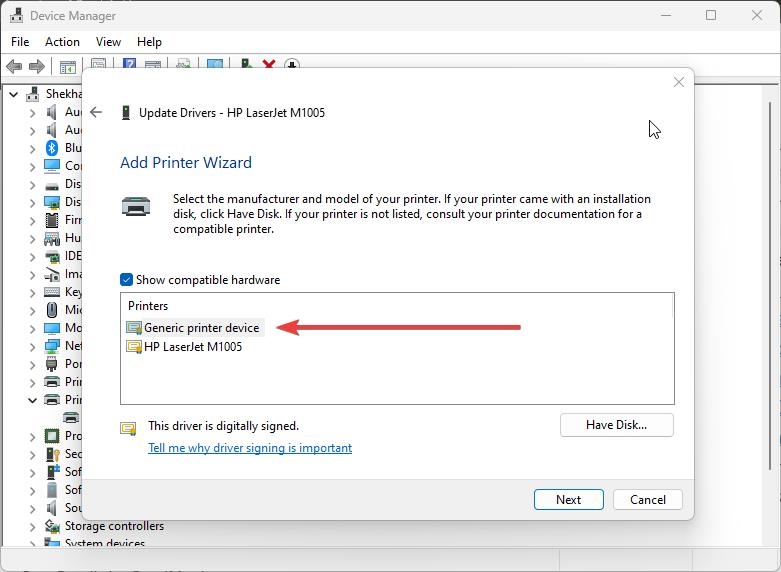
- Now, your Generic drivers will be installed, and you can restart your PC after that.
5. Update Windows 10
While we know that the problem of the Printer Driver being unavailable is related to the drivers of your Printer, it is possible that your Windows being outdated could also be the issue.
We have noticed this issue in users who did not update their Windows 10 and were running an outdated version.
So, make sure to check and update your Windows if you have an update pending because it could bring bug fixes that could fix the “Printer Driver is unavailable” issue.
- To check for Windows updates, press Win + I simultaneously to open Settings .
- Now, click on Windows Update .
- Click on the Check for Updates button and then wait for Windows to check if any update is available.
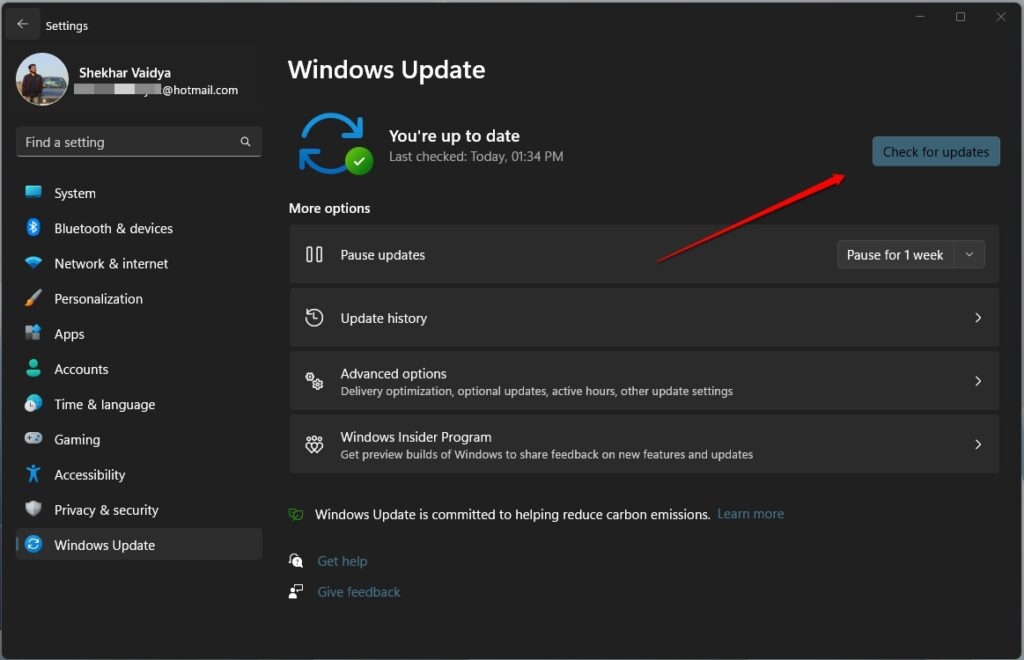
- If any update is available, click on the Download and Install Now button and then wait for it to be installed on your PC.
6. Fix Corrupt Windows Files
There can be errors related to “Driver is unavailable” when system files are corrupted.
You can make these files work again with the System File Checker (SFC) and Deployment Imaging Service and Management Tool (DISM).
Run SFC
- Run Command Prompt as an administrator.
- Then type sfc /scannow and hit Enter.
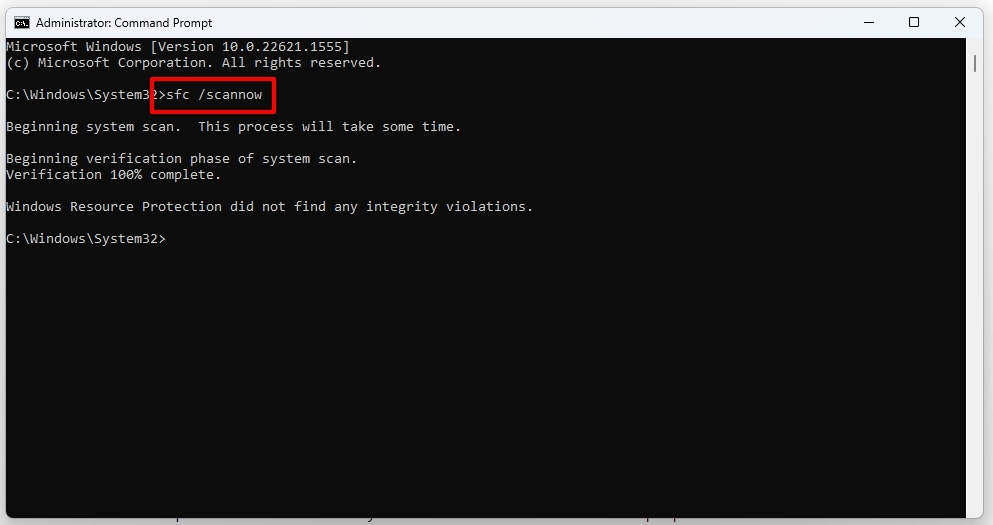
- Wait until the Scan is complete. Whenever it finds corrupted system files, it automatically fixes them.
Run DISM
- You will need to open Command Prompt as an administrator.
- Enter DISM /Online /Cleanup-Image /RestoreHealth .
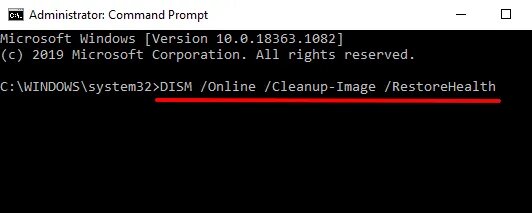
- Let the process run its course. Be patient; it may take some time.
7. Don’t Let Faulty Drivers Install
Sometimes the issue of “Driver is unavailable” is because of the driver’s latest update. Usually in the latest Windows editions like 10 or 11, Windows tends to update the driver automatically when available.
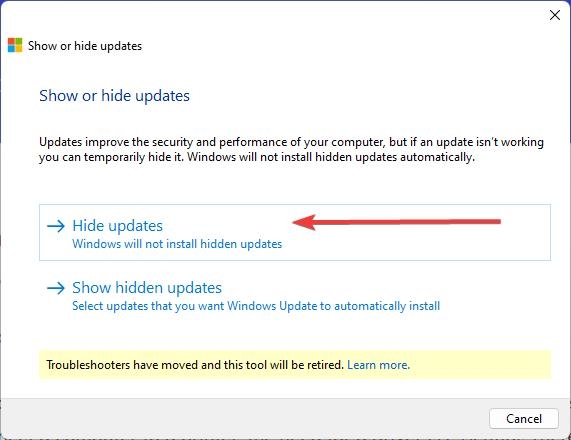
We can stop this phenomenon by using Microsoft’s Show or hide updates tool. Follow the below instructions step-by-step to do so,
- Download the Microsoft Show or hide updates tool using this link .
- Open the app by single/double clicking the wushowhide.diagcab file.
- Click on the Next button located in the down section of welcome windows.
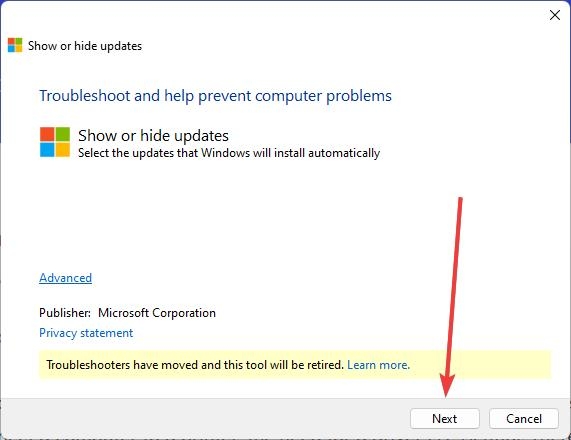
- From the two options available, click on the Hide updates option.
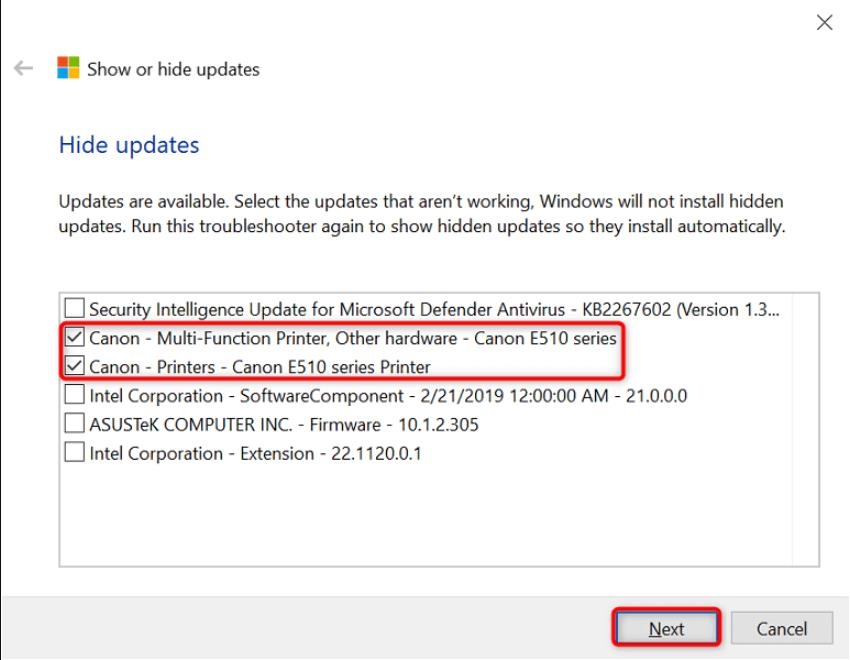
- Check the boxes of the faulty printer and click on the Next button.
- Finally, select Close the troubleshooter .
By doing this, Windows will ignore any updates available and prevent installing any faulty drivers.
Conclusion
There you go. We have mentioned everything there is to know about the “Printer Driver is unavailable” error, from how it is caused to knowing how you can fix it.
Some part of this article is contributed by Abhishek Jariwala .
Further Reading:
- Why is My Computer Slow All of a Sudden?
- Windows was Dominant, But Now It’s Not: What Happened?
- Winpilot (BloatyNosy): Debloat Your Windows 11 PC (Remove Bloatware)
Enjoyed this article?
If TechLatest has helped you, consider supporting us with a one-time tip on Ko-fi. Every contribution keeps our work free and independent.
