Highlights
- Opera’s built-in VPN often fails because it’s a simple browser proxy, not a full device-wide VPN.
- Most connection issues can be fixed by updating Opera, switching server regions, or checking your security settings.
- For reliable privacy and streaming access, switching to a trusted paid VPN service is the smarter long-term option.
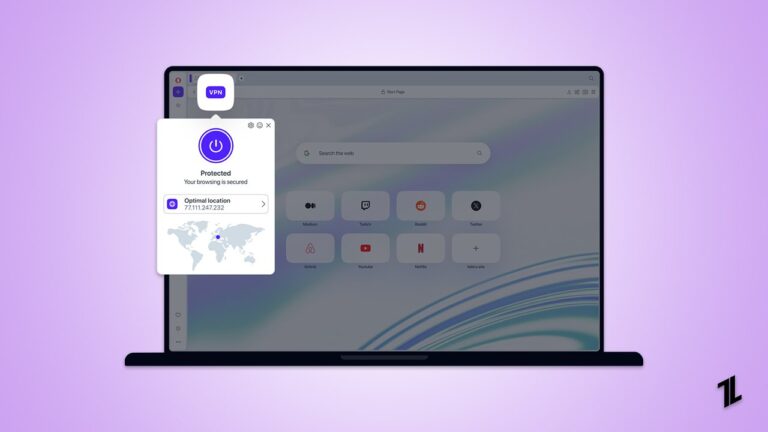
If you’ve been using Opera VPN to bypass regional restrictions or keep your browsing activity private, seeing that “VPN temporarily unavailable” message can be a huge pain. One minute it’s working, the next minute you’re staring at a blank page, wondering how something so simple could go all wrong.
You are not alone; many Opera users have the same problem. The truth, however, is that Opera’s baked-in VPN is not a true VPN service. It is more of a browser-level proxy. It protects only your Opera traffic (not your entire device), and it has a pretty limited set of servers.
Don’t want to miss the best from TechLatest ? Set us as a preferred source in Google Search and make sure you never miss our latest.
So when it acts up, it’s not always your internet that’s to blame. So, let’s check out this step-by-step guide to know what actually causes the Opera VPN not working issue and how to fix it.
Content Table
Here’s Some Methods That Actually Works to Fix Opera VPN Not Working
Method 1: Check Your Internet Connection
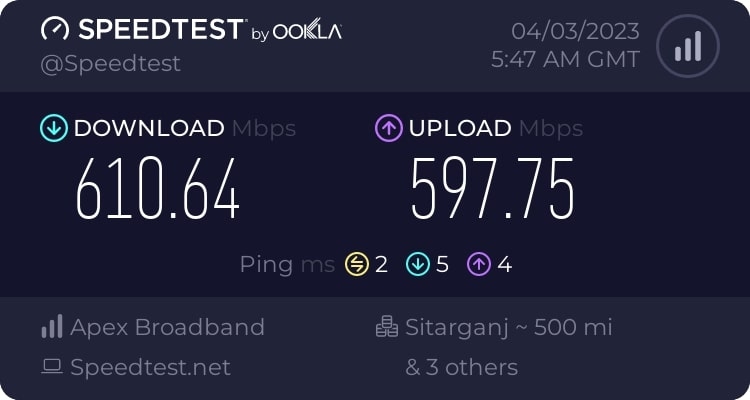
Internet Speed Test using Ookla
Before blaming Opera, make sure your regular internet connection is working fine. Turn off the VPN in Opera and try loading a few different websites. If nothing opens or pages load painfully slow, the problem is probably with your network, not the VPN. To resolve this problem, try these:
- Restart your Wi-Fi router.
- See if other browsers or devices on the same network are working properly.
- Confirm that your device is connected to the correct network (you’d be surprised how often it switches to a weak one).
If your connection looks good and Opera VPN still refuses to connect, then yeah, it’s time to troubleshoot the VPN itself.
Method 2: Restart Opera and the VPN
This sounds basic, but restarting the browser actually fixes a lot of minor bugs. Here’s a clean way to do it:
- Close all Opera windows, check Task Manager (or Activity Monitor on Mac) to make sure no background process is still running.
- Reopen Opera .
- Click the VPN icon near the address bar, turn it off , wait five seconds, then turn it back on .
Now try loading a website again. If it connects, great, it was just a temporary glitch.
Method 3: Switch to a Different Server Region
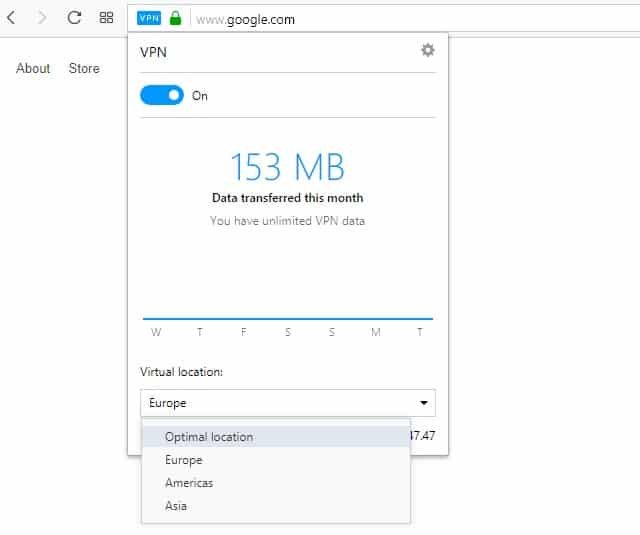
Opera only gives you three broad server choices: Europe, Asia, and the Americas. That’s it. So when one of them gets overloaded, which happens often, connections can drop or slow to a crawl. To fix that, follow these steps:
- Open the VPN menu and switch to another region.
- Wait a few seconds for Opera to reconnect.
- Test your browsing speed again.
Changing servers is often the simplest way to get back online. It helps you dodge busy servers and find one that’s actually responsive.
Method 4: Update Opera and Disable Extensions
If Opera VPN keeps failing no matter which region you pick, make sure your browser is up to date. Outdated builds sometimes have VPN bugs that newer updates quietly patch.
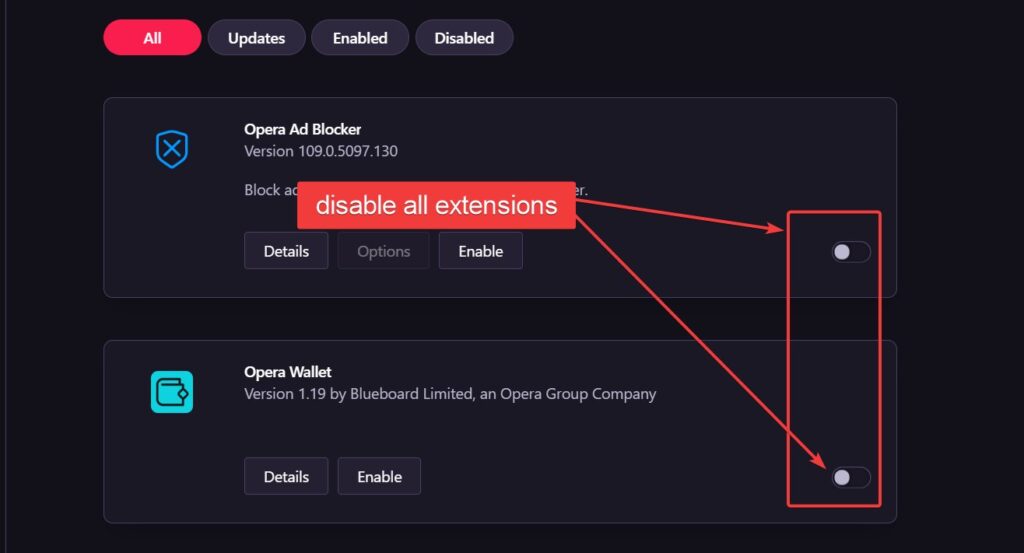
Also, browser extensions can mess with VPNs, especially ad blockers, script managers, or privacy add-ons.
Go to Menu > Extensions > Extensions and temporarily disable them all. Then restart Opera and try the VPN again. If it works after that, re-enable your extensions one by one to find the troublemaker.
Method 5: Check Your Antivirus or Firewall
Sometimes, your antivirus or Firewall thinks Opera’s VPN is suspicious and blocks it. This is pretty common with aggressive security software.
Try adding Opera as an exception in your antivirus and firewall settings. On Windows, you can do that by going to: Control Panel > System and Security > Windows Defender Firewall > Allow an app through Firewall.
Make sure Opera is checked for both private and public networks. After adding the exception, relaunch Opera and try connecting again.
Method 6: Clear Cache and Cookies
Even if the VPN connects, some websites might still refuse to load, especially streaming services like Netflix or Hulu. That’s because these sites track your real location through browser cookies.
To fix that:
- Go to Settings > Privacy & Security > Clear Browsing Data.
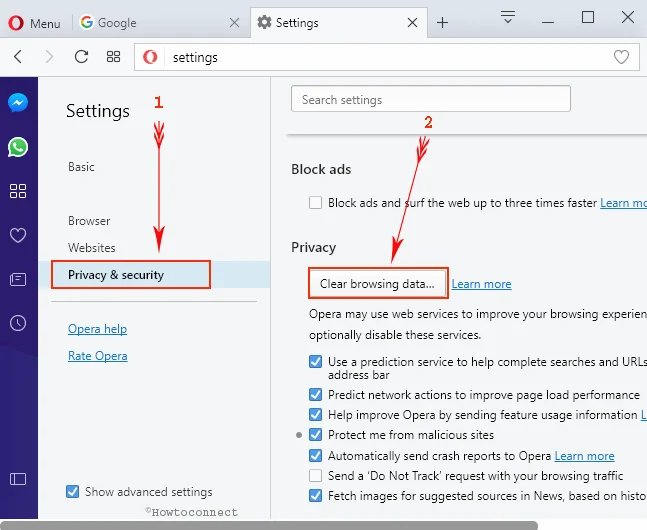
- Select Cookies and Cached Files , then hit Clear Data.
- Reconnect the VPN and reload the site.
Clearing your cache gives you a clean slate, so websites stop assuming your real location.
Why Opera VPN Can’t Unblock Streaming Sites?
Here’s the hard truth: Opera VPN isn’t built for streaming. It’s a simple proxy, not a full VPN. That means:
- It only hides your Opera browser traffic, not your entire device.
- It uses a very small number of shared IPs, and most streaming platforms have already blacklisted them.
- You can’t pick a specific country (only continents), so you have no control over where your “virtual” location actually is.
If you’re mainly using it to access Netflix, BBC iPlayer, or Hulu, you’ll hit walls often. Those services are really good at detecting proxy traffic.
- Opera Neon AI Adds Deep Research Tools for Smarter Browsing
- Comet Browser Launches Worldwide with Free Access for All
- How to Completely Disable Leo AI in Brave Browser?
When to Switch to a Real VPN?
If privacy, security, and streaming access are priorities for you, Opera’s VPN won’t cut it long-term. It’s fine for basic browsing, but for full protection, you’ll want a proper VPN that:
- Encrypts all your internet traffic (not just Opera).
- Let you pick exact server countries or even cities.
- Has a large pool of IPs, so you don’t get blocked.
- Comes with features like a kill switch and DNS leak protection.
Reliable options like NordVPN , Surfshark , or CyberGhost cost just a few dollars a month and work across all your devices.
Final Thoughts
Opera’s free VPN is very easy to use, but it’s not flawless. Most “VPN temporarily unavailable” errors are caused by server overloads, browser bugs, or security conflicts. Restarting Opera, switching regions, updating the browser, and checking your Firewall usually do the trick.
But if you’re tired of random disconnections or limited regions, switching to a real VPN service is the smart move. So, that’s all we have for you about how to fix if Opera VPN is not working. We hope that the methods we have discussed have helped you. For more info, comment below and let us know.
Enjoyed this article?
If TechLatest has helped you, consider supporting us with a one-time tip on Ko-fi. Every contribution keeps our work free and independent.
