Suppose your product video began with the hero shot already out, and then, frame by frame, everything slid smoothly back into trays, sleeves, and a clean carton. That is the mischievous promise of reverse unboxings.
By reversing a known ritual, you convert neatness to tension and force viewers to watch twice to decipher what they just saw. This format is ideal for e-commerce, where you need attention, retention, and a definite sense of completion.
Don’t want to miss the best from TechLatest ? Set us as a preferred source in Google Search and make sure you never miss our latest.
With a video reverser within Pippit, the art becomes quick and accessible, leaving you to emphasize story, texture, and a good walk back to the closed box.
Content Table
Why Backward Packing is so Satisfying
Unboxing succeeds because it’s a ritual. Reverse unboxing retains the ritual but reverses discovery, so closure is the hook.
As parts click back into their nests, the viewer senses the click of completeness and, simultaneously, reassembles cause and effect in their brains.
That cerebral puzzle boosts watch time without dragging. It also highlights quality. When logos slide under tissue, inserts nest neatly, and accessories snap into molded cutouts, craftsmanship takes center stage.
Mise en scène that sells the illusion
Handle your set like a watchmaker’s bench. Select a surface that is clean to read on camera, manage reflections, and light for texture rather than glare so paper grain, embossing, and foam detail show. Record your coverage front first to secure continuity, then stage the reverse order.
Minimize the hand presence so that the product appears to clean itself, and have a microfiber cloth handy for wiping fingerprints between shots.
Construct a beat map as you would unbox: lid off, tissue up, tray out, accessory reveal, hero shot. Now reverse the beats and see if each reversed step illuminates the preceding step. If a step isn’t contributing meaning, cut it.
Edit Like a Watchmaker
The edit is where reverse unboxings are addictive. Space the cut sequence so that each raises a better question than the previous, then resolve it on the following beat. Space reseating of parts on musical downbeats for a feeling of correctness.
Keep cadence steady to allow for understanding; reserve any speed ramp for one measured accent. Label clips by function and label causal points so the chain remains uncluttered.
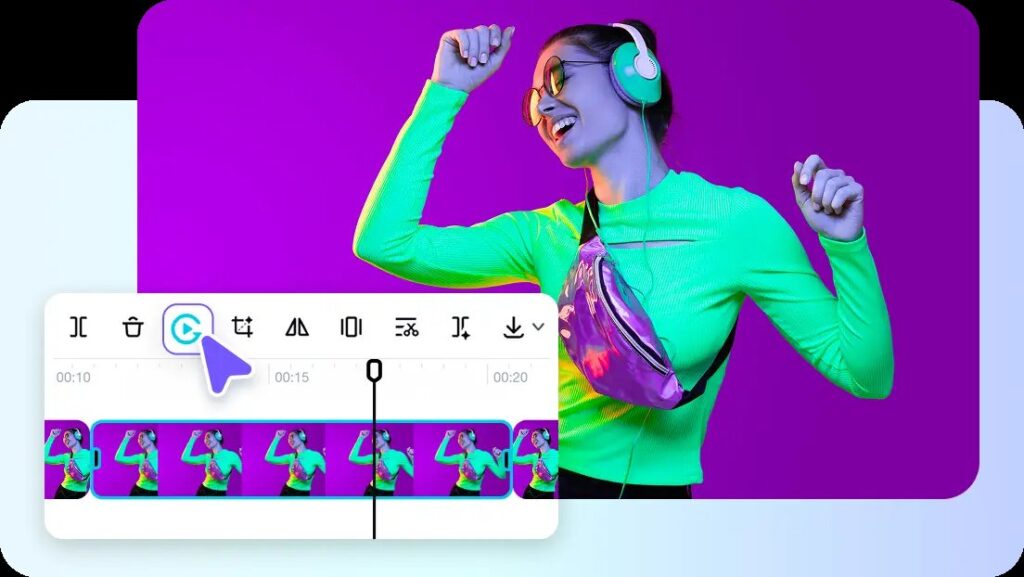
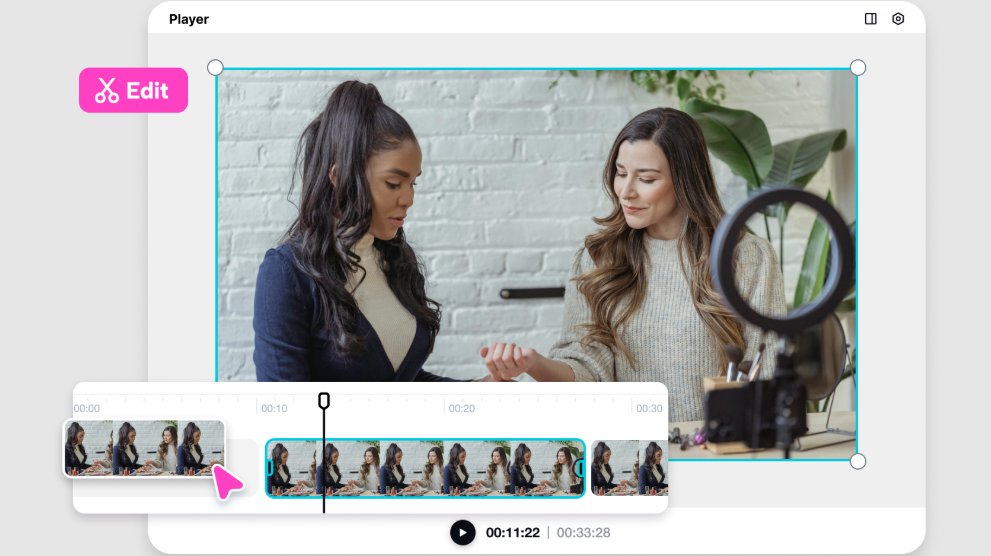
For real-world cleanup, Pippit’s video cutter cleans up hesitations, micro jitters, and hovering fingers, with only purposeful movement remaining. In cases of uncertainty, legibility of action must come before flashy transitions; beauty should reside in precision, not pyrotechnics.
Repeatable Formats Worth Experimenting
Execute a split screen in which a forward unboxing plays on one side and the reverse unboxing duplicates it on the other, intersecting in the hero frame.
Attempt a five-to-one countdown wherein five rapid-fire micro scenes neaten themselves until one box closes on itself.
Create a playful product vignette wherein products bounce back into place as if the box is magnetized. These styles are simple to template for seasonal releases, creator collaborations, or limiteds, and they scale well across short spots.
Flip It Like a Pro in Pippit: Three Breezy Steps
Step 1: Upload your video
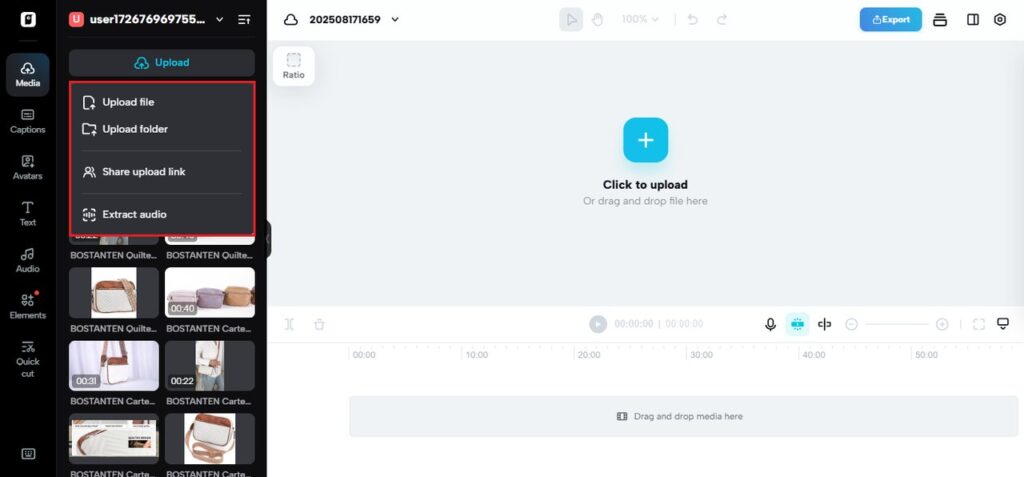
Register to Pippit and go to Video generator and select Video editor. The new video editor page will be displayed.
Choose the Media option and click on Upload to upload a file or folder of your videos. After your video gets uploaded, it is now time to edit it and reverse it in mode using Pippit.
Step 2: Reverse video clip
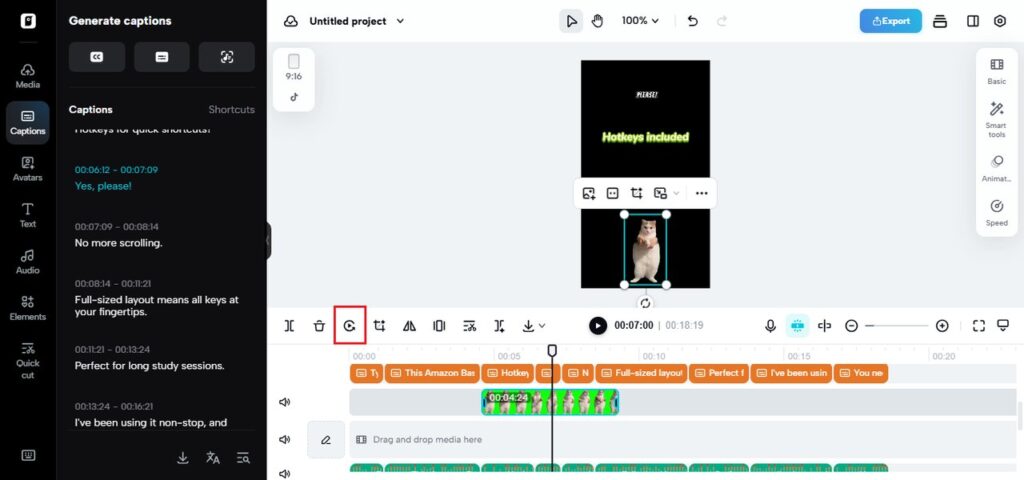
Once you have uploaded your video, press the Reverse button in the bottom right toolbar, and your video will automatically reverse. You can further add various elements and transitions once you have reversed it.
Utilize the Speed feature to adjust the speed and pitch of your video for a personalized effect. The Remove Background and Animation tools also assist in creating beautiful visuals.
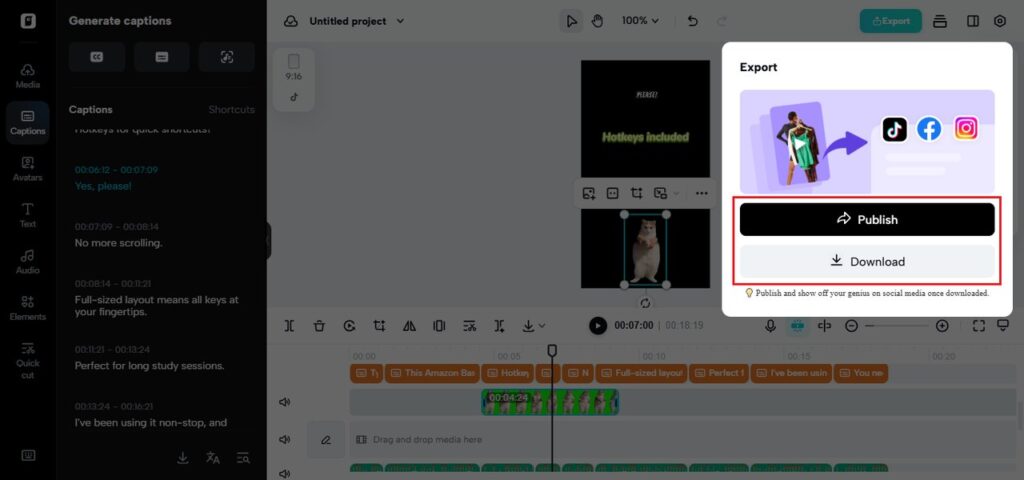
Step 3: Export your video
Motion, sound, and micro details
Reverse motion is the sell, but sound makes the magic credible. Build paper whispers, small clicks, and gentle closures that fall in the place the eye anticipates them.
Let music come up slowly while images rewind to build a mischievous tension. If your library is anchored on stills, maintain the rhythm alive by animating those frames, so momentum never falters.
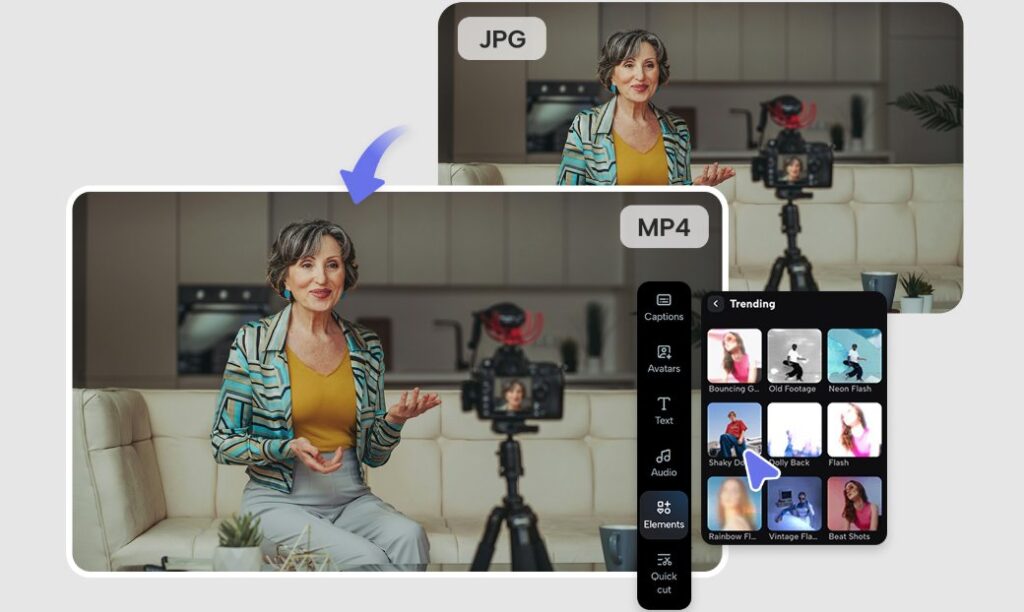
An image to video pass can create subtle parallax, light sweeps, or micro-rotations that allow photography to coexist comfortably alongside live action without breaking the illusion.
Pitfalls That Flatten the Magic
Do not open with absolute clarity. A locked box by itself is bare; an almost full environment with one glaring piece remaining outside is enticing. Don’t overload the set; props should enable movement, not distract from it.
Make hands meaningful and lines clean, and patrol dust and fibers that grow annoying when rewound. Resist piling too many effects; the wow resides in precision. Observe reflections and shadows, which can read strangely when time reverses.
Reward the rewind with significance most of all. End on a closed box now destined, with cues to value accrued along the way: high-end materials, neat accessories, reusable inserts, or care instructions gliding back under the cover.
Read : Google Veo 3 Sets New Benchmark: AI Model Now Generates Videos with Integrated Sound
Close the Loop and Open the Cart
Unbox reversals make an online mainstay performance of return. By bringing pieces back to nests, you’re revealing design, increasing perceived quality, and encouraging the viewer to watch again as they unravel the sequence.
The form provides more opportunities to call out features without interrupting flow, since the rewind makes each element feel like a clue.
With Pippit, you can try things with confidence and refine fast, from flip to completion, without painful post headaches. Ready to make endings into beginnings and curiosity into clicks. Open Pippit today, create your reverse unboxing, and post a rewind that seals the deal.
Enjoyed this article?
If TechLatest has helped you, consider supporting us with a one-time tip on Ko-fi. Every contribution keeps our work free and independent.
