
If you love music, Spotify is one of the best music streaming apps. Spotify is a premium music app that allows users to listen to various songs online or offline.
Last year, Spotify launched a new feature called Spotify Wrapped that allows users to display a user’s most listened to artists and songs. Also, it will display how they rank among other listeners.
Don’t want to miss the best from TechLatest ? Set us as a preferred source in Google Search and make sure you never miss our latest.
Recently, some users have reported issues related to Spotify Wrapped not working. In this article, we are going to share how to fix Spotify wrapped not working issue on Android or iOS.

- How to Download Songs from Spotify
- How to Get Spotify Premium for Free on all Devices
- Spotify to Bring Real-time Lyrics in 26 Countries Along With India
Content Table
How to Fix Spotify Wrapped Not Working?
Many users facing issues with the Spotify Wrapped reported that they could not see Spotify wrapped. Here are some possible causes for the issue.
- Outdated app
- Glitches in-app
- Corrupt files
- Spotify account issues
Before applying the following solutions, restart your Android or iOS device. Also, try to update your OS.
Method 1: Manually Search Wrapped In Spotify
If you are facing issues with Spotify Wrapped, try to search manually in Spotify.
Here are the steps:
Step 1: Open the Spotify app and tap on search in the bottom left.
Step 2: In the search, type Spotify:special:Year, where Year should be replaced by the year of Spotify wrapped you want to see.
For example, Spotify:special:2022.
Step 3: Tap on the result. This will list all the Spotify wrapped as different cards.
Method 2: Log Out and Log In to Spotify Account
Sometimes users face Spotify issues due to Spotify Account sessions. To fix Spotify Wrapped issue, try to log out and log in again. This will also fix Spotify crashing issue.
Here are the steps:
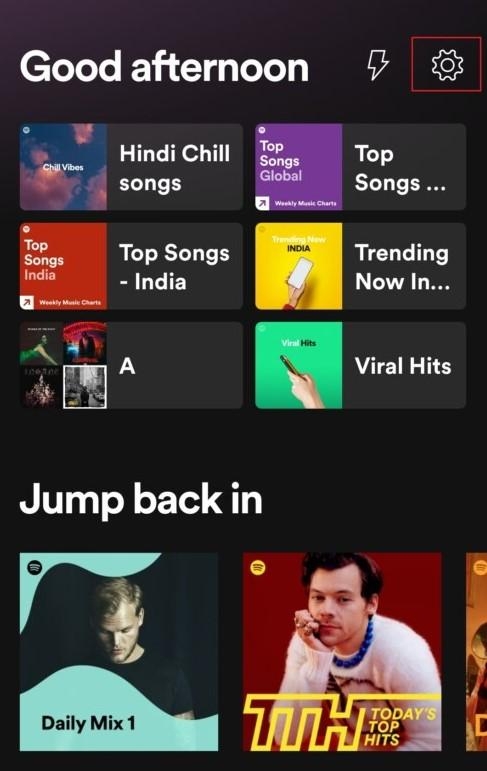
Step 1: Open the Spotify App and tap on the Setting icon at the top right corner. This will open Settings.
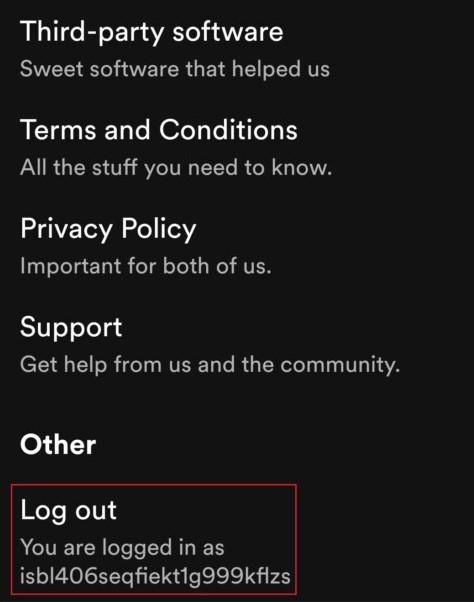
Step 2: Scroll down and click on Log Out . This will Logout your account.
Step 3: Force close the app and clear data from App Settings.
Step 4: Now login to your Spotify account and try to access Spotify Wrapped.
Method 3: Update Spotify App
If you are still facing Spotify wrapped not working issue, then you have to update the app from Play Store. You can update the app from Google Play Store or Apple Store. Here are the steps:
Step 1: Open Google Play Store for Android and search for Spotify . For Apple, open Apple App Store .
Step 2: Click on the Update button and wait for some time. It will automatically download and update the new Spotify App.
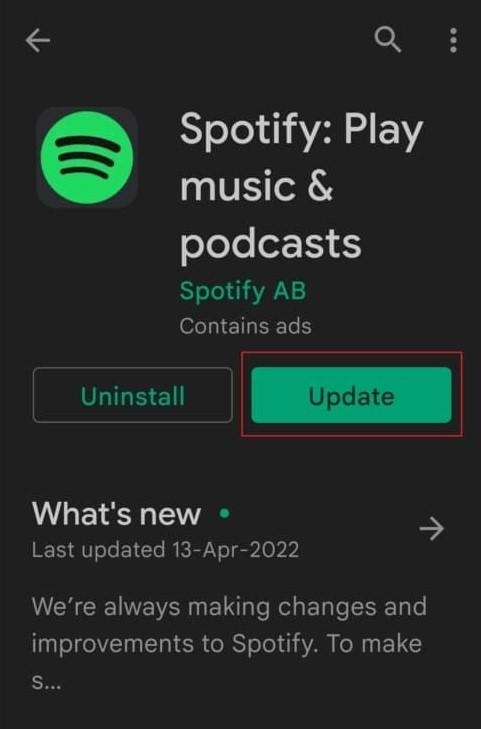
Now once updated, restart your phone and try to access Spotify Wrapped.
Method 4: Clear Spotify App Cache
You will face Spotify wrapped not working issue due to cache files. Cache files are temporary files that help in loading apps faster. These cache files will be created automatically by your system.
If these cache files get corrupted, you will face issues related to Spotify Wrapped. Here are the steps to clear the Spotify app cache.
Step 1: Open Settings on your smartphone.
Step 2: Go to Apps settings and tap on it.
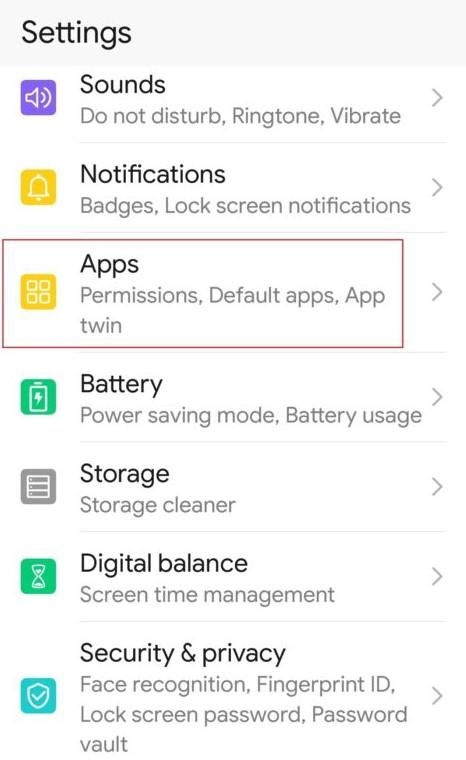
Step 3: Again, tap on all Apps to see all installed apps.
Step 4: Search for Spotify and then tap on it.
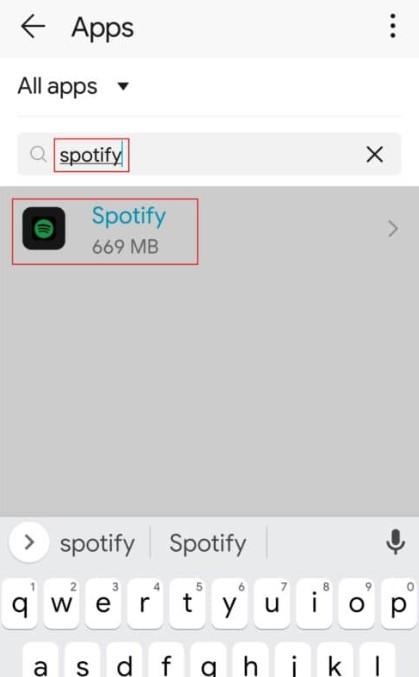
Step 5: Tap on Storage and then tap on Clear Cache .
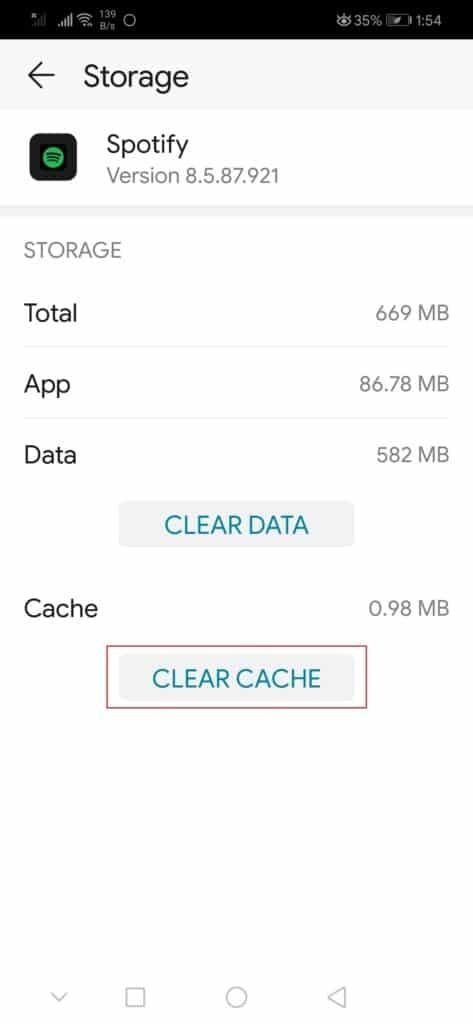
Step 6: Restart your device and try to open Spotify app.
Method 5: Reinstall Spotify App
You have to remove the Spotify app and reinstall it if nothing works.
Step 1: Go to Apps in Settings and find the Spotify app.
Step 2: Tap on the Spotify app and then tap on Uninstall .
Step 3: Wait for the process, and once removed, restart your phone.
Step 4: Now go App Store and install the latest version of Spotify on your phone.
Step 5: Log in to your account.
FinalWords
We have shared all possible reasons for fixing Spotify wrapped not working issue on Android or iPhone. We will update the article with more solutions.
Enjoyed this article?
If TechLatest has helped you, consider supporting us with a one-time tip on Ko-fi. Every contribution keeps our work free and independent.
