Don’t want to miss the best from TechLatest ? Set us as a preferred source in Google Search and make sure you never miss our latest.
Content Table
Here are the steps to close an app on iOS , If you have an iPhone X or a newer Model .
- Open the App Switcher from the bottom of the screen.
- Swipe your apps to find the Amazon app.
- Close the app completely. Doing this will remove the app from running even in the background.
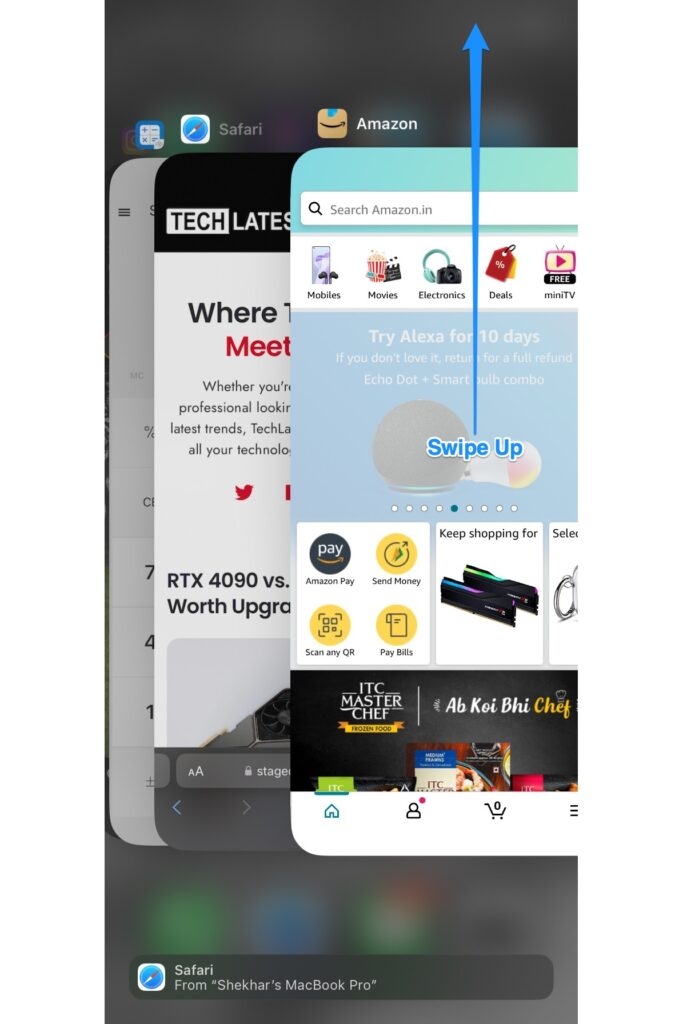
If you’re using an iPhone 8 or earlier models, press the home button twice to find the app switcher. Finally, swipe up the app to close it completely.
Note : In case your iPhone’s home button doesn’t work properly, work through the iPhone’s Assistive Touch feature as it imitates the iPhone’s Home screen button and follow the same steps.
After successfully closing the app, relaunch the app and check whether the app is still facing crashes.
Ensure that your internet connection is stable
Possibly, your internet connection is not very smooth, and the app is now facing working errors due to connectivity issues.
The app needs to go online either by your mobile network or Wi-Fi. Poor connections delay the loading of pages and browsing a lot. A secure and smooth connection will eliminate the issue within no time.
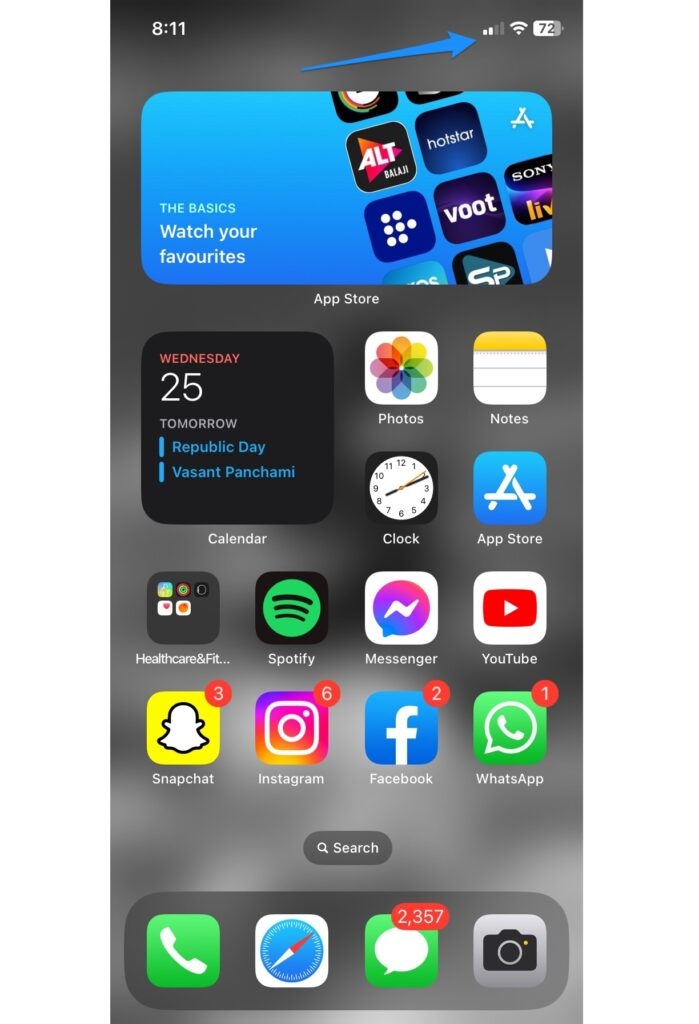
Here is how you can update apps on iOS.
- Your app Updates are found at the same place where you update your apps from— the app store .
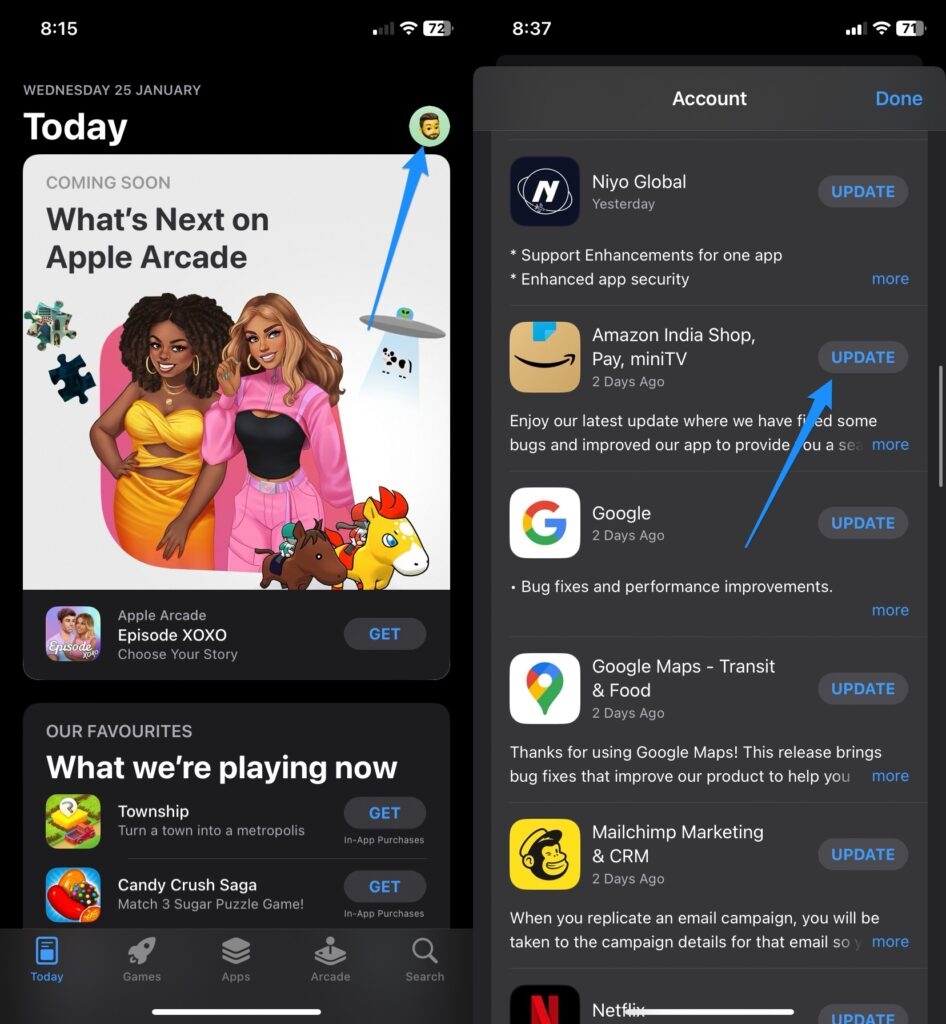
- Open your app store, and on the right corner, you’ll see your Profile Icon.
- Tap the Profile icon to scroll down the list of apps.
- On the right side of them, if you see the option to update, it’s time for you to click on them, including the Amazon app.
- Once you click update , auto update and installation begins.
Restart your phone
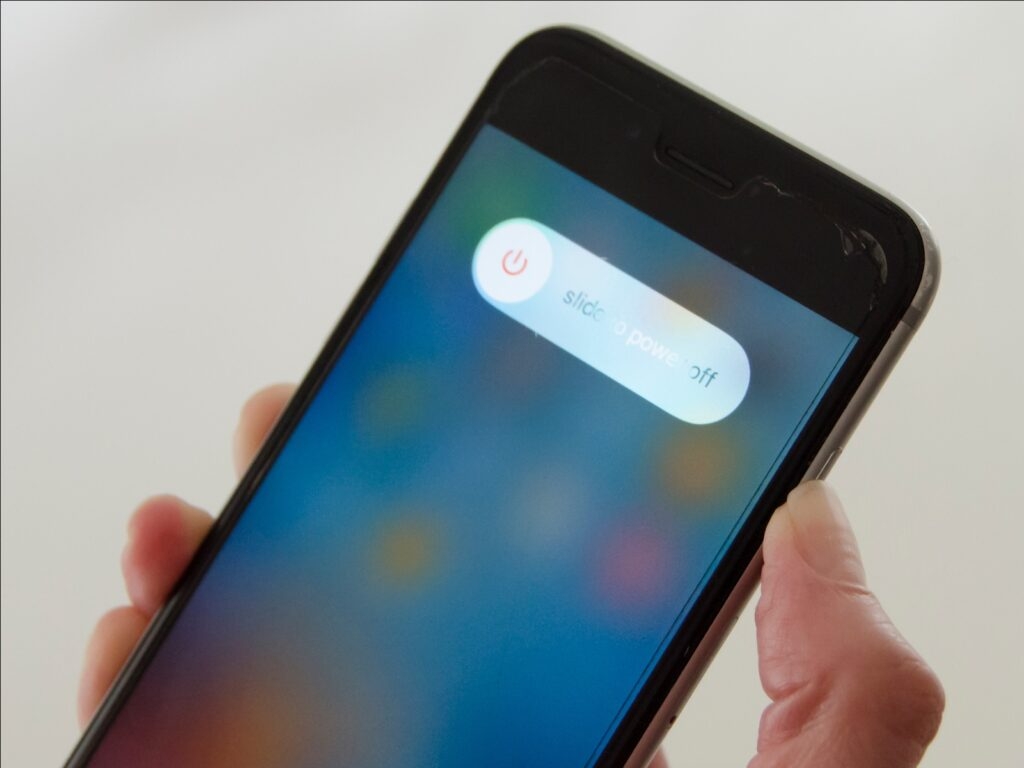
If you need a refresher on how to restart your iPhone, here are the steps to do it.
- Click and hold both the Power button and one of the Volume Buttons.
- You will notice a slider pop up with the prompt slide to power off. Just slide it right.
- Once the iPhone turns off, the screen goes completely blank.
- Hold the Power button to restart your phone until you see the Apple logo.
Clear the Cache
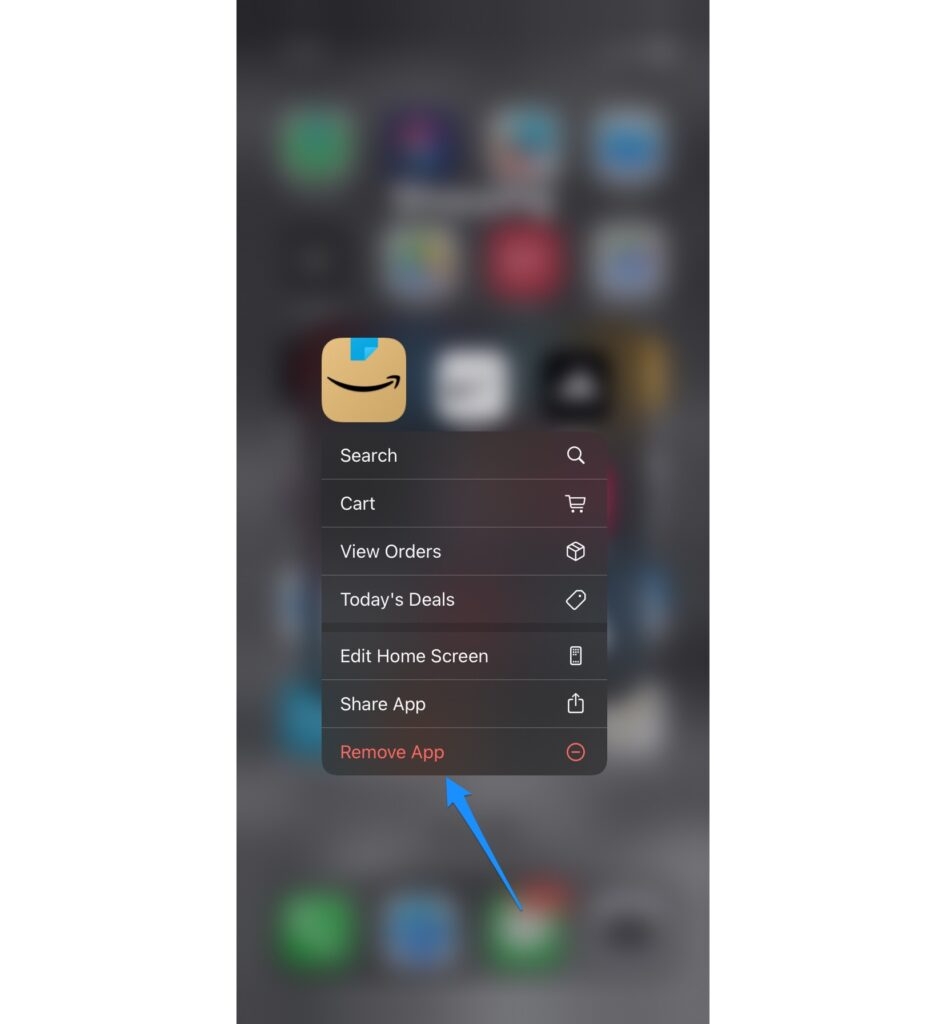
Remember, you will be logged out when you do it. So make sure to note down the credentials because the app has been installed in your phone since forever, and you might have forgotten the password.
Check for Software Update
Here is how you can update iOS on your iPhone. (You can set this option for timely automatic updates and even manual ones.)
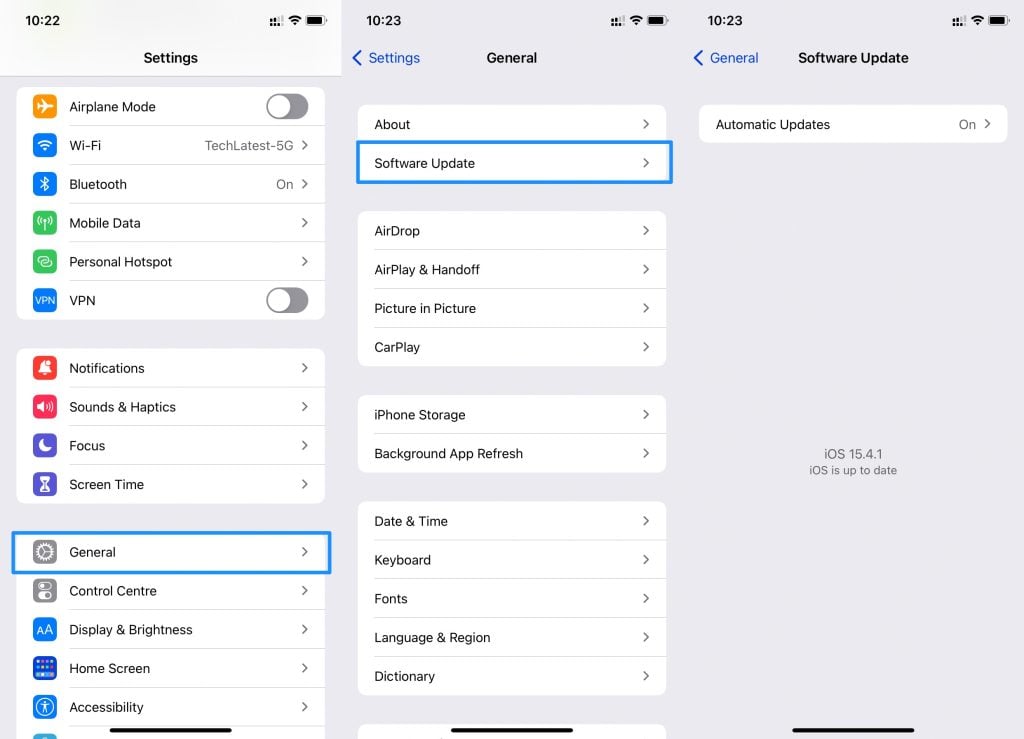
Launch Settings and click on General .
Go to the Software Update option.
On the Software Update page, look for Automatic Updates and enable them with a tap.
To let iPhone download iOS Updates and them automatically, press the toggle by turning it green.
Once both these options are enabled, your phone will automatically do the work overnight when it’s on charging.
Open Settings and click on General .
Look for the option Software Update . Your iPhone will start looking for updates.
Once you see an update, click on Download and Install .
Click confirm to start with the download and tap Install to finish the update.
Conclusion
The steps listed can also be performed on other apps if you encounter the same problem.
Enjoyed this article?
If TechLatest has helped you, consider supporting us with a one-time tip on Ko-fi. Every contribution keeps our work free and independent.
