Highlights
- Odin is a very powerful flashing tool for Samsung devices.
- This is extremely popular among developers and enthusiasts who want to tweak and flash images and binaries on Samsung devices.
- If you need an Odin download, take action from a well-known source to bypass malware or fake versions.
If there is a Samsung smartphone in your possession and you’ve ever attempted to customize it, then you already know about the Odin tool.
Whether it is flashing a new firmware or simply backing up your device’s ROM, Odin has got you covered. But the hard thing is finding the safest and latest Odin flash tool download.
Don’t want to miss the best from TechLatest ? Set us as a preferred source in Google Search and make sure you never miss our latest.
So, in this post, you are going to get everything you need to know about Odin Flash Tool, its features, and how to use it. You will also get to know how it works on your device without getting any soft bricks.
Content Table
What is Odin Flash Tool?
Odin is Samsung’s official firmware flashing software for Windows-based computers.
It permits users to communicate with the device to be able to perform tasks such as flashing custom recoveries and stock firmware via Odin, flashing custom ROMs and system files such as apps and the firmware, modifying files within the Android file system, and much more.
Samsung engineers and service centers initially used Odin, but only later did it become a public release.
It took a while for it to end up online, but it was finally released, so now this is in the arsenal of both Android enthusiasts and tinkerers the world over.
Why Use Odin?
Odin is not to tweak visual features, it’s about reeling in command at the system’s core. Here’s what you can do with it:
- Flash the official Samsung firmware to your phone, whatever the case may be; all you need is to download the firmware.
- Unbrick softbrick devices in bootloop or recovery.
- Install custom recoveries like TWRP.
- Root Samsung smartphones using custom packages.
- Downgrade Android versions for stability or compatibility.
It is an essential tool for anyone who steps beyond a basic OTA (over-the-air) update.
Supported Devices
Odin is compatible only with a specific range of Samsung Android devices that vary depending on their version and include, but are not limited to:
- Samsung Galaxy S series (S24, S23, S22, etc.)
- Samsung Galaxy Note series
- Galaxy A and M series
- Samsung Galaxy Tab series
If you are not on a Samsung Galaxy device, Odin will not work for you. If that’s the case, then something like SP Flash Tool (MediaTek) or Fastboot (Pixel/OnePlus) would be better suited.
Where to Download Odin Flash Tool Safely
Samsung itself doesn’t provide Odin, don’t ever download it from anywhere except the official source. Currently, the most recent working version is Odin3 v3.14.4 .
Recommended download sources:
You can either download Odin from XDA Developers Forum(3.13.1) , but it can be quite a hectic task to find out the exact version you need. So, you can take help of the below table, where we gathered all the available links.
Note that we take no responsibility for the 3rd party links listed below; they may or may not be harmful, so proceed at your own risk.
Note : There have been a few discussions in the XDA forum about the 3.14.4 version. According to XDA member/developer realbbb – “ It appears to be a h**ked version 3.14.1 (same filesize); has internal modifications and includes a known cloud-based client-server communication dll (cpprest141_2_10.dll) “. So download 3.14.4 at your own risk, or simply opt for 3.14.1.
Make sure you always download a free-from-metadata ZIP file! Stay away from any third-party sites full of pop-ups, bundled installers or extractors, or modified binaries for that matter – that kind of stuff’s probably brimming with malware.
How to Use Odin Flash Tool
Flashing firmware with Odin is a technical task, but if not done correctly, it can leave you with a bricked phone. Here’s a complete step-by-step guide.
Step 1: Download Required Files
- Odin tool (e.g., v3.14.4)
- Samsung USB drivers
- Official firmware (in .tar.md5 format)
There are a number of ways you can get the firmware: using Frija, through SamFirm, using SamMobile, or from Samsung’s Servers directly.
Step 2: Install Samsung USB Drivers
Get the USB drivers installed on your PC to detect your Samsung device correctly. The official package can be found on Samsung’s developer website or its Smart Switch software.
Step 3: Boot Your Device into Download Mode
To enter Download Mode:
- Turn off your phone.
- Press Volume Down + Power + Bixby (or Volume Down + Volume Up + Power) together.
- Press Volume Up to confirm entry into Download Mode.
Now that your device is detected, you are ready to communicate with Odin.
Step 4: Connect to PC and Open Odin
- Connect your phone to your PC via USB.
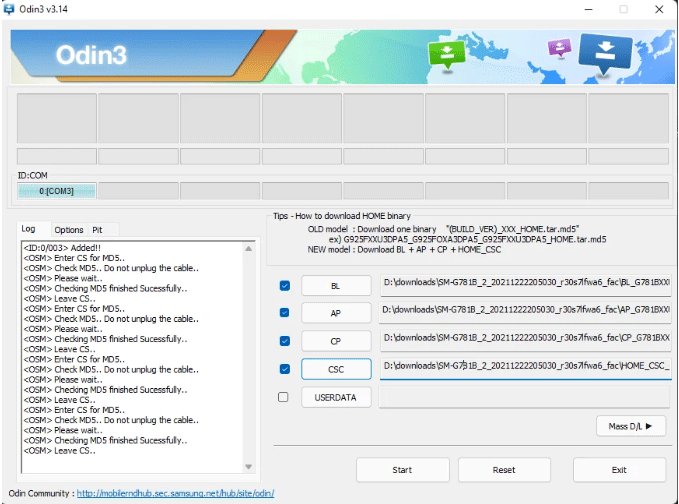
- Open Odin. If everything went okay, one of the ID: COM boxes will then change colour to blue to signify that your device has been detected.
If they’re still not, reinstall your USB drivers or use another cable/port.
Step 5: Load the Firmware Files
For Odin, use the buttons as follows to load Firmware parts:
- BL = Bootloader
- AP = System image (this is usually the largest file)
- CP = Modem
- CSC = Country/Carrier-specific config
If you don’t want to lose your data, replace CSC with HOME_CSC.
Step 6: Start Flashing
- Keep the rest of the options as they are (Auto Reboot and F. Reset Time are checked).
- Click Start .
- Waits for the process to exit. Your phone will reboot automatically.
A “PASS!” message in Odin means success. If it doesn’t work, verify your firmware version and USB connection.
Precautions and Warnings
Odin itself is not inherently dangerous, but it must be used carefully. Keep these precautions in mind:
- Do not use firmware for an identical model.
- Do not ever interrupt the flash process (do not disconnect the phone while flashing).
- ALWAYS create a full Android backup – flashing can wipe your data.
- Do not flash aftermarket firmware if you don’t know what you’re doing.
Is It Legal to Use Odin?
Yes. It’s not illegal to use Odin — you’re not breaking any laws. But rooting your phone, or installing a custom ROM, can gobble up your warranty and trip Samsung Knox, which permanently disables certain security features, including the particularly nifty one called Secure Folder.
Q. Can I use Odin on macOS or Linux?
No. Odin is strictly Windows-only. A free, open-source alternative is Heimdall (for macOS/Linux), though it’s not as reliable.
Q. Will Odin erase my data?
It depends. Flashing the regular CSC file is not going to harm your device, as it is designed for that device, but it will also wipe your device. The HOME_CSC file will save your data.
Q. Can Odin be used for all Samsung phones?
To be clear, Odin is compatible with nearly all Samsung Galaxy series for both phones and tablets. If your phone has been locked and can’t be solved, please do not cancel the order.
Conclusion
The Odin Flash Tool isn’t just another utility for your Android device — it’s an extremely powerful firmware flashing tool for your Samsung device that has been used to install hundreds of thousands of Samsung Official Stock firmwares.
If you’re trying to get the latest OTA update or hoping to recover from a bootloop, you can easily set up ADB and Fastboot and use the software to achieve that.
But always remember: with great Power comes great responsibility. Follow tested guides, use firmwares you know to be safe, and be extra careful with the whole flashing business.
With the proper use of Odin, you can even unroot or revive it to an earlier state.
Enjoyed this article?
If TechLatest has helped you, consider supporting us with a one-time tip on Ko-fi. Every contribution keeps our work free and independent.
