Highlights
- In some instances, Windows users encounter frustrating issues that cause their systems to malfunction. In this case, “Please Wait for GPSVC” is a problem.
- It can appear when the computer is starting up or when it is trying to shut down, causing delays and inconveniences.
- If you’re having problems with GPSVC, try restarting your PC or updating the file. In case these fixes don’t work for you. Check out the other fixes we have mentioned.

Group Policy Client Service (GPSVC) is a key component of the Windows operating system that is used to administer and manage computers within a network.
This group of administrators implements administrative Group Policy settings, ensuring that computers and users follow the organization’s policies. It is possible for GPSVC to encounter issues like any other service.
Don’t want to miss the best from TechLatest ? Set us as a preferred source in Google Search and make sure you never miss our latest.
Content Table
What is GPSVC?
GPVC stands for Group Policy Client Service in the Windows NT family of operating systems. Users and computers use it to control their working environments.
Some crucial background processes will begin running as soon as you sign in to Windows. GPSVC (Group Policy Service) communicates with the Winlogon service via a Remote Procedure Call (RPC) as part of one of these processes.
By using the communication, you can cross-check your Computer Configuration and User Configuration of Group Policy Objects and load the appropriate policies.
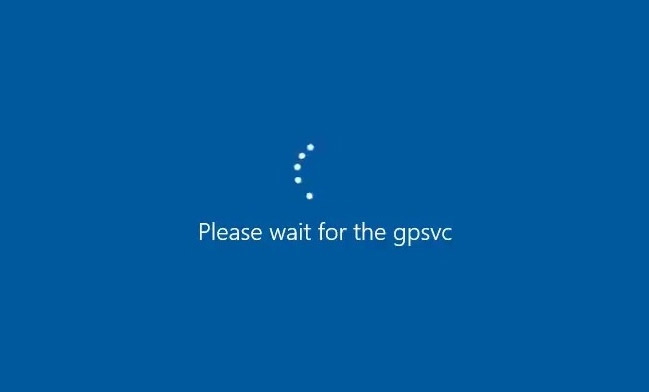
In most cases, this is caused by one or more of the following factors:
- Group Policy errors : Your computer’s Group Policy settings may be corrupt, preventing GPSVC from completing.
- Third-party software conflicts : The GPSVC process may become stuck due to a conflicting third-party service or software.
- System file corruption : Destruction of the important system files on which Group Policy or GPSVC processes depend can cause the system to be stuck, improperly shut down, cause disk errors, or infect the system with malware.
- Malware or viruses : It is also possible for malware to deliberately interrupt system processes. Malware or viruses may interfere with GPE in order to gain control over your system.
Fix 1: Shut Down Your PC
Another way to force a shutdown of your PC is to press and hold the power button for a while instead of choosing the Shut Down option on the screen.
To see if the “wait for GPSVC Windows 11” error has been resolved, you can connect a laptop with a power cord, and press the Power button to shut it down forcibly.
Then, remove its battery and connect it for several minutes. Then, try to start your laptop to see if the error has been resolved.
Fix 2: Update the GPSVC File
- For the latest gpsvc.dll file , click here and save it to your computer.
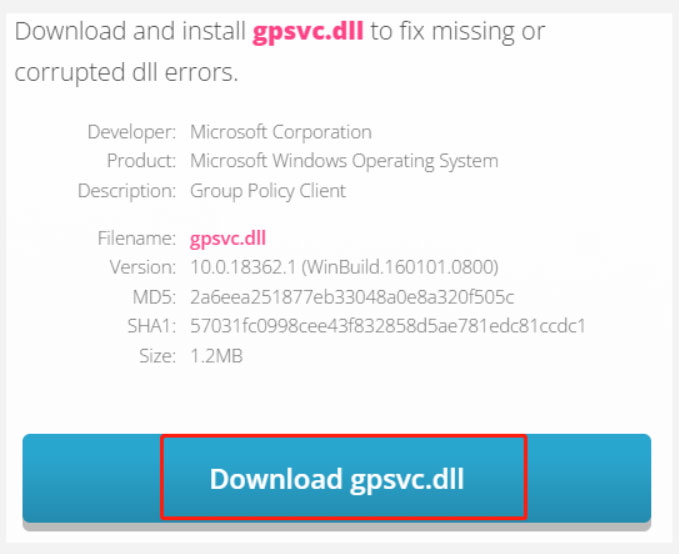
- Then right-click gpsvc.zip and select Extract All . Select Browser and locate C:WindowsSystem64 . In 32-bit systems, replace System64 with System32.
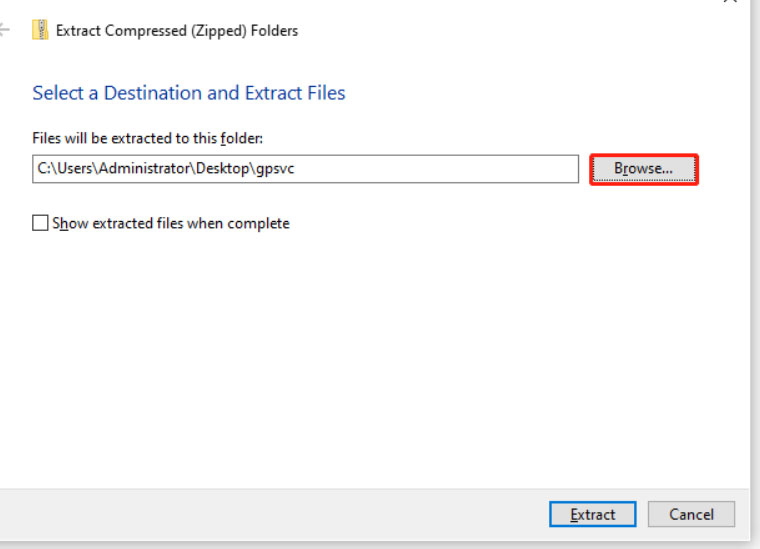
- To select a folder, click on the Select Folder option. Whenever prompted whether to replace the previous file or skip the extraction, select Replace the file in the destination.
Fix 3: Restart the Group Policy Client Service
In some cases, GPSVC might malfunction because of a temporary glitch or a corruption error. It is easiest to restart the service if it is having problems. To do this, follow these steps:
- To open Run, press Win + R together.
- In Run, type “ services.msc ” and press Enter .
- Right-click the Group Policy Client service in the following window.
- From the context menu, select Properties .
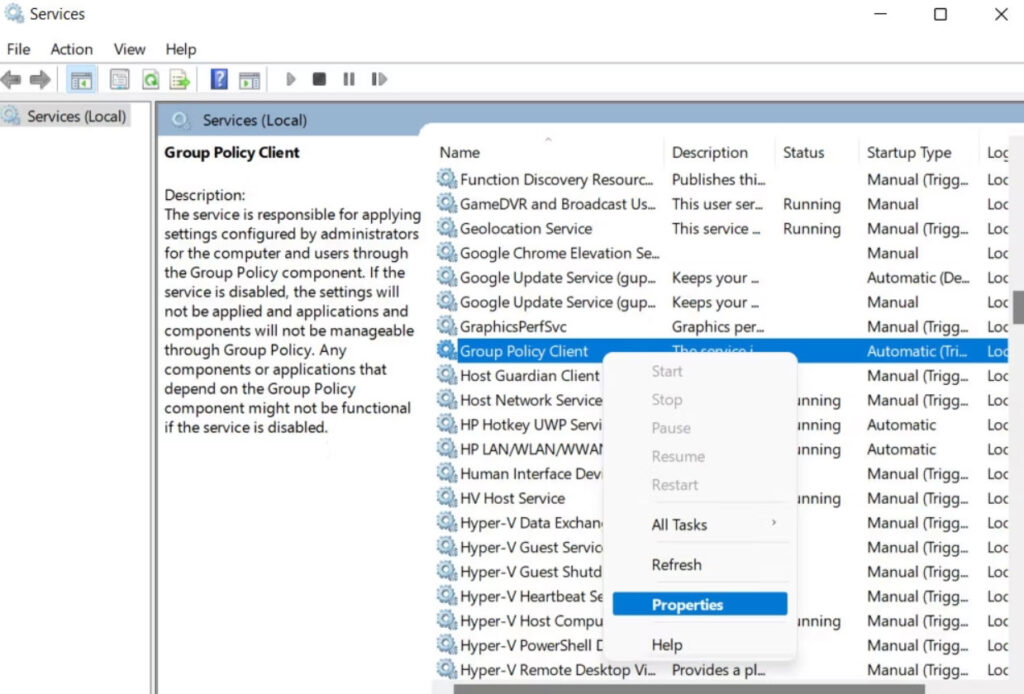
- Thereafter, click Stop , wait for a few seconds, then click Start .
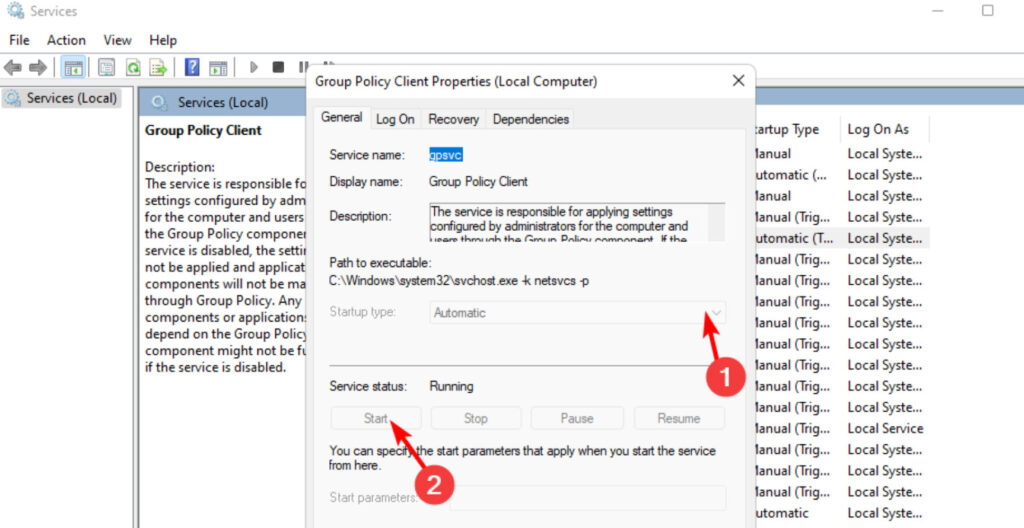
- Select Automatic from the Startup type dropdown.
- To save your changes, click Apply > OK .
If the issue has been resolved, you can exit the Services window.
Fix 4:Reset the Local Group Policy Settings
It’s possible to have a problem with the Local Group Policy settings, as we mentioned earlier. It may be necessary for you to reset the Local Group Policy settings if this is the case in your situation.
By doing this, any potential conflicts will be eliminated and the configurations will be restored to their default state.
This will also remove any customizations or modifications you have made through GPE, so please be aware before you proceed. To proceed, follow these steps:
- To open Run, press Win + R together.
- To run cmd, type “cmd” in Run and press Ctrl + Shift + Enter .
- Thereafter, when the User Account Control prompt appears, select Yes .
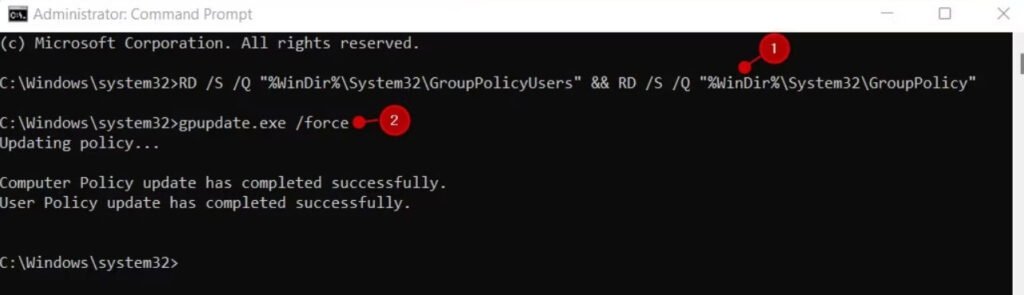
- Afterward, use the Command Prompt to execute the following command:
RD /S /Q "%WinDir%\System32\GroupPolicyUsers" && RD /S /Q "%WinDir%\System32\GroupPolicy"
- Following the execution of the command, run the following command:
gpupdate.exe /force
Fix 5: Modify the GPSVC Registry File
GPSVC registry keys may also be missing or corrupt, preventing the service from functioning correctly. Below are some examples of how you can modify the relevant values to correct such problems.
It is recommended that you create a Registry backup before proceeding. Here are the steps to follow once that is done:
- To open Run, press Win + R together.
- In Run, type “ regedit ” and press Enter .
- Thereafter, when prompted by User Account Control, click Yes .
- Go to the following location in the Registry Editor :
Computer\HKEY_LOCAL_MACHINE\SOFTWARE\Microsoft\Windows NT\CurrentVersion\Svchost
- Right-click Svchost and select New > Key .
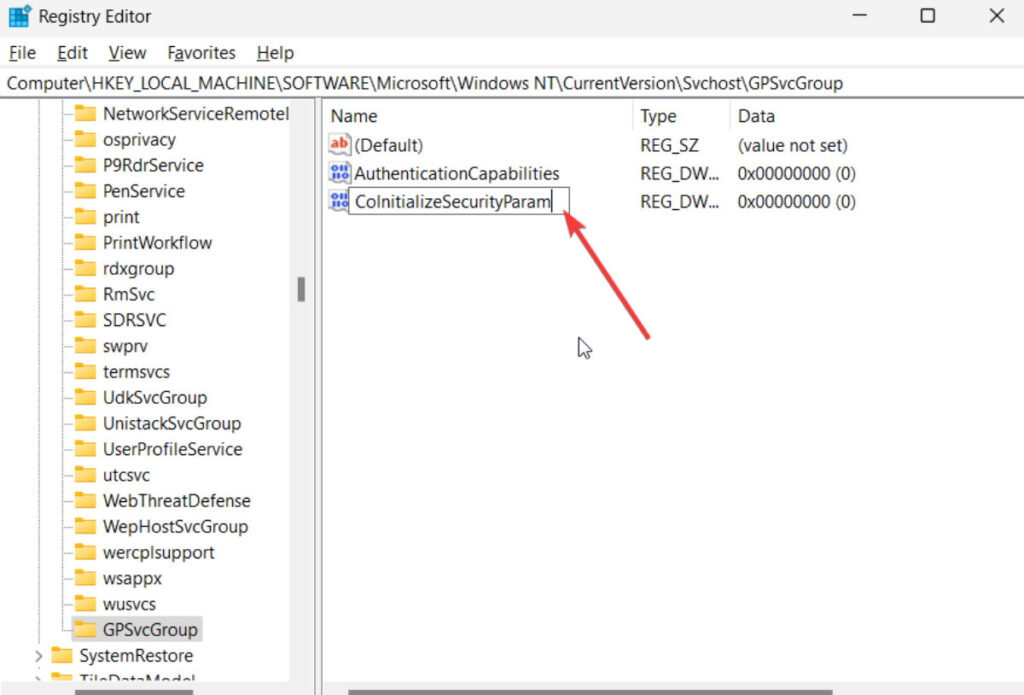
- This key should be named GPSvcGroup .
- Double-click GPSvcGroup and right-click any place in the right pane.
- Select New > DWORD (32-bit) Value and rename it AuthenticationCapabilities .
- Double-click on AuthenticationCapabilities and select the Base to Decimal .
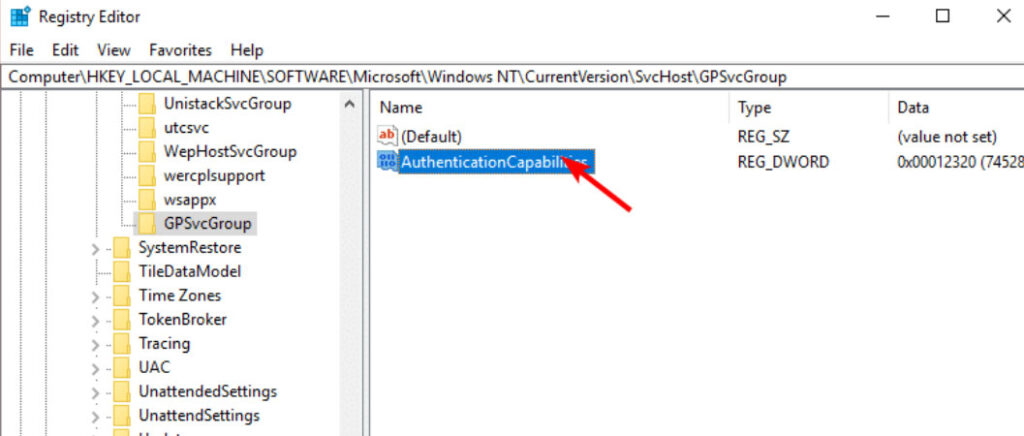
- In Value data, type “ 12320 ” and click OK .
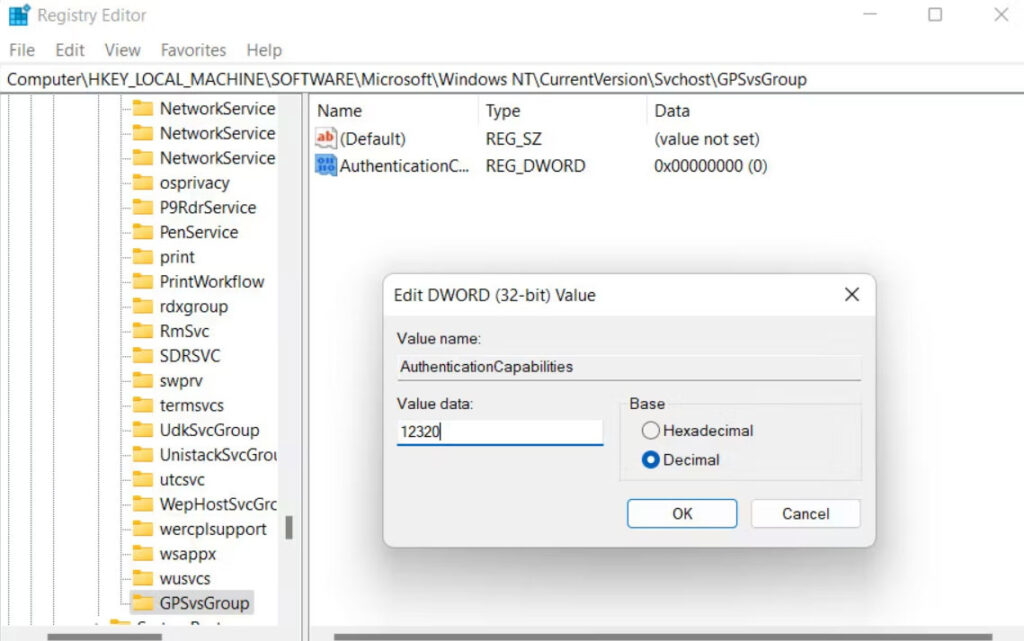
- Then, create a similar key named CoInitializeSecurityParam .
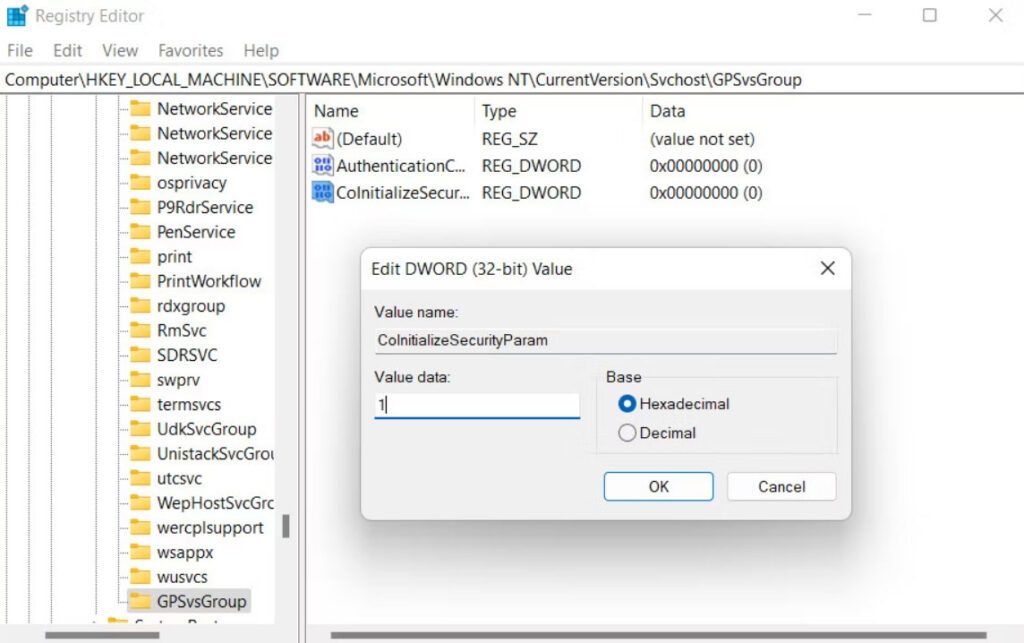
- In Value data, set the base to Hexadecimal and type “ 1 “.
- Once the changes have been saved, restart your PC. Hopefully, the error will disappear after rebooting.
You can also use SFC and DISM Windows tools, which are built-in, to perform a system restore or scan the system. It will help you revert your system to an older, error-free state while a system scan will help you fix any corruption errors in it that may have contributed to the issue.
Enjoyed this article?
If TechLatest has helped you, consider supporting us with a one-time tip on Ko-fi. Every contribution keeps our work free and independent.
