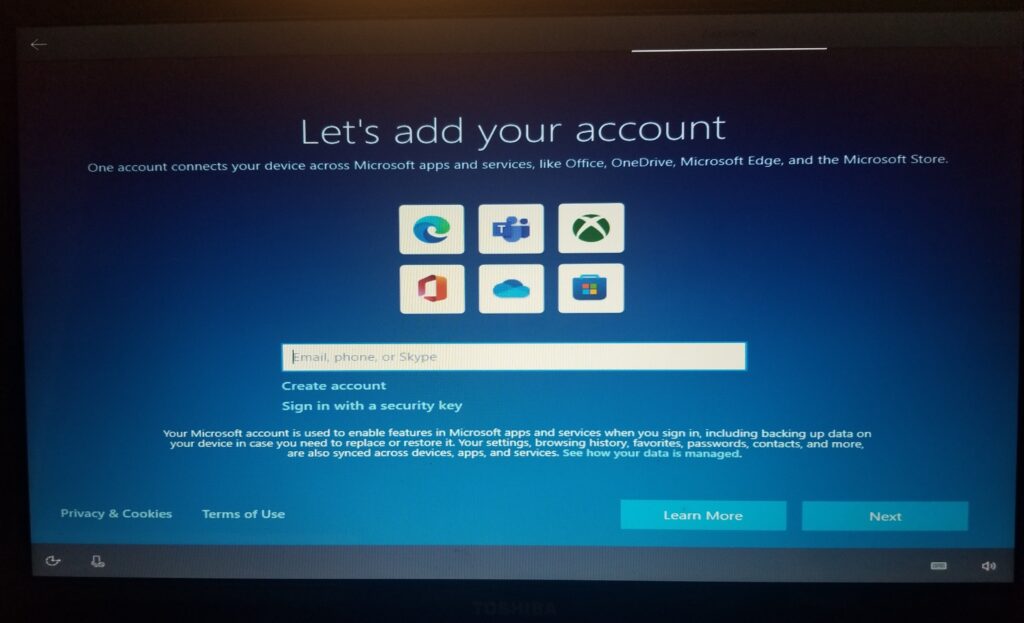
If you recently tried installing Windows 11, you might have noticed something new: Microsoft now requires you to sign in with a Microsoft account during the first setup process, also known as OOBE (Out-of-Box Experience) .
With the release of Windows 11 Insider Preview Build 26220.6772 (KB5065797) on the Dev Channel, Microsoft has officially removed the old workarounds that let users skip the Microsoft account requirement.
Don’t want to miss the best from TechLatest ? Set us as a preferred source in Google Search and make sure you never miss our latest.
But don’t worry when I’m here. I’ll guide you through everything about the update about Microsoft Account in OOBE Windows 11. So, let’s get started with the guide.
Read : How to Get Free Extended Security Updates (ESU) After Windows 10 End of Support
Content Table
What is Windows 11 Insider Preview Build 26220.6772?
Released: October 6, 2025 Channel: Dev Channel Update package: KB5065797 Microsoft Insider builds are typically released in two ways:
- Gradual rollouts for Insiders with the toggle turned on: This means users can opt in to get features as soon as they are available via Settings > Windows Update .
- Rollouts for everyone in the Dev Channel: Features and fixes that are fully ready are gradually pushed to all Dev Channel users.
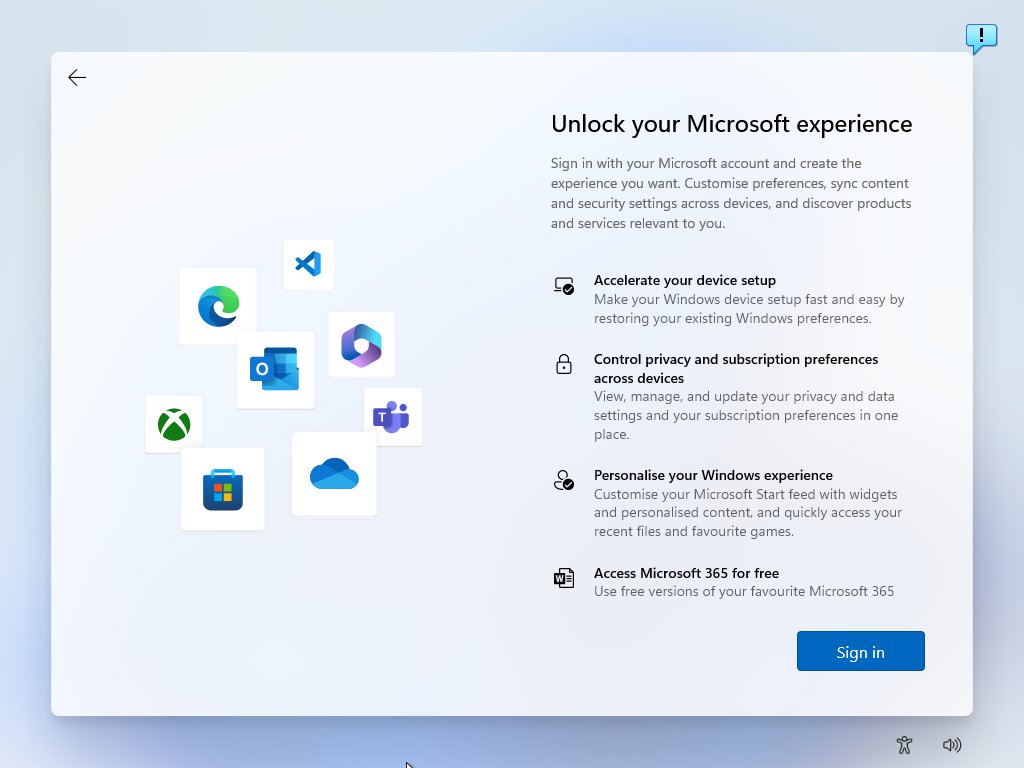
Build 26220.6772 brings new features, improvements, bug fixes , and changes to how Windows 11 handles OOBE setup from now on. Many of these updates aim to improve security, usability, and visual consistency.
What are the New Features in Build 26220.6772?
You must know about the new features that come with the new update. So, let’s check them out:
1) Click to Do (Preview) Enhancements
Windows 11’s Click to Do app, now enhanced for Copilot+ PCs , gets two exciting updates:
- Image Object Select: Hover over an image to preview objects that can be selected individually. Once selected, objects can be copied, pasted into other apps, or used to start a chat with Microsoft Copilot for insights or creative actions. This helps speed up creative workflows for designers, students, and content creators.
- Unit Conversion: Hover over numbers with units (e.g., 2 km, 5 lb) and a tooltip shows the conversion. The context menu offers additional conversion options. Supported conversions include length, area, volume, weight, temperature, and speed. More conversions are accessible via the Copilot app, though this feature is not yet available for Windows Insiders in the EEA or China .
These changes make everyday tasks easier, especially when working with measurements or graphics.
2) Windows Hello Enhanced Sign-in Security (ESS)
Windows Hello now supports peripheral fingerprint sensors in addition to built-in biometric sensors:
- Users can plug in an external fingerprint reader and follow prompts in Settings > Accounts > Sign-in options > Enhanced sign-in security to enroll.
- This ensures that even desktops without built-in sensors can use the most secure sign-in options Windows Hello offers .
- Any feedback can be submitted via Feedback Hub (WIN + F) > Security and Privacy > Windows Hello Fingerprint .
3) Windows Setup Experience (OOBE) Updates
One of the most significant changes in this build is in the Out-of-Box Experience (OOBE) :
- Local-only account bypass removed: Previously, users could bypass the Microsoft account requirement during OOBE using commands like: oobe\bypassnro start ms-cxh:localonly start ms-cxh://setaddlocalonly Microsoft has removed all known methods to use Windows 11 Home without a Microsoft account during initial setup.
- Naming your default user folder: You can still customize your user folder name during setup: At the Microsoft account sign-in page, press Shift + F10 to open Command Prompt. Type: cd oobe SetDefaultUserFolder.cmd
can be up to 16 characters. Only Unicode characters are supported; special characters are removed. Proceed with Microsoft account sign-in. The folder name will be applied if valid; otherwise, Windows generates a profile folder based on your email. - Why Microsoft enforces MSA during OOBE: Microsoft says devices may not be fully configured without a Microsoft account. Local account bypass could skip setup screens that are critical for security, updates, and device configuration. Completing OOBE with a Microsoft account ensures features like OneDrive, Microsoft Store, Windows Hello, and security protections are fully set up.
Note: Windows 11 Pro users can still use Domain Join during setup as a workaround to skip MSA temporarily. After setup, it’s still possible to switch to a local account on the desktop.
File Explorer Dark Mode Improvements
Windows 11 now has a more consistent dark mode experience in File Explorer:
- Copy, move, and delete dialogs now match the system dark theme.
- Progress bars and chart views, as well as confirmation dialogs such as skip, override, and file selection, also match dark mode.
- Recycle Bin dialogs, replace or skip files dialogs, and the new discover dialog are updated for dark mode.
This improves readability and reduces eye strain for users who prefer dark mode.
What are the Fixes and Stability Updates?
Build 26220.6772 also addresses several issues that affected previous Insider builds :
General Fixes Multiple features that disappeared unexpectedly on some Insider PCs are now restored.
Taskbar & System Tray Fixes for auto-hide taskbar not hiding properly. Focus issues when clicking app preview thumbnails have been resolved.
File Explorer Encrypted File System (EFS) dialogs now respond correctly to increased text scaling.
Windows Studio Effects Camera preview failures for certain external webcams when using Windows Studio Effects have been fixed.
Settings & Networking Correct link speeds now display for network adapters.
Other Hyper-V virtual machines with TPM on ARM64 devices now start correctly. Protected content playback for Blu-ray, DVD, and digital TV apps using Enhanced Video Renderer with HDCP enforcement is fixed.
Known Issues in Dev Channel Build
- Click to Do: Swipe visuals may appear on the wrong display.
- Lock and Login Screens: Touch keyboard may fail to launch; workaround is the on-screen keyboard in accessibility menu.
- Taskbar & System Tray: Animations temporarily disabled.
- Search: Some searches may show unexpected text instead of the correct results.
- Xbox Controllers: Bluetooth controllers may cause glitches; these are resolved by uninstalling specific drivers via Device Manager.
OOBE Microsoft Account Requirement: What It Means
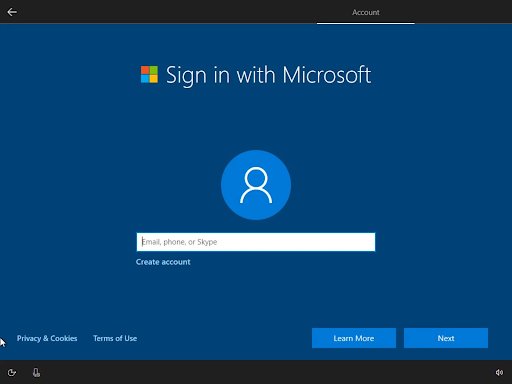
For most users, this change is a shift in how Windows 11 expects devices to be set up:
- Home edition: Must sign in with a Microsoft account during OOBE.
- Pro edition: Can still use Domain Join or set up a local account after initial Microsoft account login.
- Why: Ensures all security and device setup steps are completed, including updates, apps, and features that rely on a Microsoft account.
Even if you want to use a local account later, Windows allows you to switch accounts after setup :
- Sign in with a Microsoft account during OOBE.
- Once on the desktop, go to Settings > Accounts > Your Info > Sign in with a local account instead .
- Create your local username and password.
- Log out and log back in with the local account.
This method is the safest way to get a fully configured Windows 11 system using a local account.
Step-by-Step: Naming Your Default User Folder in OOBE
If you want your default user folder to have a custom name (instead of the default generated from your email):
- On the Microsoft account sign-in page , press Shift + F10 to open Command Prompt.
- Type the following commands: cd oobe SetDefaultUserFolder.cmd
Maximum 16 characters Only Unicode characters; special characters are removed - Press Enter and continue with your Microsoft account sign-in.
- After setup, the folder will reflect your chosen name.
This is a smart way to personalize your system while following Microsoft’s new requirements.
How to Bypass Microsoft Account in OOBE Windows 11?
Just because Microsoft removed the old OOBE tricks doesn’t mean there aren’t other ways; you can still use alternative methods to avoid a Microsoft account. You can bypass the Microsoft account in OOBE Windows 11 from here .
Why You Should Embrace the Change
While many power users may feel frustrated about the loss of local account bypasses, Microsoft’s reasoning makes sense:
- Ensures full device configuration with security and personalization.
- Prevents accidental skipping of critical OOBE steps.
- Makes features like OneDrive, Microsoft Store, Windows Hello, and updates work out of the box.
Now you’re not permanently forced to use a Microsoft account. The desktop conversion option still gives full local account access after setup.
Conclusion
Windows 11 Insider Preview Build 26220.6772 marks a significant shift in how Microsoft handles the first-time setup experience.
If you prefer a local account, the Shift + F10 method for naming the default user folder and the option to switch to a local account after setup give you flexibility while staying compliant with Microsoft’s latest changes.
So, that’s all we have for you about the Microsoft Account in OOBE Windows 11. We hope that this guide has helped you. For more info, comment below and let us know.
Enjoyed this article?
If TechLatest has helped you, consider supporting us with a one-time tip on Ko-fi. Every contribution keeps our work free and independent.
