Highlights
- Prepare early for Windows 10’s end of support to avoid security and compatibility issues.
- Upgrading to Windows 11 ensures long-term protection, stability, and better system performance.
- If your device can’t handle Windows 11, use ESU as a short-term safety net. But, if you want a permanent solution, then this guide is for you.

In just a few days, Microsoft will officially retire support for Windows 10. That means no more security patches, feature updates, or technical help for your current system.
But don’t panic, there are safe methods that you can use to secure your PC, get new features, etc.
Don’t want to miss the best from TechLatest ? Set us as a preferred source in Google Search and make sure you never miss our latest.
Here in this article, we will help you know why this matters, what the different options available are, and exactly how to upgrade or extend support for your Windows 10 PC. So, without any further ado, let’s get started with the guide.
Content Table
Why the End of Windows 10 Support Matters?
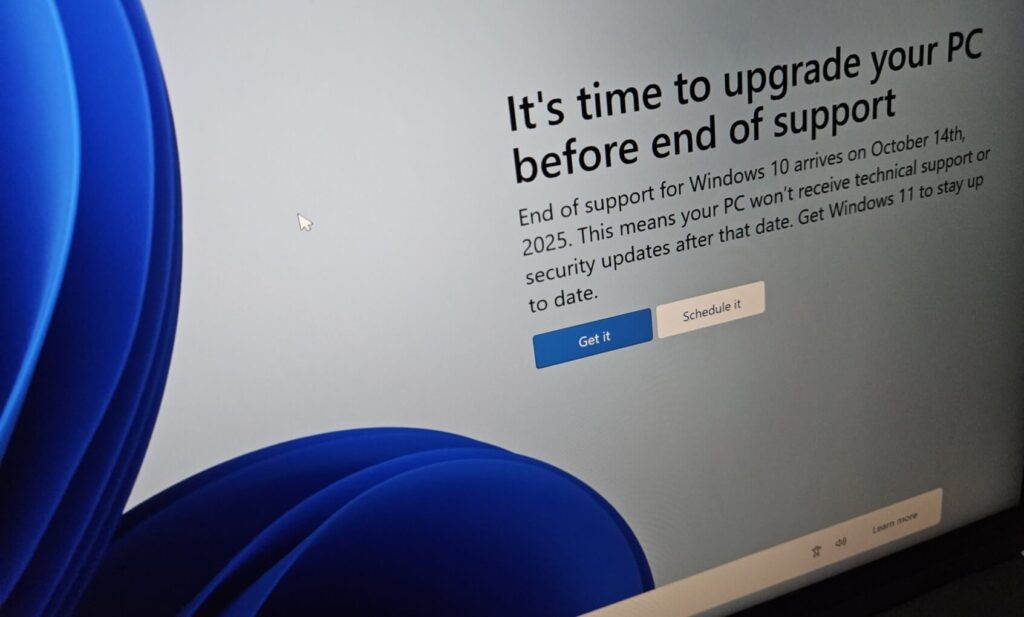
Here’s why this support end matters to Windows 10 users:
What’s changing in October 2025?
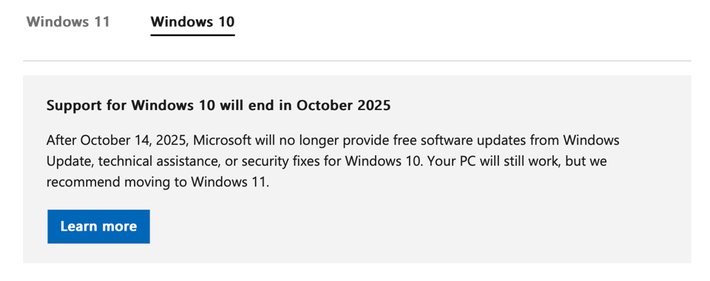
Microsoft has confirmed that October 14, 2025 , is the final day for Windows 10 support. After that, Microsoft will stop:
- Free security updates, bug fixes, and patches.
- Technical support for Windows 10 will end.
- The OS won’t suddenly stop working, but over time, it will become more vulnerable to malware, compatibility issues, and security threats.
- Some Microsoft 365 (Office) apps will also lose support on Windows 10.
This means you can still use your current system running on Windows 10 after support ends, but without any security updates.
What are the risks?
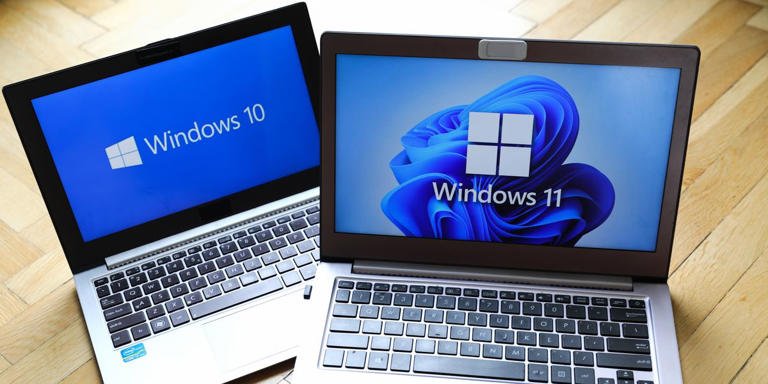
- Security vulnerabilities : Hackers will always look for unpatched holes to enter. Without regular security patches, your system becomes an easier target.
- Software and hardware incompatibility : New apps or driver updates may no longer support Windows 10. Over time, you’ll face issues in installing newer tools.
- Loss of vendor support : Developers and hardware makers gradually dump old OS versions. Bugs or tweaks won’t get fixes.
- Compliance and regulation issues : In some organizations or industries, running an unsupported OS may violate compliance or auditing requirements.
Because of these risks, moving off Windows 10 (or extending its security life) should be a priority now for users.
What to Choose: Upgrade, Extend, or Change Course?
When facing Windows 10’s end of life, you basically have three broad paths:
- Upgrade your PC to Windows 11 (if compatible)
- Enroll in Extended Security Updates (ESU) for Windows 10
- Switch to an alternative OS (Linux, etc.)
Let’s check out each option that you have:
Option 1: Upgrade to Windows 11 (Preferred for most users)
This is Microsoft’s recommended method, and for good reason: you get continued support, new features, and better security built into the system.
Check hardware compatibility
Before doing anything, see if your PC meets the minimum requirements for Windows 11. Some of the key ones:
- A compatible 64-bit processor
- 4 GB RAM (or more)
- 64 GB+ storage
- TPM 2.0 (Trusted Platform Module) enabled
- UEFI firmware, Secure Boot capable
Microsoft offers a “PC Health Check” app, which helps determine whether your system is eligible.
Many modern PCs (especially those made in the past 5-7 years) will pass these checks, but older ones may fail due to missing TPM support or outdated processors.
Backup your data first
Upgrades are generally smooth if everything goes well, but you never know. Before you begin:
- Back up all your personal files (Documents, Photos, Desktop, etc.).
- Make a system image or full disk backup if possible.
- Make note of any apps you need to reinstall, license keys, etc.
Update Windows 10 Fully
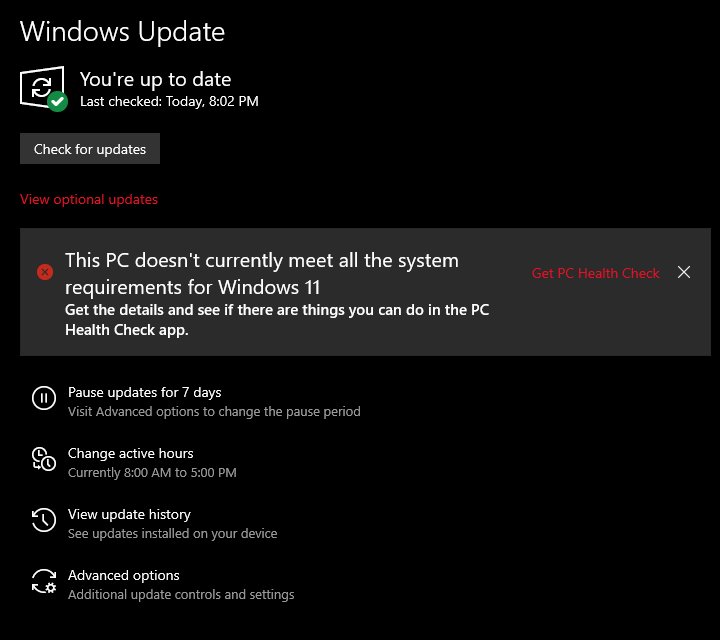
Ensure your current Windows 10 installation is up to date (latest cumulative updates installed). Sometimes the Windows 11 upgrade won’t show up unless your system is fully patched.
Use Windows Update (most straightforward route)
If your device is compatible, Microsoft may offer Windows 11 via Windows Update:
- Go to Settings > Update & Security > Windows Update
- Click Check for updates
- If the upgrade offer appears, click Download and install
- Accept the license terms, restart when asked, and let it do its thing
This is the easiest route as your files, settings, and most apps remain in place.
Use the Installation Assistant or ISO (manual path)
If Windows Update doesn’t offer the upgrade yet, or you want to do it:
- Use the Windows 11 Installation Assistant from Microsoft’s official site. It checks compatibility and guides you.
- Or, download the Windows 11 ISO , mount it, and run Setup.exe from within Windows. This will let you upgrade in place (keeping files and apps) if your system passes compatibility checks.
Here is how you can download latest Windows 11 ISO .
During setup, make sure “Keep personal files and apps” is selected (if available). It may take longer than typical Windows 10 feature updates, so have patience.
What if your PC isn’t eligible?
If your hardware fails the compatibility test (TPM missing, unsupported CPU, etc.), you have a few workaround possibilities, but tread carefully:
- Some advanced tools (like modified installers) may let you bypass checks, but you risk instability or missing updates.
- Staying on Windows 10 with ESU (see next) may be safer if your hardware is older.
- In some cases, upgrading hardware (e.g., installing a newer motherboard or TPM module) is an option.
- Or, you can install modified and trimmed Windows 11 like Ghost Spectre , Tiny11 , AtlasOS11 .
Read : Installing Windows 11 24H2 on Unsupported PC
Option 2: Extended Security Updates (ESU) for Windows 10
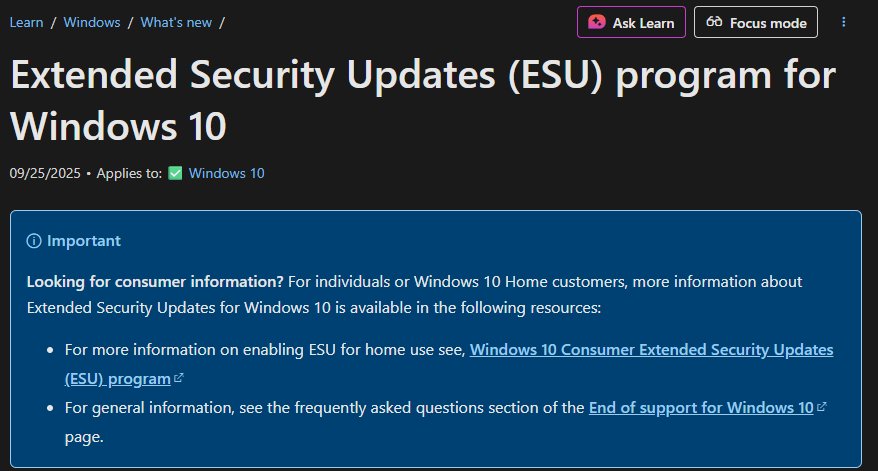
If upgrading right now isn’t possible, Microsoft is offering a lifeline: the Extended Security Updates (ESU) program.
What ESU gives you?
- Security patches (but not feature updates or noncritical fixes)
- Extra time (until October 2026) to plan your eventual migration
- A buffer period so you don’t have to rush into an upgrade that could break things
How to enroll?
You can enroll your Windows 10 PC via the built-in wizard in Windows Update settings:
- Go to Settings > Update & Security > Windows Update
- Look for an Enroll or Extend support notification/option
- Follow the prompts to activate ESU, using one of the methods below
You may need to:
- Be signed in with a Microsoft account
- Back up your PC to OneDrive or sync settings
- Pay a fee (in markets where free enrollment is not offered)
- Or redeem Microsoft Rewards points
Microsoft has made this enrollment available in many regions already.
Limitations & considerations
- ESU only gives you security updates. No new features or general bug fixes.
- It’s a temporary solution, not a permanent fix.
- If your hardware is really outdated, ESU might slow future migration anyway.
- You’ll still want to plan the jump to Windows 11 (or an alternate OS) before the ESU period ends.
Option 3: Switch to an alternative OS
If your PC is incompatible or you prefer to move away from Windows entirely, you could consider Linux distributions (Ubuntu, Fedora, etc.), or a lightweight OS like ChromeOS or specialized distros.
This path may involve difficult learning curves or software compatibility trade-offs (especially for specialized apps), but for many users, Linux can handle daily work, browsing, media, and more.
Common troubles & fixes
- “This PC can’t run Windows 11” message: likely fails hardware checks (TPM, CPU).
- Driver issues : post upgrade, some devices may need driver updates from manufacturer websites.
- Activation problems : typically, your Windows 10 license carries over.
- App incompatibility : Some older apps may not run properly on Windows 11; check vendor support ahead of time.
Microsoft also provides help pages for upgrade errors and installation issues.
After the Upgrade: What to Do Next
Once you’re running Windows 11, here are the steps to settle in:
- Run Windows Update to fetch the latest patches and driver updates.
- Reinstall or test your apps to confirm they behave normally.
- Explore new security features; Windows 11 includes built-in protections.
- Familiarize yourself with the interface, Start menu, Taskbar, center alignment, and new Settings layout.
- Set up backups, make sure File History or OneDrive backups continue.
- Keep a recovery drive handy, in case you need to troubleshoot later.
Also, if at any point things don’t go right, Windows 11 typically gives you a 10-day window to roll back to Windows 10 (if the upgrade was in place).
Will my PC suddenly stop working on October 14, 2025?
No. Windows 10 will continue to function, but without updates, security patches, or support. Over time, risks will increase.
Is the upgrade to Windows 11 free?
Yes, as long as your PC meets the hardware requirements. Microsoft does not charge for the upgrade.
Can I keep all my files and apps?
If you upgrade via official means, yes, generally you can keep your files, apps, and settings. But always back up first.
What if I have an older PC that can’t run Windows 11?
Your best option is to use ESU temporarily or consider replacing/upgrading your hardware. Custom/unsupported installs are possible but risky.
How long is ESU available?
Till October 2026. It provides a temporary solution, not a permanent fix.
Conclusion
Windows 10 support officially ends on October 14, 2025, marking an important transition for millions of users. While the OS will still function, it will no longer receive crucial updates, leaving systems vulnerable over time.
The best step is upgrading to Windows 11 if your hardware supports it, or using Extended Security Updates as a temporary bridge. Don’t delay, back up your files, explore your options, and plan your upgrade now to stay secure and future-ready.
Enjoyed this article?
If TechLatest has helped you, consider supporting us with a one-time tip on Ko-fi. Every contribution keeps our work free and independent.
Highlights
- Prepare early for Windows 10’s end of support to avoid security and compatibility issues.
- Upgrading to Windows 11 ensures long-term protection, stability, and better system performance.
- If your device can’t handle Windows 11, use ESU as a short-term safety net. But, if you want a permanent solution, then this guide is for you.
In just a few days, Microsoft will officially retire support for Windows 10. That means no more security patches, feature updates, or technical help for your current system.
But don’t panic, there are safe methods that you can use to secure your PC, get new features, etc.
Don’t want to miss the best from TechLatest ? Set us as a preferred source in Google Search and make sure you never miss our latest.
Here in this article, we will help you know why this matters, what the different options available are, and exactly how to upgrade or extend support for your Windows 10 PC. So, without any further ado, let’s get started with the guide.
Content Table
Why the End of Windows 10 Support Matters?
Here’s why this support end matters to Windows 10 users:
What’s changing in October 2025?
Microsoft has confirmed that October 14, 2025 , is the final day for Windows 10 support. After that, Microsoft will stop:
- Free security updates, bug fixes, and patches.
- Technical support for Windows 10 will end.
- The OS won’t suddenly stop working, but over time, it will become more vulnerable to malware, compatibility issues, and security threats.
- Some Microsoft 365 (Office) apps will also lose support on Windows 10.
This means you can still use your current system running on Windows 10 after support ends, but without any security updates.
What are the risks?
- Security vulnerabilities : Hackers will always look for unpatched holes to enter. Without regular security patches, your system becomes an easier target.
- Software and hardware incompatibility : New apps or driver updates may no longer support Windows 10. Over time, you’ll face issues in installing newer tools.
- Loss of vendor support : Developers and hardware makers gradually dump old OS versions. Bugs or tweaks won’t get fixes.
- Compliance and regulation issues : In some organizations or industries, running an unsupported OS may violate compliance or auditing requirements.
Because of these risks, moving off Windows 10 (or extending its security life) should be a priority now for users.
What to Choose: Upgrade, Extend, or Change Course?
When facing Windows 10’s end of life, you basically have three broad paths:
- Upgrade your PC to Windows 11 (if compatible)
- Enroll in Extended Security Updates (ESU) for Windows 10
- Switch to an alternative OS (Linux, etc.)
Let’s check out each option that you have:
Option 1: Upgrade to Windows 11 (Preferred for most users)
This is Microsoft’s recommended method, and for good reason: you get continued support, new features, and better security built into the system.
Check hardware compatibility
Before doing anything, see if your PC meets the minimum requirements for Windows 11. Some of the key ones:
- A compatible 64-bit processor
- 4 GB RAM (or more)
- 64 GB+ storage
- TPM 2.0 (Trusted Platform Module) enabled
- UEFI firmware, Secure Boot capable
Microsoft offers a “PC Health Check” app, which helps determine whether your system is eligible.
Many modern PCs (especially those made in the past 5-7 years) will pass these checks, but older ones may fail due to missing TPM support or outdated processors.
Backup your data first
Upgrades are generally smooth if everything goes well, but you never know. Before you begin:
- Back up all your personal files (Documents, Photos, Desktop, etc.).
- Make a system image or full disk backup if possible.
- Make note of any apps you need to reinstall, license keys, etc.
Update Windows 10 Fully
Ensure your current Windows 10 installation is up to date (latest cumulative updates installed). Sometimes the Windows 11 upgrade won’t show up unless your system is fully patched.
Use Windows Update (most straightforward route)
If your device is compatible, Microsoft may offer Windows 11 via Windows Update:
- Go to Settings > Update & Security > Windows Update
- Click Check for updates
- If the upgrade offer appears, click Download and install
- Accept the license terms, restart when asked, and let it do its thing
This is the easiest route as your files, settings, and most apps remain in place.
Use the Installation Assistant or ISO (manual path)
If Windows Update doesn’t offer the upgrade yet, or you want to do it:
- Use the Windows 11 Installation Assistant from Microsoft’s official site. It checks compatibility and guides you.
- Or, download the Windows 11 ISO , mount it, and run Setup.exe from within Windows. This will let you upgrade in place (keeping files and apps) if your system passes compatibility checks.
Here is how you can download latest Windows 11 ISO .
During setup, make sure “Keep personal files and apps” is selected (if available). It may take longer than typical Windows 10 feature updates, so have patience.
What if your PC isn’t eligible?
If your hardware fails the compatibility test (TPM missing, unsupported CPU, etc.), you have a few workaround possibilities, but tread carefully:
- Some advanced tools (like modified installers) may let you bypass checks, but you risk instability or missing updates.
- Staying on Windows 10 with ESU (see next) may be safer if your hardware is older.
- In some cases, upgrading hardware (e.g., installing a newer motherboard or TPM module) is an option.
- Or, you can install modified and trimmed Windows 11 like Ghost Spectre , Tiny11 , AtlasOS11 .
Read : Installing Windows 11 24H2 on Unsupported PC
Option 2: Extended Security Updates (ESU) for Windows 10
If upgrading right now isn’t possible, Microsoft is offering a lifeline: the Extended Security Updates (ESU) program.
What ESU gives you?
- Security patches (but not feature updates or noncritical fixes)
- Extra time (until October 2026) to plan your eventual migration
- A buffer period so you don’t have to rush into an upgrade that could break things
How to enroll?
You can enroll your Windows 10 PC via the built-in wizard in Windows Update settings:
- Go to Settings > Update & Security > Windows Update
- Look for an Enroll or Extend support notification/option
- Follow the prompts to activate ESU, using one of the methods below
You may need to:
- Be signed in with a Microsoft account
- Back up your PC to OneDrive or sync settings
- Pay a fee (in markets where free enrollment is not offered)
- Or redeem Microsoft Rewards points
Microsoft has made this enrollment available in many regions already.
Limitations & considerations
- ESU only gives you security updates. No new features or general bug fixes.
- It’s a temporary solution, not a permanent fix.
- If your hardware is really outdated, ESU might slow future migration anyway.
- You’ll still want to plan the jump to Windows 11 (or an alternate OS) before the ESU period ends.
Option 3: Switch to an alternative OS
If your PC is incompatible or you prefer to move away from Windows entirely, you could consider Linux distributions (Ubuntu, Fedora, etc.), or a lightweight OS like ChromeOS or specialized distros.
This path may involve difficult learning curves or software compatibility trade-offs (especially for specialized apps), but for many users, Linux can handle daily work, browsing, media, and more.
Common troubles & fixes
- “This PC can’t run Windows 11” message: likely fails hardware checks (TPM, CPU).
- Driver issues : post upgrade, some devices may need driver updates from manufacturer websites.
- Activation problems : typically, your Windows 10 license carries over.
- App incompatibility : Some older apps may not run properly on Windows 11; check vendor support ahead of time.
Microsoft also provides help pages for upgrade errors and installation issues.
After the Upgrade: What to Do Next
Once you’re running Windows 11, here are the steps to settle in:
- Run Windows Update to fetch the latest patches and driver updates.
- Reinstall or test your apps to confirm they behave normally.
- Explore new security features; Windows 11 includes built-in protections.
- Familiarize yourself with the interface, Start menu, Taskbar, center alignment, and new Settings layout.
- Set up backups, make sure File History or OneDrive backups continue.
- Keep a recovery drive handy, in case you need to troubleshoot later.
Also, if at any point things don’t go right, Windows 11 typically gives you a 10-day window to roll back to Windows 10 (if the upgrade was in place).
Will my PC suddenly stop working on October 14, 2025?
No. Windows 10 will continue to function, but without updates, security patches, or support. Over time, risks will increase.
Is the upgrade to Windows 11 free?
Yes, as long as your PC meets the hardware requirements. Microsoft does not charge for the upgrade.
Can I keep all my files and apps?
If you upgrade via official means, yes, generally you can keep your files, apps, and settings. But always back up first.
What if I have an older PC that can’t run Windows 11?
Your best option is to use ESU temporarily or consider replacing/upgrading your hardware. Custom/unsupported installs are possible but risky.
How long is ESU available?
Till October 2026. It provides a temporary solution, not a permanent fix.
Conclusion
Windows 10 support officially ends on October 14, 2025, marking an important transition for millions of users. While the OS will still function, it will no longer receive crucial updates, leaving systems vulnerable over time.
The best step is upgrading to Windows 11 if your hardware supports it, or using Extended Security Updates as a temporary bridge. Don’t delay, back up your files, explore your options, and plan your upgrade now to stay secure and future-ready.
Enjoyed this article?
If TechLatest has helped you, consider supporting us with a one-time tip on Ko-fi. Every contribution keeps our work free and independent.
